TABLE OF CONTENTS
- Application Registrations for ILAP Analytics
- 1. Create UI Application Registration
- 2. Create API Application Registration
- 3. Define Application Roles
- 4. Expose API
- 5. Add API Permissions to UI App
- 6. Add Desktop Platform for IDE Client
- 7. Assign Application Owners
- 8. Add Users to Enterprise Applications
- Checklist
Application Registrations for ILAP Analytics
This guide explains how to configure application registrations for ILAP Analytics in your Corporate Entra ID. These registrations enable authentication, authorization, and API connectivity between the ILAP Analytics components.
1. Create UI Application Registration
Follow these steps to register the user interface (UI) application:
Go to App Registrations in your Corporate Entra ID
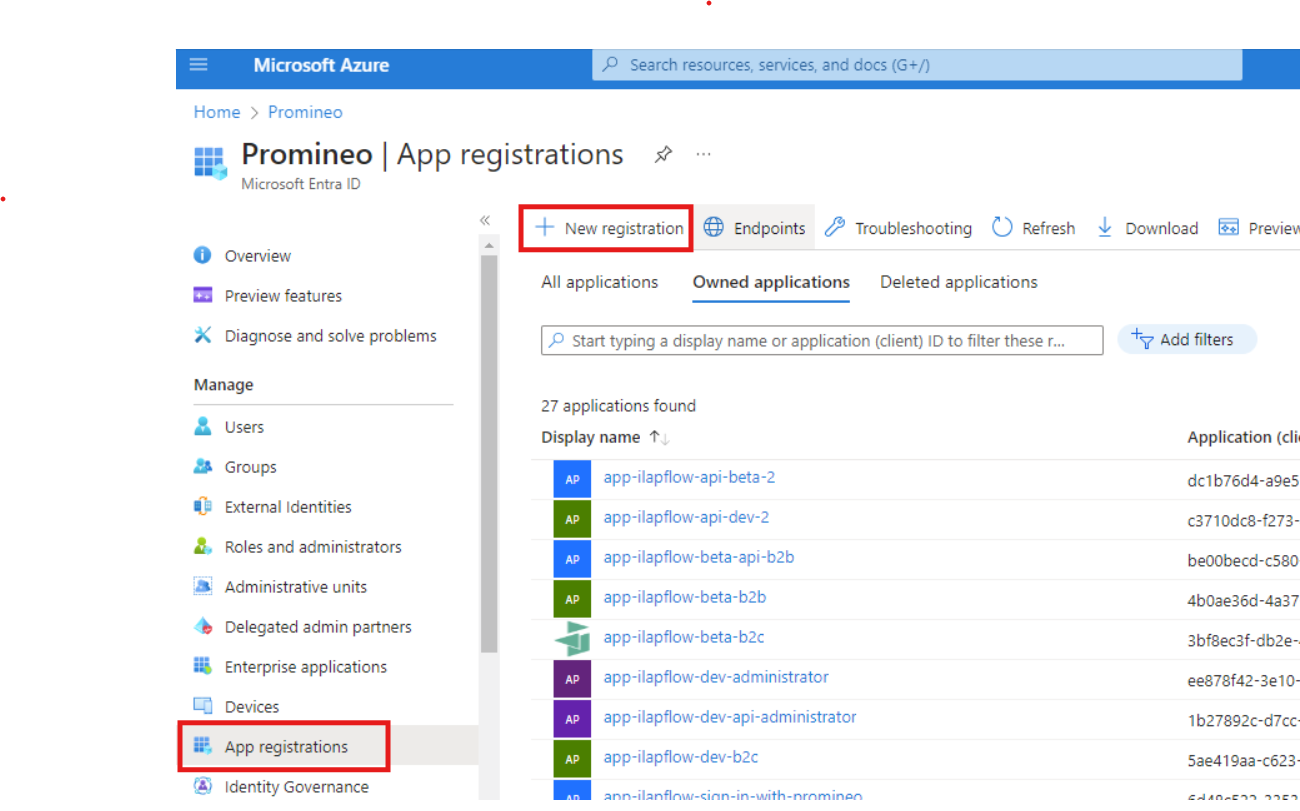
Click New Registration.
Enter a name for the application and select:
Accounts in this organizational directory only.
For the Redirect URI, select Single-page application and enter your web application’s URL.
Additional Configuration:
Click Authentication in the left menu, the click Add a platform and configure settings.
Enable Public client follow in the platform settings.
2. Create API Application Registration
Register the API application for backend operations:
Go to App Registrations in your Corporate Entra ID.
Click New Registration.
Enter a name for the API application and select:
Accounts in this organizational directory only.
3. Define Application Roles
Add roles to manage permissions for different user groups:
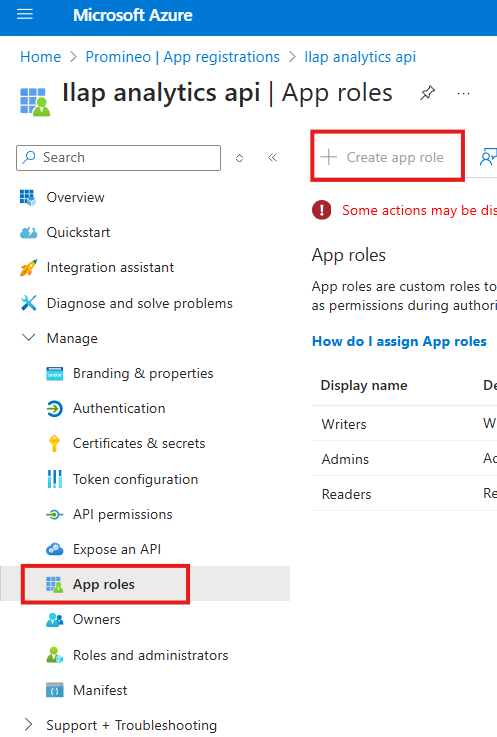
Navigate to the API Application Registration.
Select App Roles from the left menu and create and enable
the following roles:
Display name
Value
Description
Allowed member types
Admins
Administrator
Can read/write data and manage metadata.
Users/Groups
Writer
DataWriter
Can write data but cannot modify metadata.
Both (Users/Groups + Appications)
Reader
DataReader
Can only read data.
Both (Users/Groups + Appications)
4. Expose API
Expose the API to enable connectivity between the UI and backend:
Navigate to Expose an API.
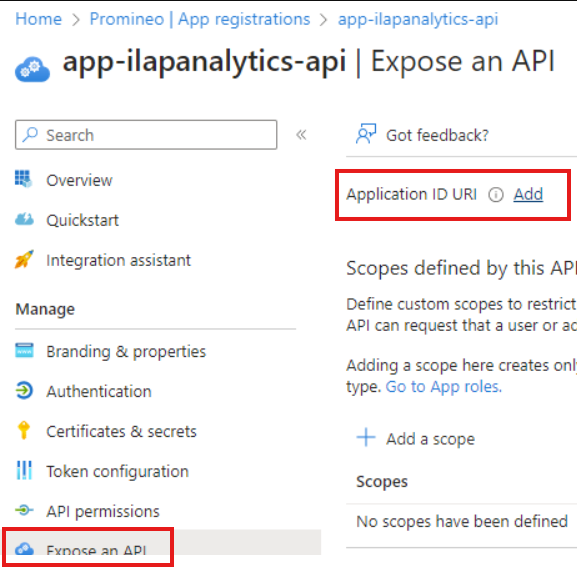
Add an Application ID URI:
Click Add and use the default value. Click save.
Add API Scopes:
user_impersonation: Allows the UI to act on behalf of signed-in users.
read: Grants read-only access.
Scope name
Who can consent?
Admin consent display name
Admin consent description
User consent display name
User consent description
State
user_impersonation
Admins and users
Access ilap-ilapanalytics-api-dev
Allow the application to access app-ilapanalytics-api-dev on behalf of the signed-in user.
Access ilap-ilapanalytics-api-dev
Allow the application to access app-ilap-analytics-api-dev on your behalf.
Enabled
read
Admins and users
Read ilap analytics data
Read ilap analytics data
Read ilap analytics data
Read ilap analytics data
Enabled
5. Add API Permissions to UI App
Grant API access to the UI application:
Go to the UI Application Registration.
Select API Permissions > Add a permission.
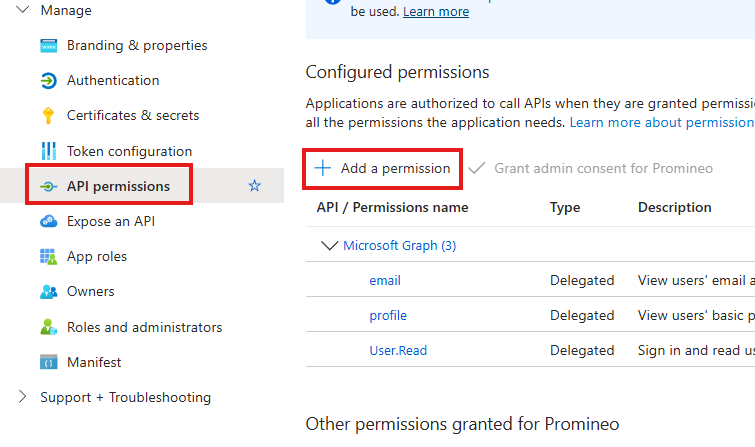
Choose APIs my organization uses and find the API you just registered.
Assign delegated permissions:
user_impersonationThis allows the UI to access the API on behalf of users.
Adding Microsoft Graph Permissions:
Under API Permissions, click Add a permission → Microsoft Graph → Delegated Permissions.
Select:
email: Access user email addresses.offline_access: Maintain access to data you have given access toopenid: Enable user sign-in.profile: Access user basic profile information.
Adding API Permission for UI
Under API Permissions, click Add a permission → APIs my organization uses and select the API you exposed in step 4.
Select:
readuser_impersonation
Click Grant admin consent to approve these permissions for all users in your organization.
Granting admin consent ensures seamless access for all users without manual approvals during sign-in.
6. Add Desktop Platform for IDE Client
If using the IDE desktop client (e.g., ILAP Adapter), configure the redirect URI:
Go to the UI Application Registration.
Under Authentication, add a new platform:
Select Mobile and Desktop Applications.
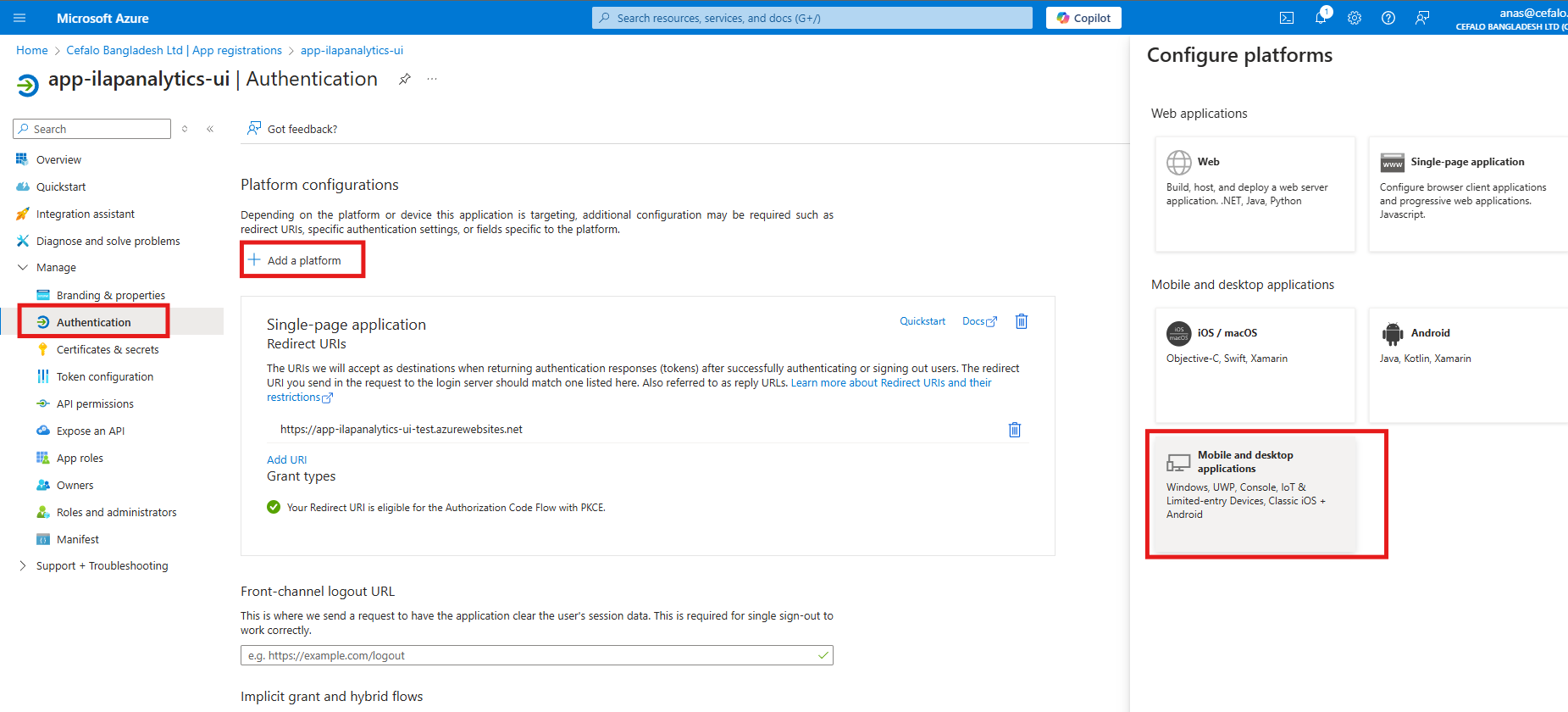
Add the redirect URI:
http://localhost/oauth2/callback.
7. Assign Application Owners
To ensure proper management, assign owners to the applications:
Go to the Application Registration Overview.
Select Owners > Add Owners.
Choose at least one (preferably two) permanent employee.
8. Add Users to Enterprise Applications
Grant users or groups access to the application:
Go to Enterprise Applications in Entra ID.
Search for the API application (e.g., "ILAP Analytics API").
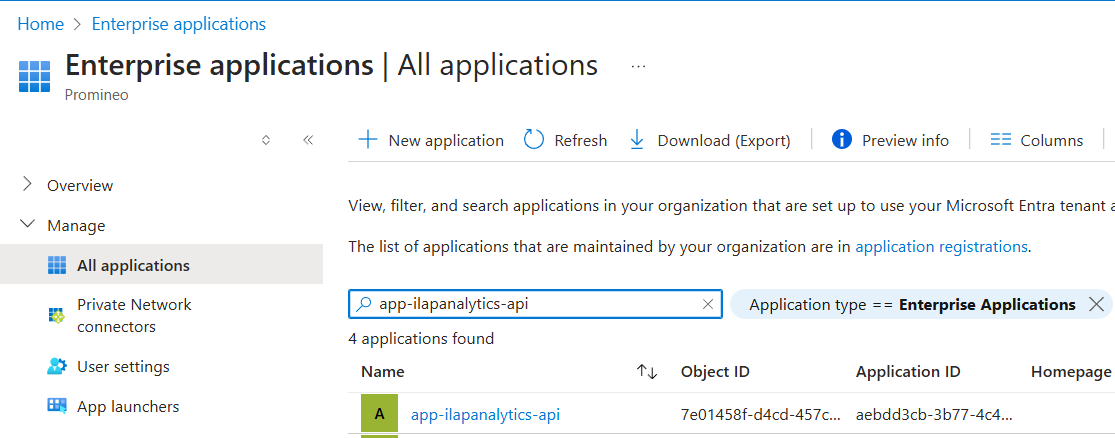
Select Users and Groups > Add User/Group.
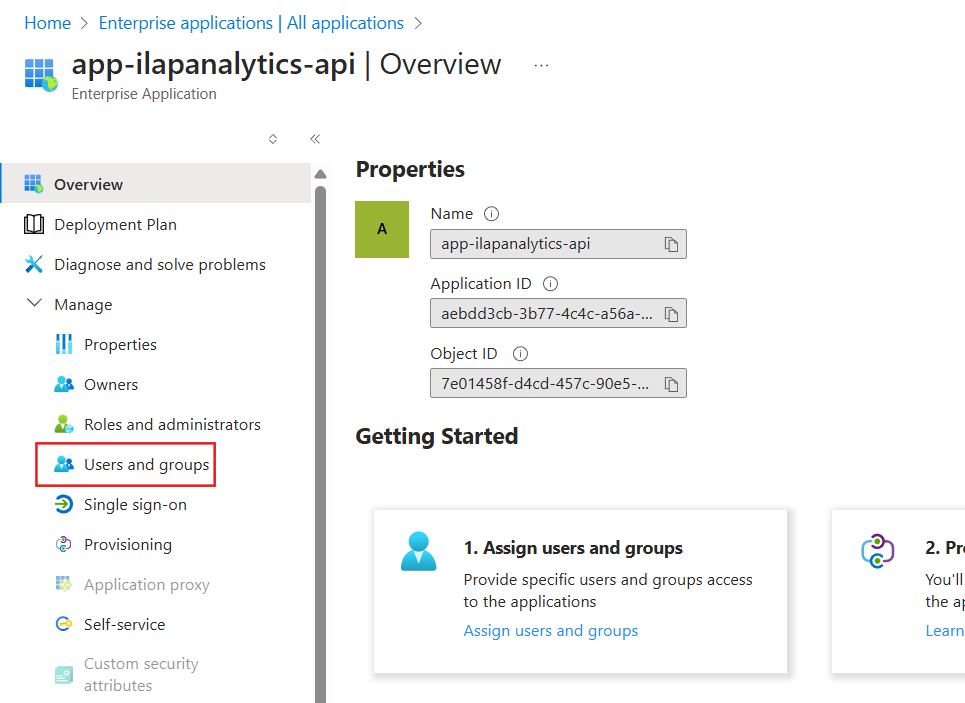
Assign users or groups to one of the defined roles (Admins, Writers, Readers).
Checklist
Registered UI and API Applications in Entra ID.
Defined App Roles for Admins, Writers, and Readers.
Exposed API and configured API Scopes.
Added API permissions to the UI application and granted admin consent.
Configured a desktop platform (if applicable).
Assigned application owners and added users/groups.
Was this article helpful?
That’s Great!
Thank you for your feedback
Sorry! We couldn't be helpful
Thank you for your feedback
Feedback sent
We appreciate your effort and will try to fix the article