ILAP Analytics runs many background jobs whenever a report schedule is created, revised, reverted, archived, or deleted. The Hangfire dashboard gives you insight into these jobs so you can confirm they are completing and diagnose any that fail or stall. This page explains what the dashboard is, how to reach it, and how to verify job processing both from the web UI and from the dashboard itself. It is written for the IT administrator operating an ILAP Analytics installation.
What is the Hangfire dashboard
The hangfire dashboard is a dashboard that gives us insight about the recurrent jobs, current and past jobs that happened. In Ilap Analytics, several background jobs are triggered on each action related to report schedule. For example
- Creating a revision of a report schedule
- Reverting a revision
- Archiving a report schedule
- Deleting a report schedule
These are heavy operations which enqueues several backround jobs in order to be finished. With the hangfire dashboard you can get the insight into these background jobs.
Accessing the Dashboard
- Prerequsite: Make sure the user to access the dashboard has access to organization network or the netowrk on which hangifre is hosted.
- Go to the url {dashboardBaseUrl}/jobs
- Enter the user name and the password (will be shared with you in separate channel)
Verification from the web ui
After importing a report schedule, go to the the report schedule using the web ui.
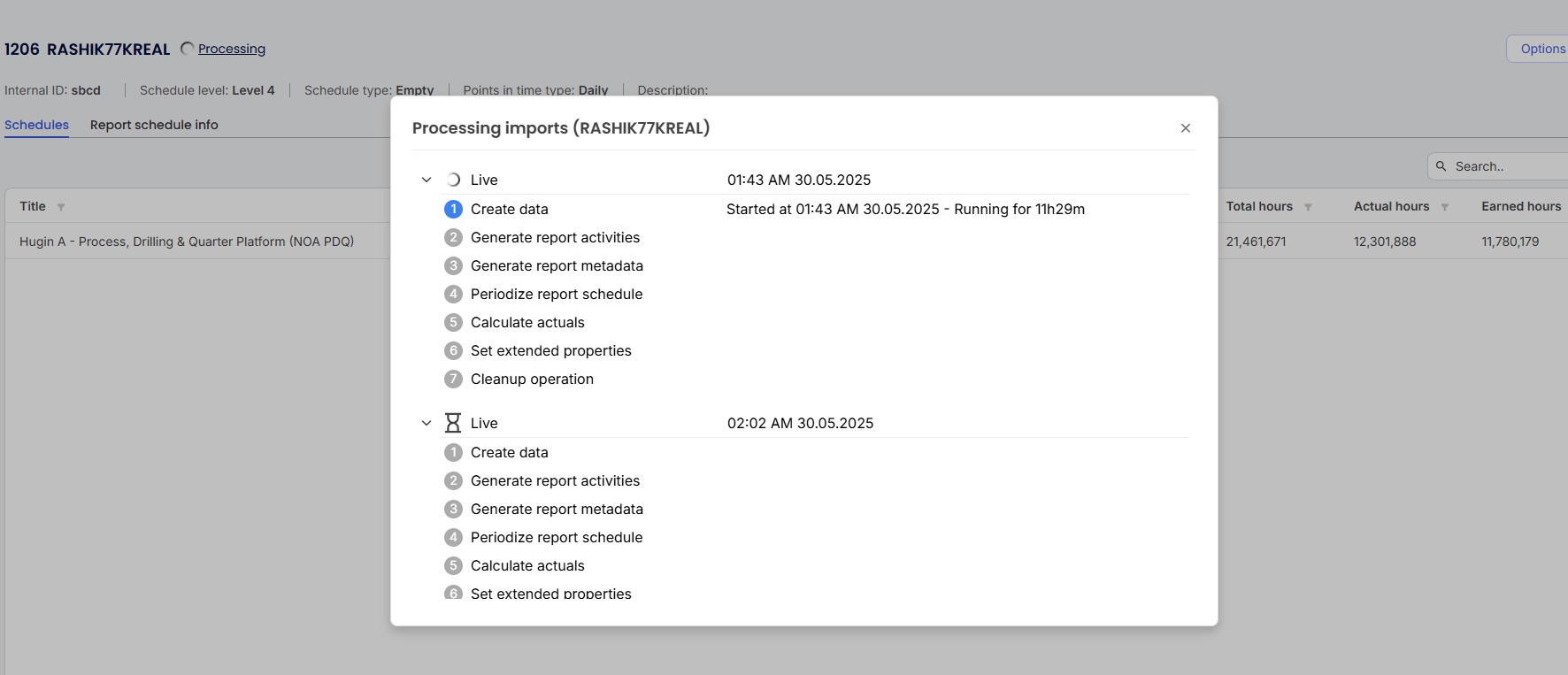
From the screenshot here, you can see that the report schedule is still being processed and one of the jobs is running for more than 11 hours. That means there is something wrong with your background job. When all the jobs are done running. there will be no “Processing” text beside the header of the report schedule like the screenshot below

Verifying through the hangfire dashboard
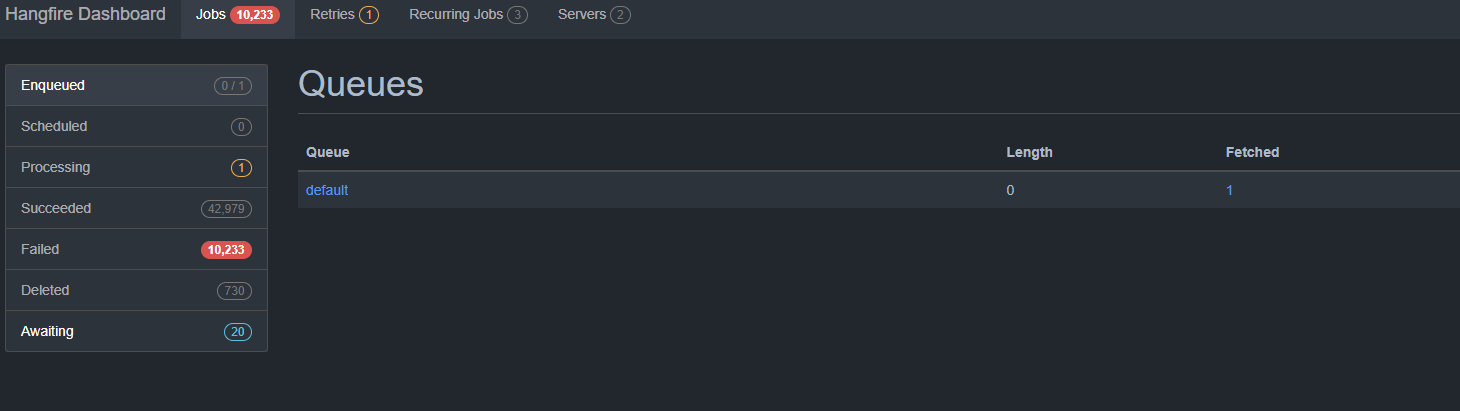
Go to the dashboard url (mentioned in the previous section), and check for if the jobs are being successful or failed.
Was this article helpful?
That’s Great!
Thank you for your feedback
Sorry! We couldn't be helpful
Thank you for your feedback
Feedback sent
We appreciate your effort and will try to fix the article