Table of contents
- Introduction
- 1. Permissions
- 2. Key Prerequisites
- 3. Step-by-Step Configuration
- 4. Checklist Before Installation
- 5. Notes and Recommendations
Introduction
This document outlines the necessary permissions, configurations, and resources required before installing ILAP Analytics in your corporate Azure environment.
1. Permissions
To install resources, ensure you have the following permissions in your Azure subscription:
Contributor Role: For your Azure subscription (preferred) or the specific resource group where resources will be deployed.
Application Developer Role in Azure AD: Required for registering and managing applications in Azure AD for authentication and authorization.
2. Key Prerequisites
The following components must be in place before installation:
Azure Key Vault:
Store an SSL certificate in a Key Vault accessible by your account and Azure applications.
Permissions for the Key Vault must include access policies for your user and the application.
Custom Domain:
Use a custom domain for Azure resources to avoid the default
azurewebsites.net, which is often blocked by corporate firewalls.Set up DNS CNAME records for your web applications to map to the custom domain.
SSL Certificate:
Ensure you have an SSL certificate for the custom domain.
Upload the certificate to the Azure Key Vault.
DNS Configuration:
Add the necessary CNAME records for your custom domain to point to your Azure resources.
If you lack any of these, please follow the next step-by-step configuration in the next paragraph.
3. Step-by-Step Configuration
Set Up a Resource Group:
Create a new resource group or use an existing one in the target region.
Instructions:
Log in to the Azure portal.
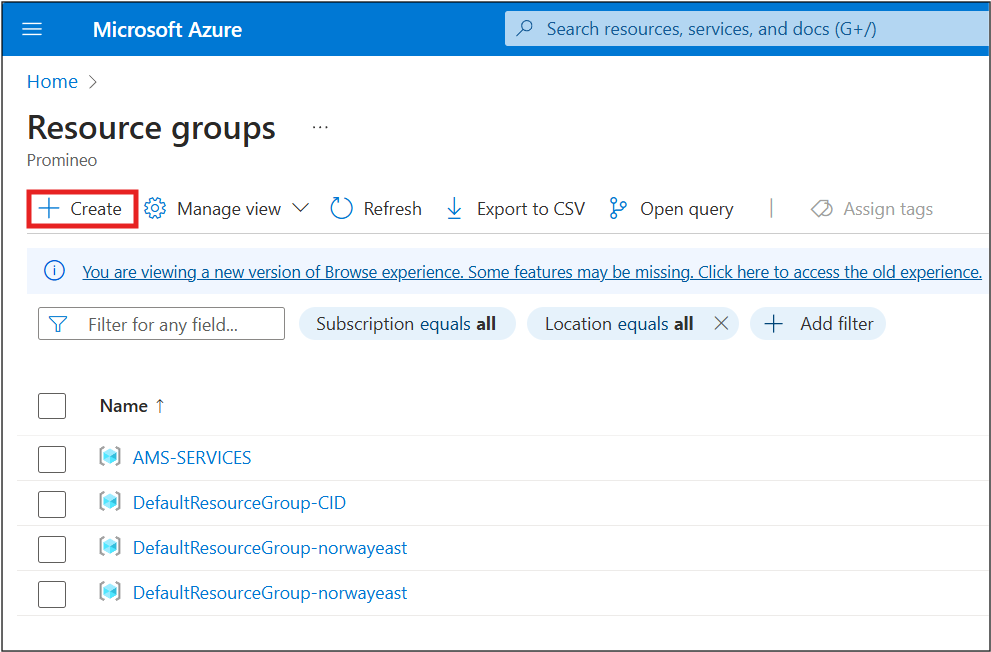
Search for "Resource Groups" and click "Create."
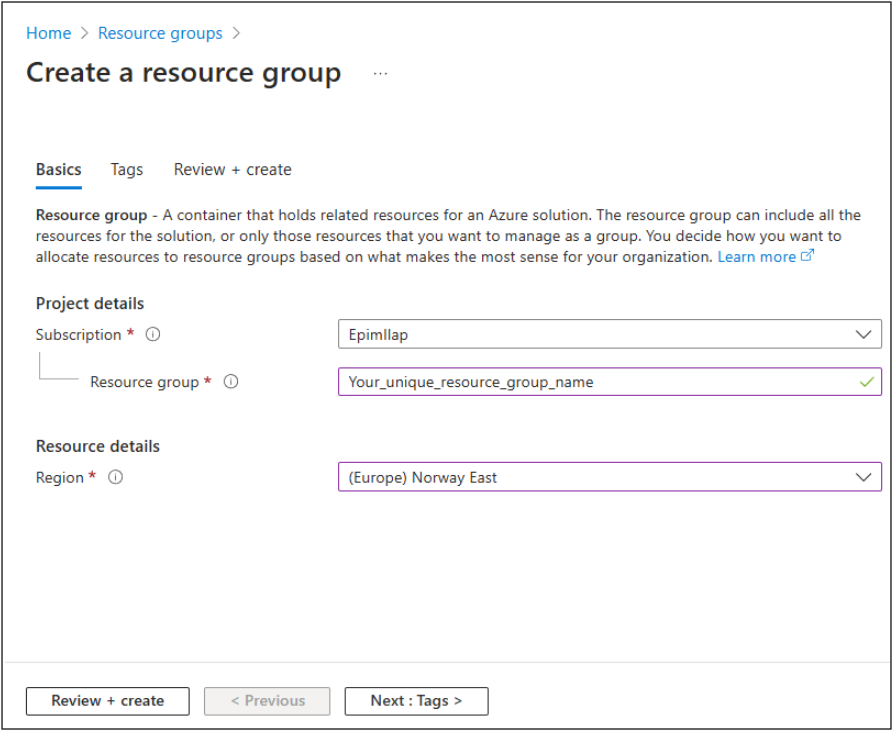
Select your subscription, provide a name, and choose a region. Click Review + Create. NB: Take note of the resource group name.
Create an Azure Key Vault:
Use the resource group you just created to set up a Key Vault.
Instructions:
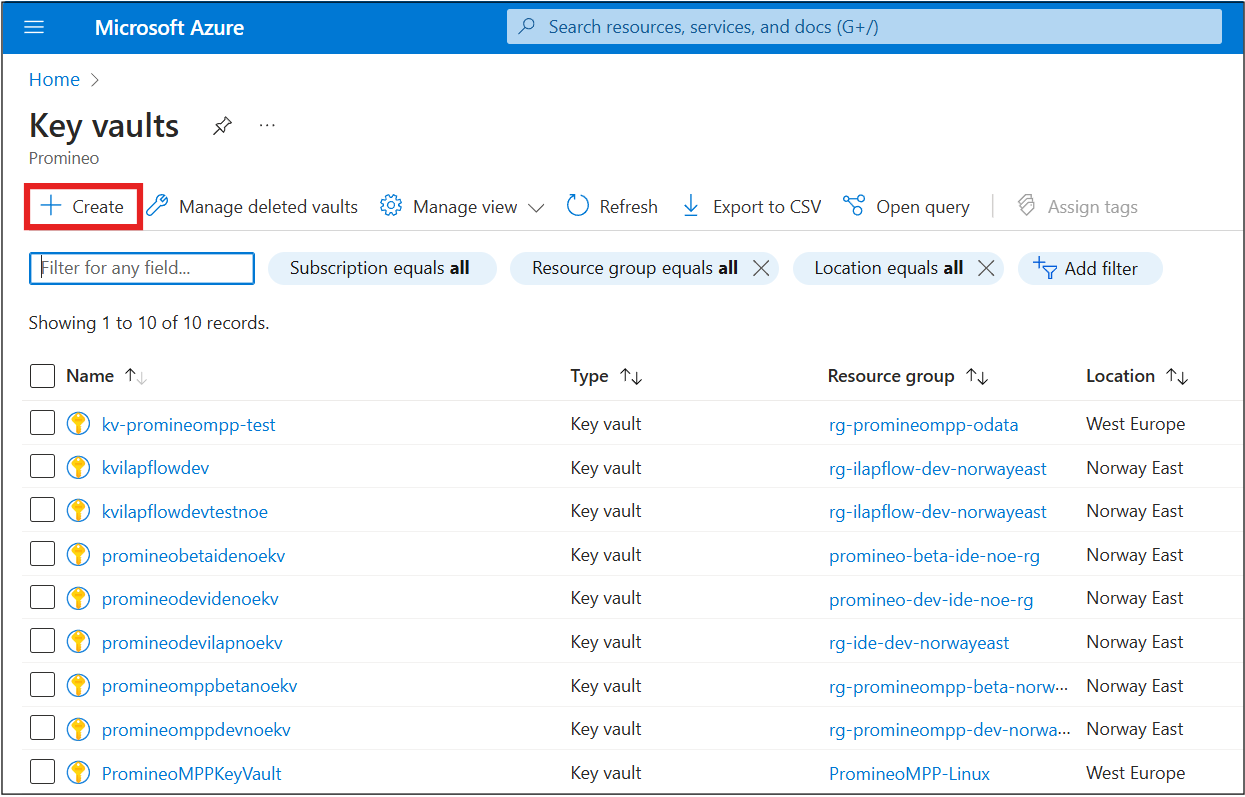
Search for "Key Vaults" in the Azure portal and click "Create."
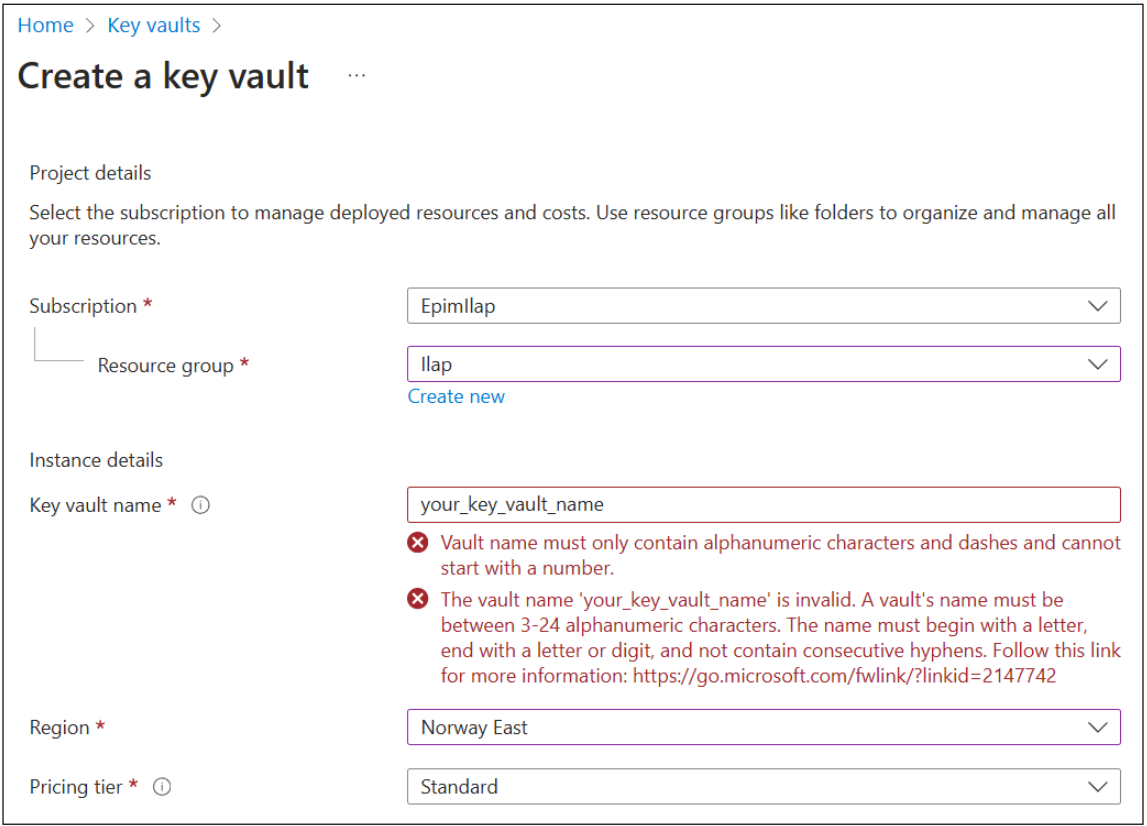
Assign a unique name and ensure it’s in the same region as your resource group.
The name must contain 3-24 alphanumeric characters. It can contain dashes, but not in a row and not as the final character. The name must start with a letter.
Add Access Policies:
You need an to add access policies for both you and Azure App services. To create an access policy, click on Access policies in the left menu, and click Create.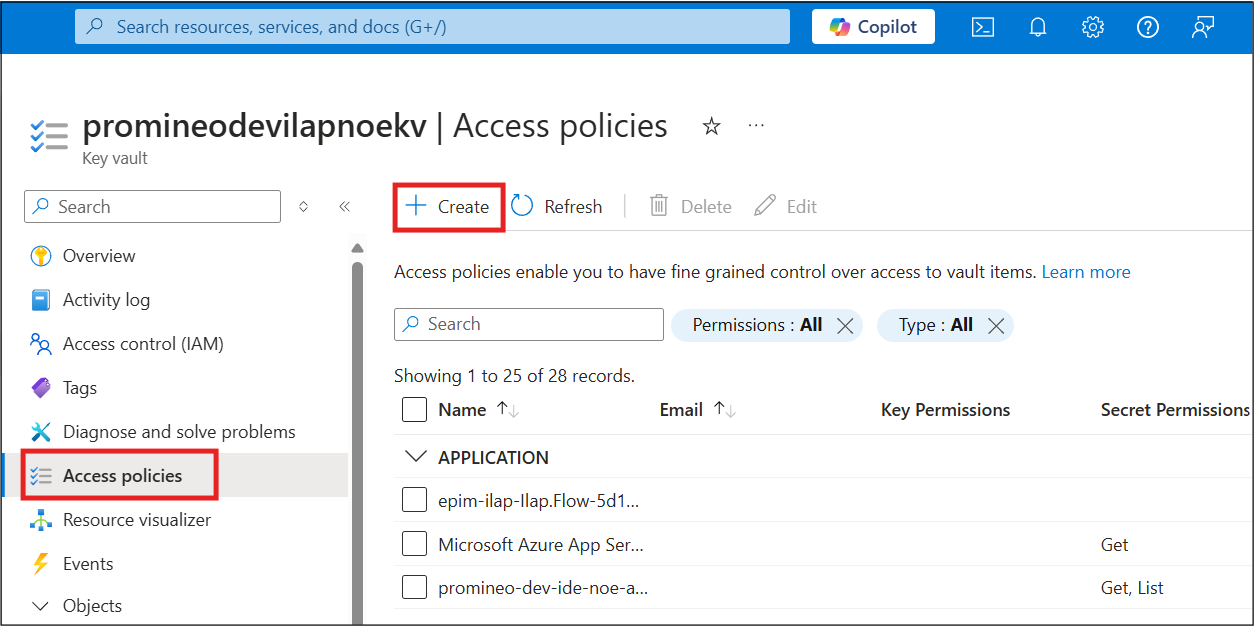
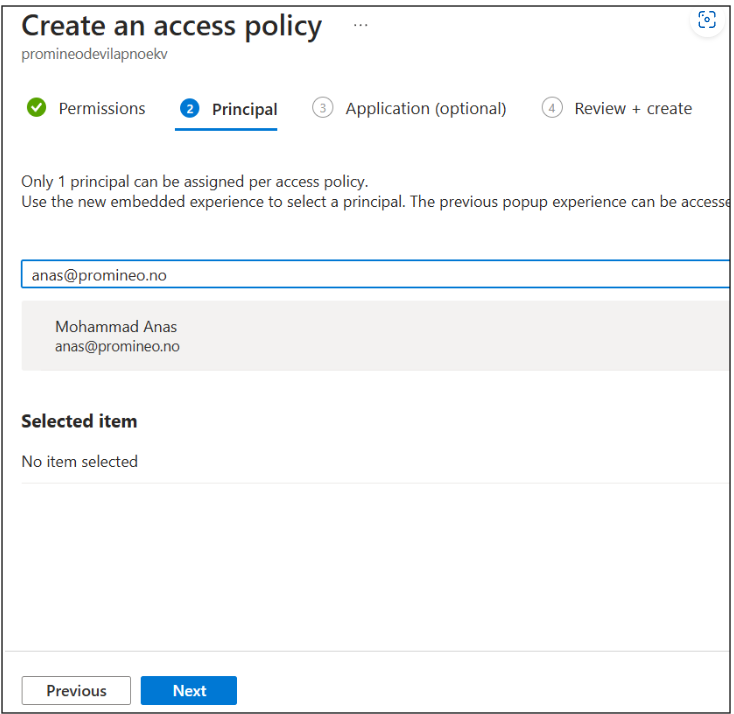
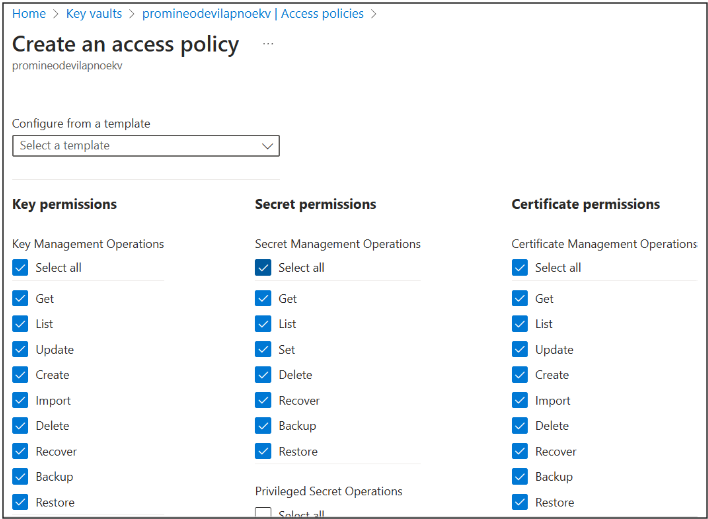
For your user account: Grant full access, add yourself as principal, skip step 3 in the wizard, and create.
- For Azure App Services: Grant "Get" access for secrets and certificates, select Microsoft azure app service as principal, skip step 3 and create.
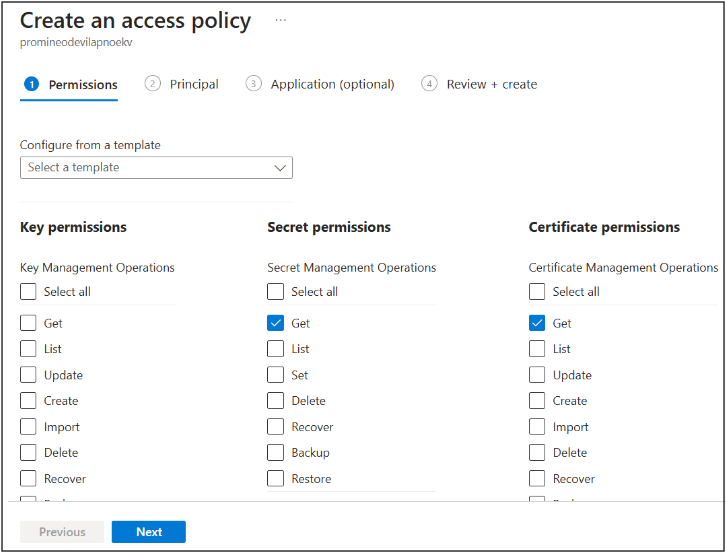
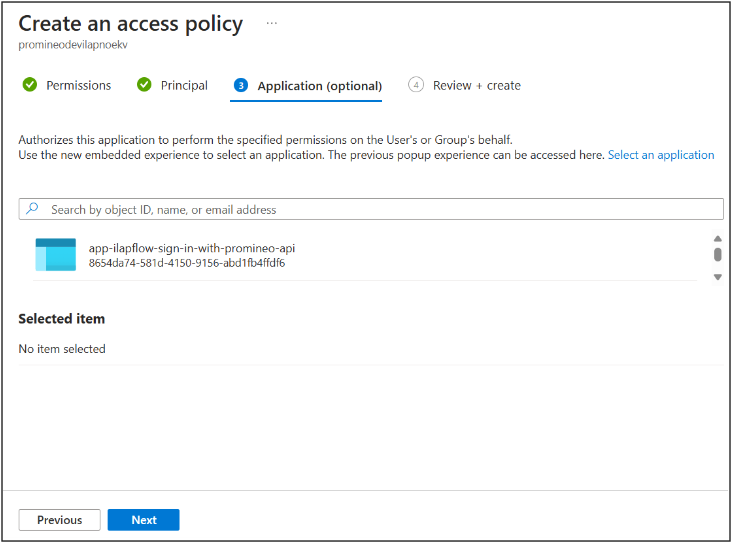
Select the app service shown in the screenshot.
Upload SSL Certificate to Key Vault:
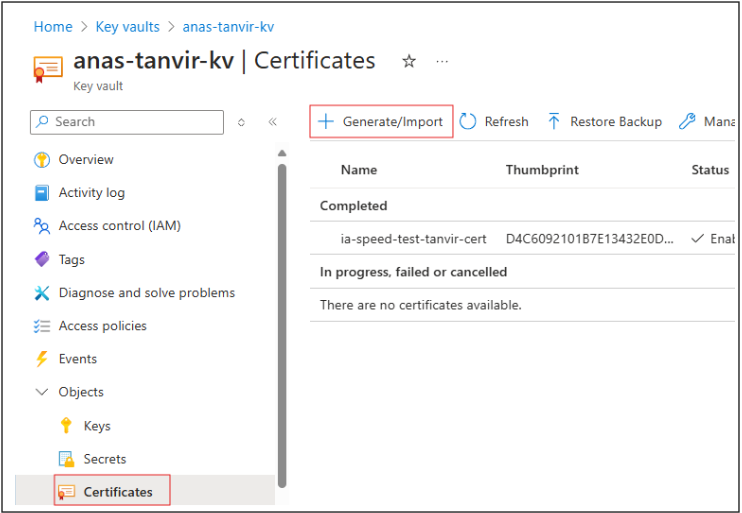
Navigate to your Key Vault and go to Certificates.
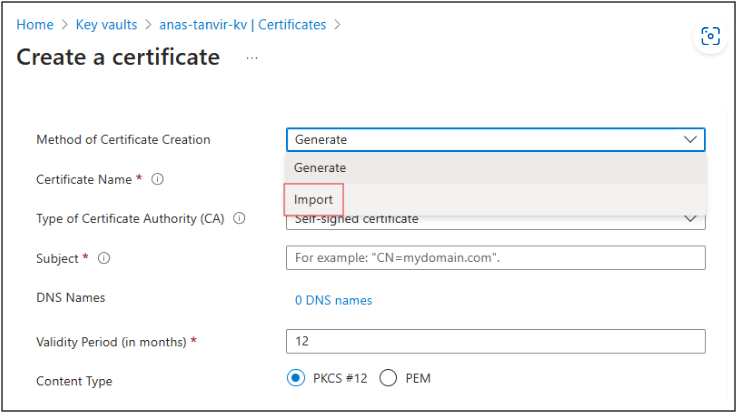
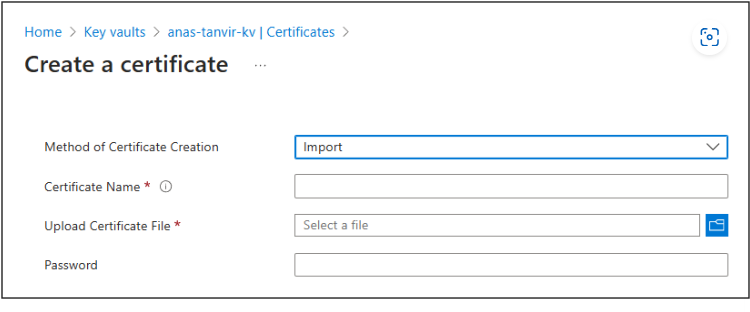
Click Generate/Import, select Import as method of Certificate Creation, and upload your SSL certificate.
Set Up Custom Domains:
Add CNAME records to your DNS provider to link your custom domain with Azure resources.
Example:
Map
app.yourdomain.comtoyourapp.azurewebsites.net.
4. Checklist Before Installation
Contributor Role or Resource Group Access in Azure Subscription
Application Developer Role in Azure AD
Custom Domain with DNS CNAME Records
SSL Certificate stored in Azure Key Vault
Resource Group and Key Vault in the correct region
5. Notes and Recommendations
Use the same region for all resources (Resource Group, Key Vault, App Services) to reduce latency.
Regularly monitor your Key Vault access policies to ensure compliance with corporate security standards.
For troubleshooting, ensure your DNS settings propagate correctly and verify access permissions in Azure AD.
Was this article helpful?
That’s Great!
Thank you for your feedback
Sorry! We couldn't be helpful
Thank you for your feedback
Feedback sent
We appreciate your effort and will try to fix the article