Introduction
This document guides you on how to install Analytics and register it as an application in your corporate Azure Subscription. Analytics runs in a corporate Azure environment, using Microsoft Entra ID for authentication and application roles for authorization. It provides project planners and analysts with tools to manage schedules, track changes, and gain actionable insights, while integrating into your existing IT ecosystem.
Disclaimer
This document describes installation of functional Azure resources only, no further protection of the resources is provided and it is up to you as an IT professional to add protection of these resources so that you follow your corporate guidelines. This may include but is not limited to:
- Web application firewall
- Application Gateway
- Virtual Network
- Private Network endpoints
- Application Insights
- Azure Monitor
- Microsoft Sentinel
- ...
Overview
Analytics is software intended to be installed in Corporate Azure and uses Entra ID for authentication and application roles for authorization. The figure below shows an overview of the required Azure resources excluding any additional resources you wish to add for added information security.
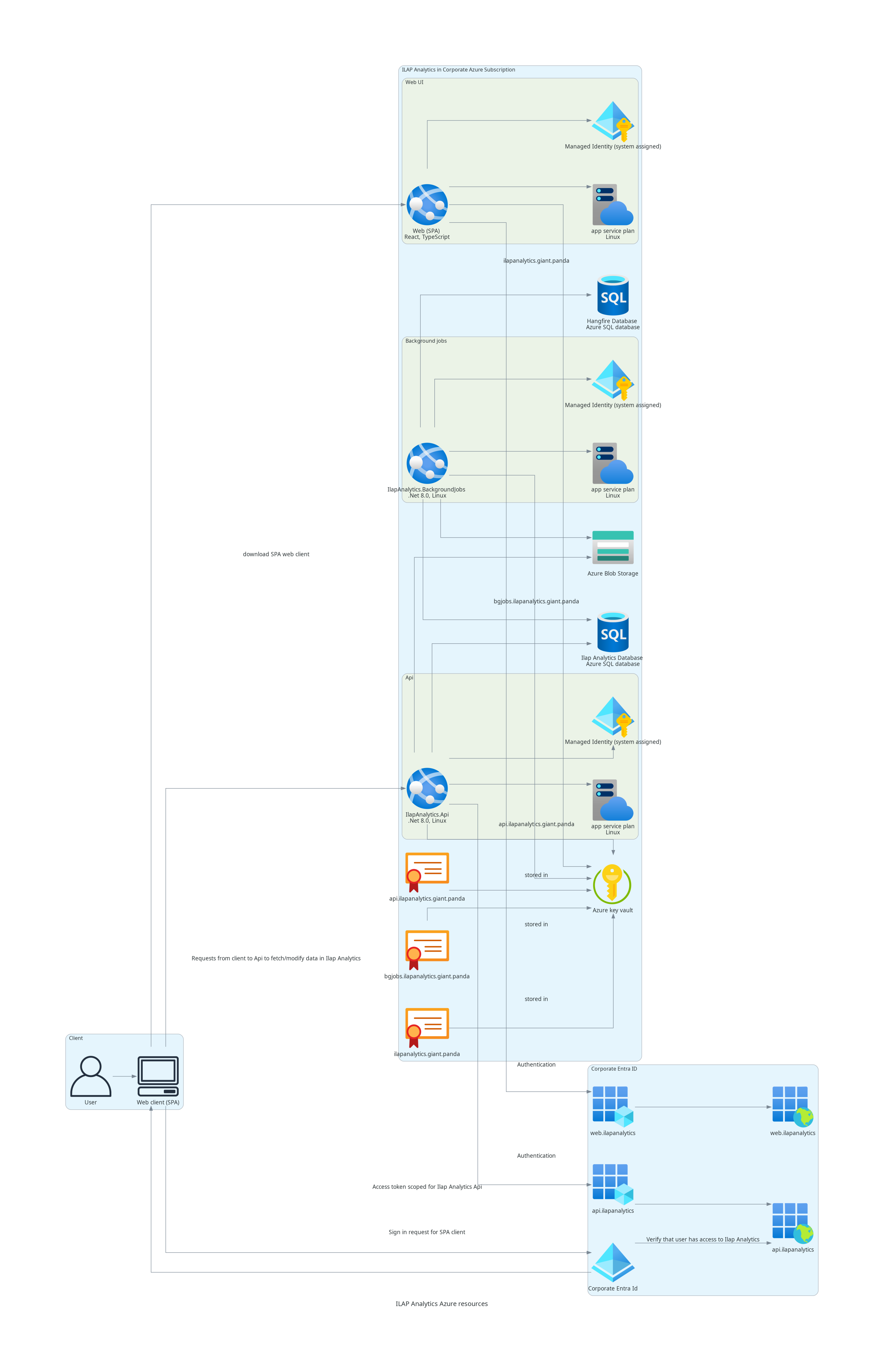
How Analytics integrates
The architecture integrates with your existing IT infrastructure while maintaining security and scalability. The figure above illustrates:
- User authentication: Users access the Analytics interface through a web client (SPA), authenticating via Microsoft Entra ID. Authentication tokens verify access rights to data and features.
- Resource management: Azure resources, including App Services and SQL databases, store, process, and deliver schedule-related data. These resources are managed through Bicep templates for consistent deployment.
- Secure data handling: Sensitive data and application secrets are stored in Azure Key Vault, ensuring compliance with corporate security policies.
- Data processing: Background jobs and APIs handle metrics generation, data processing, and reporting for efficient resource utilization.
- Extensibility: The architecture allows additional resources such as Virtual Networks, Web Application Firewalls, or Private Network Endpoints to enhance security and tailor deployments to your corporate needs.
Analytics in Corporate Azure Subscription
| Name | Type | Installed through .bicep | Publicly available | Port number |
|---|---|---|---|---|
| app-ilapanalytics-api | App Service | Y | Y | 443 |
| app-ilapanalytics-backgroundjobs | App Service | |||
| app-ilapanalytics-ui | App Service | Y | Y | 443 |
| dlailapanalyticsbeta | Storage account | Y | N | |
| plan-ilapanalytics | App Service plan | Y | N | |
| plan-ilapanalytics-ui | App Service plan | Y | N | |
| sql-ilapanalytics-noe | SQL server | Y | N | |
| sqldb-ilapanalytics-noe | SQL database | Y | Y/N | 1433, Public access only required if external systems will read from database |
Corporate Entra ID
| Name | Type | Installed through .bicep |
|---|---|---|
| app-ilapanalytics-api | App Registration | N |
| app-ilapanalytics-ui | App Registration | N |
| app-ilapanalytics-api | Enterprise Application | N |
| app-ilapanalytics-ui | Enterprise Application | N |
| Azure Key Vault | Key vault containing SSL Certificate | N |
Authentication and authorization
Analytics uses Microsoft Entra ID for secure authentication and authorization:
- App Registrations define how the UI and API components authenticate users.
- Enterprise Applications enable role-based access control (RBAC) for users and administrators.
- Azure Key Vault stores the SSL certificate securely to protect the application's endpoints.
Installation Instructions
Start with the Installation Overview — it explains what will be installed and why, the app registrations, and every permission the installation requires (useful when duties are split across teams). Then work through the steps below in order.
- Prerequisites for installing at customer's Azure — the permissions, custom domain, and SSL certificate needed to prepare your Azure environment.
- Application registrations — register the UI and API applications in Microsoft Entra ID for authentication and authorization.
- Configure bicep parameters — prepare the Bicep parameter file with values such as tenant IDs, client IDs, and custom domains.
- Deploy Azure Resources — deploy the infrastructure (App Services, SQL databases) using the Bicep parameter file.
- Install IlapAnalytics — deploy the API, Background Jobs, and UI applications.
- Protect the installed resources in accordance with your corporate standards.
Next steps
Once the applications are deployed, continue with the Analytics Documentation section, which covers operating and verifying your installation:
- Checklist after deployment — verify the API, background jobs, GraphQL, web UI, and time-phasing are all healthy.
- Securing Analytics — apply the network- and access-level hardening required by your corporate standards.
- User Permissions — assign the Reader, Writer, and Administrator roles to your users.
Conclusion
Analytics is a scalable and secure platform for managing schedule data in a corporate Azure environment. Once deployed, remember to add the security measures required by your organization's information security standards (see the disclaimer above).
Was this article helpful?
That’s Great!
Thank you for your feedback
Sorry! We couldn't be helpful
Thank you for your feedback
Feedback sent
We appreciate your effort and will try to fix the article