To deploy Azure resources (i.e. App services, Databases) you need to create a bicep parameter file. To prepare your parameter file, you need to find values for your parameters. Please follow following steps and note down parameter values.
Naming the resources
Most Azure resource names cannot be changed after creation, so decide the naming scheme before the first deployment rather than after. Renaming later means recreating the resource, which breaks connection strings and private endpoints and, for SQL and storage, moves data.
The deployment package ships a convention in Azure.IaC/NAMING.md, with the rules
enforced by Azure.IaC/Modules/naming.bicep:
<type>-<org>-<workload>-<env>-<region>

app-contoso-ia-api-test-noe        sql-contoso-ia-test-noe
app-contoso-ia-ui-test-noe         sqldb-analytics
app-contoso-ia-bg-test-noe         stcontosoiatestnoe
Type first, lowercase, hyphens — and the same tokens concatenated where the resource type forbids separators, as storage accounts do. Names are read left to right as what is it, whose is it, what does it serve, which environment, where.
Two points worth knowing before you fill anything in:
- A name only has to be unique within its scope. A database is scoped to its server,
so it is
sqldb-analytics, notsqldb-contoso-ia-test-noe-analytics. Repeating what the parent already fixed makes the name longer and gives the same fact a second place to be wrong. - Storage accounts and key vaults get 24 characters in total, lowercase and digits only for storage. These are the binding constraints — check them before choosing a long organisation code.
The shipped main.sample.bicepparam now derives every name from four tokens rather than
asking you to type each one:
var org = 'contoso'
var workload = 'ia'
var env = 'test'
var region = 'noe'
The examples further down this page show the resulting values. If you are adding a parameter file to an environment that already exists, keep its current names and do not re-derive them.
Step-1: Find your clientId, tenantId and audience
Go to Azure Entra ID.
Under overview tab, you'll find tenant Id. Please take note of the tenantId
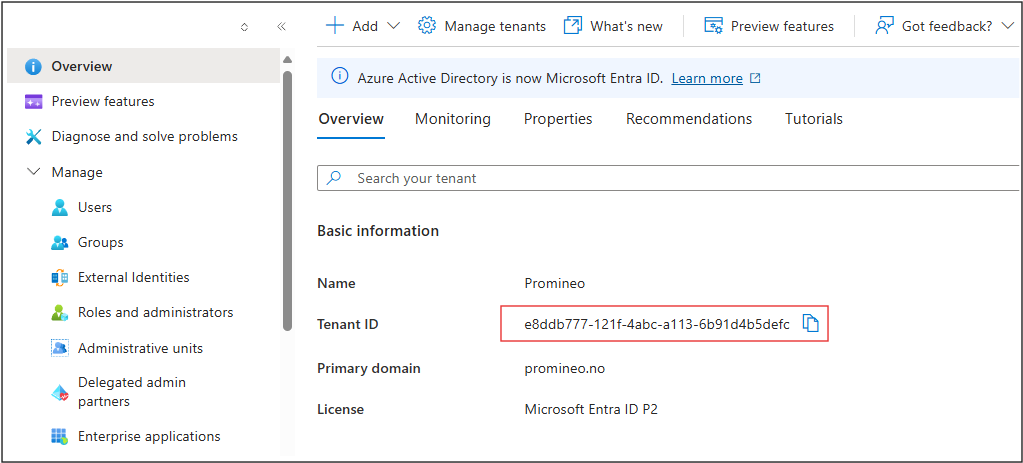
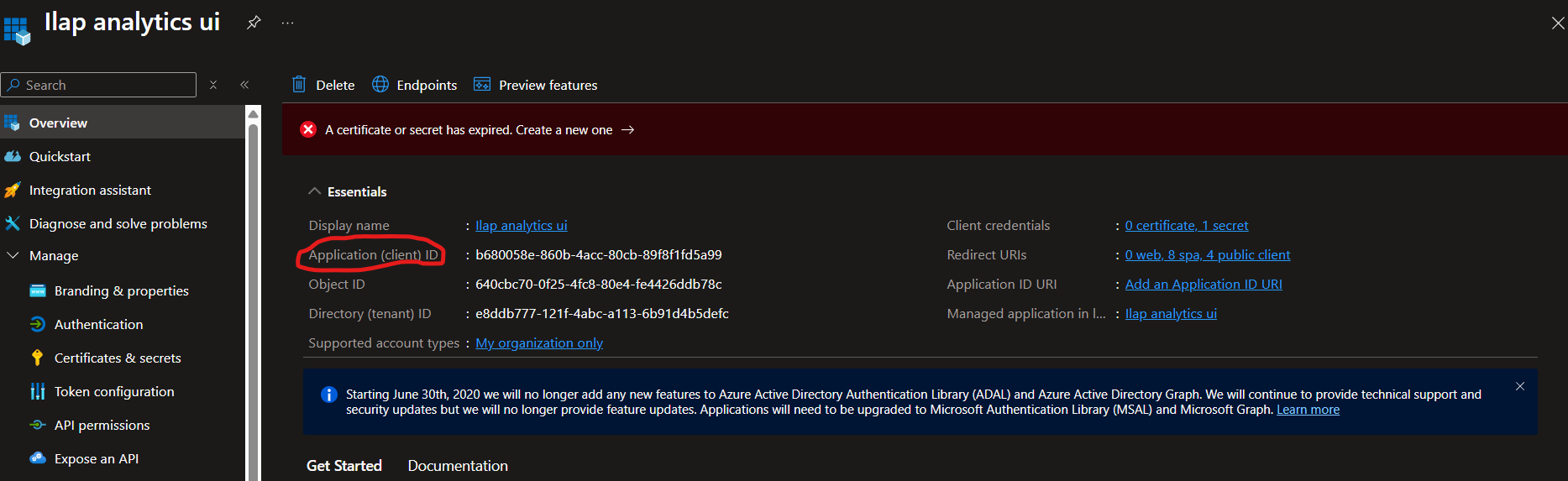
Then from left menu, click App registrations. Select All application tab, then find for your Analytics UI app registration. Please take note of the Application (client) ID. Then click on the app. (Similarly, take note of the Application (client) ID for the Analytics API app registration)
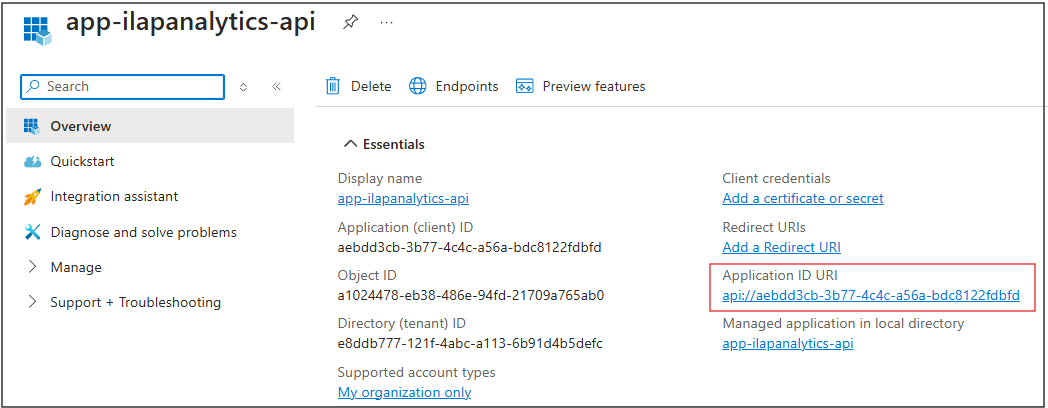
Go to the app registration for the API and copy the Application ID URI. Please take note of this value, because this is the value for your audience parameter
Step-2: Take note of custom domain related parameters
Please note down the names of resource group, key vault and certificates that you've used/created in this pre requisites step.
Now, please take note of custom domain name you've created in the pre-requisite step.
Step-3: Take note of parameters for SQL server admin
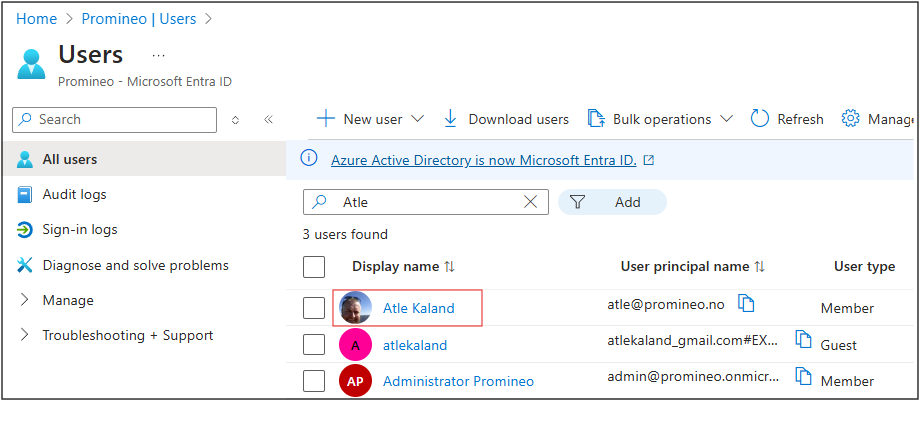
Go to Azure Entra ID
Then from left menu, click on Users.
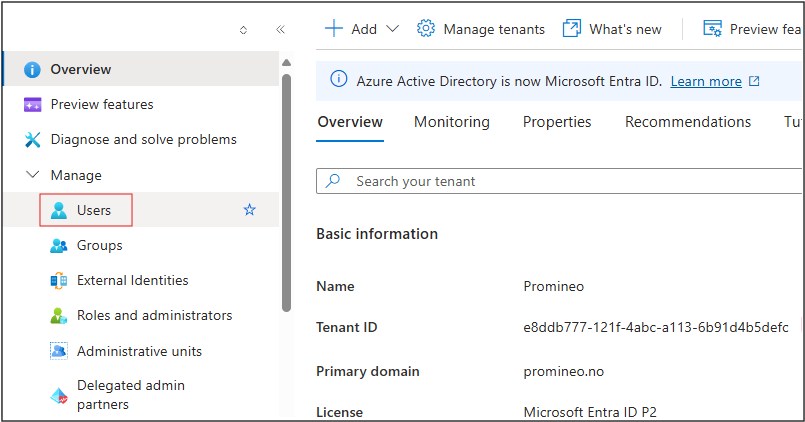
Search for the user who you want to be your SQL server Entra admin.
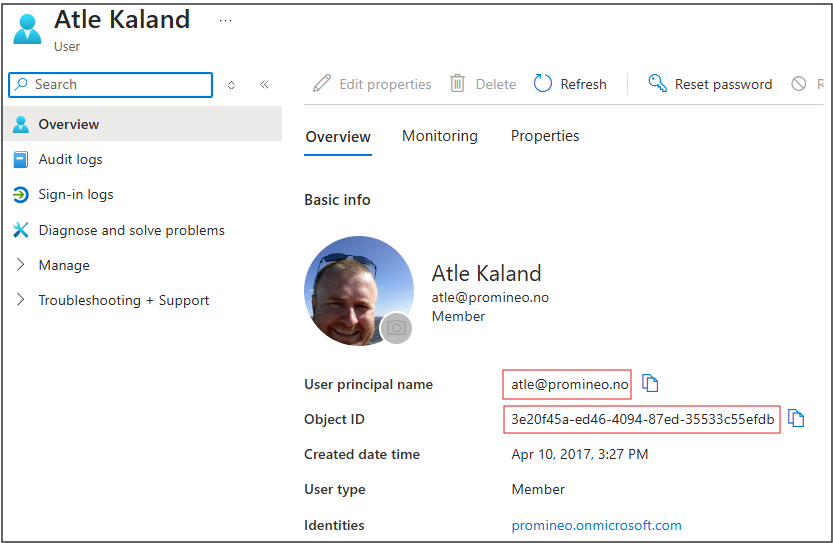
Please take note of User principle name and Object ID
Step-4: Get ILAP data exchange (IDE) API parameters
We fetch relevant ILAP terms (Fields in Ilap analytics) from ILAP data exchange API. For that we have to configure some parameters. First, take note of the IDE Api URL from below for your target environment (i.e. If you want to fetch fields from IDE beta environment then use beta Url).
| Environment | IDE API Url |
|---|---|
| Dev | https://dev.ilapdataexchange.promineo.no/api/api |
| Beta | https://beta.ilapdataexchange.promineo.no/api/api |
| Test | https://ilaptest.collabor8.no/api/api/ |
| Prod | https://ilap.collabor8.no/api/api/ |
| Environment | IDE UI Url |
|---|---|
| Dev | https://dev.ilapdataexchange.promineo.no |
| Beta | https://beta.ilapdataexchange.promineo.no |
| Test | https://ilaptest.collabor8.no |
| Prod | https://ilap.collabor8.no |
Now, to access IDE API, ILAP analytics needs an access token. We can use service token. We can generate IDE API access token from web UI page using the following steps.
Go to IDE UI of your target environment. (For URL, refer to the table above)
After login, go to
Tenant Adminpage. Click onClients. SelectILAP AnalyticsClick Add New Component. (You can ignore this step if you already have a component.)
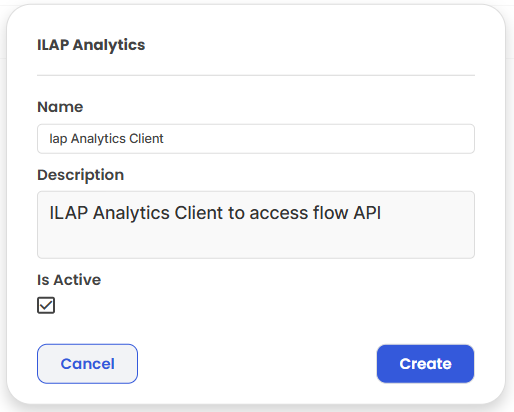
Now, create the client by giving it some name and description.
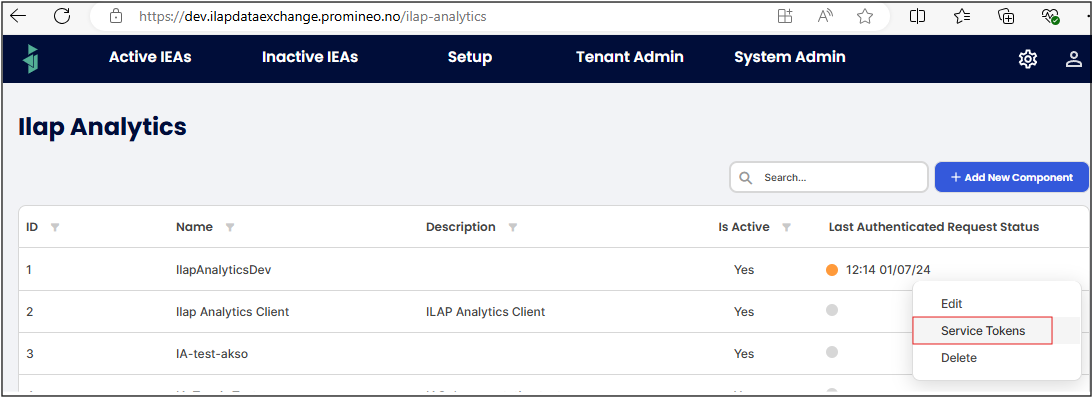
Click on the three-dot menu on right of the client you've just created. Select Service Tokens.
Then click on Add New Token
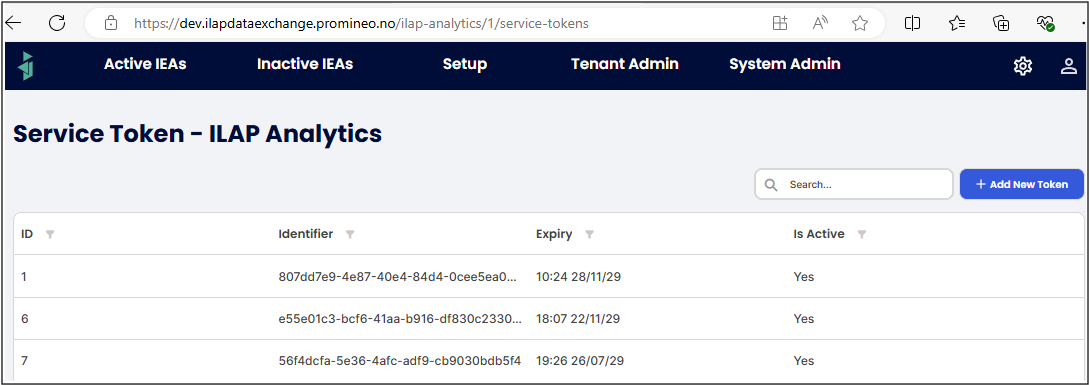
Select an expiry date for the token, please note that you will have to create and register a new token for the Analytics Client prior to this expiration date. The generated token needs to be stored securely as it can be used to access data within your tenant.
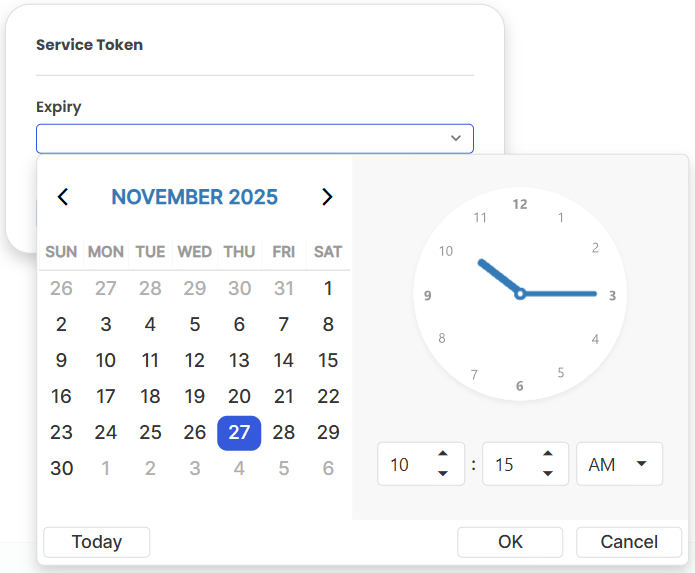
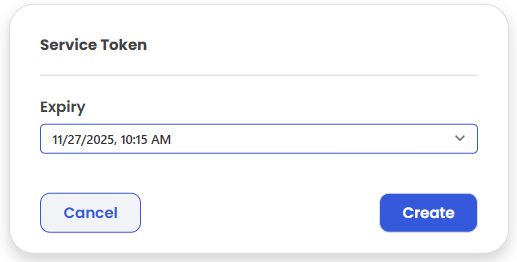
Click on Create
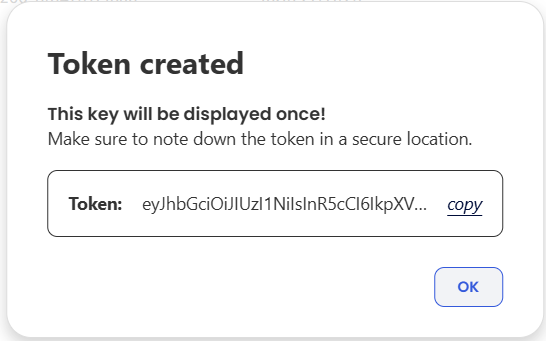
Click on the Copy link and store the access token in a secure place. Also take a note of the instance Id after you click ok.
Step-5 (optional): Use AAD authentication for swagger
For quick investigations, Swagger is a handy tool. However, it usually requires you to enter the Bearer token manually. To make this easier, we've added support for interactive authentication — the same way you log in through the web UI.
To enable this, you'll need to configure the SwaggerAzureAdAuthOptions parameter. Follow the steps below to obtain the required values.
Note: You may not want to do this for production environment
Go to your Azure Entra ID. Find API app registration. Click on
Endpoints, note downAuthorizationUrlandTokenUrl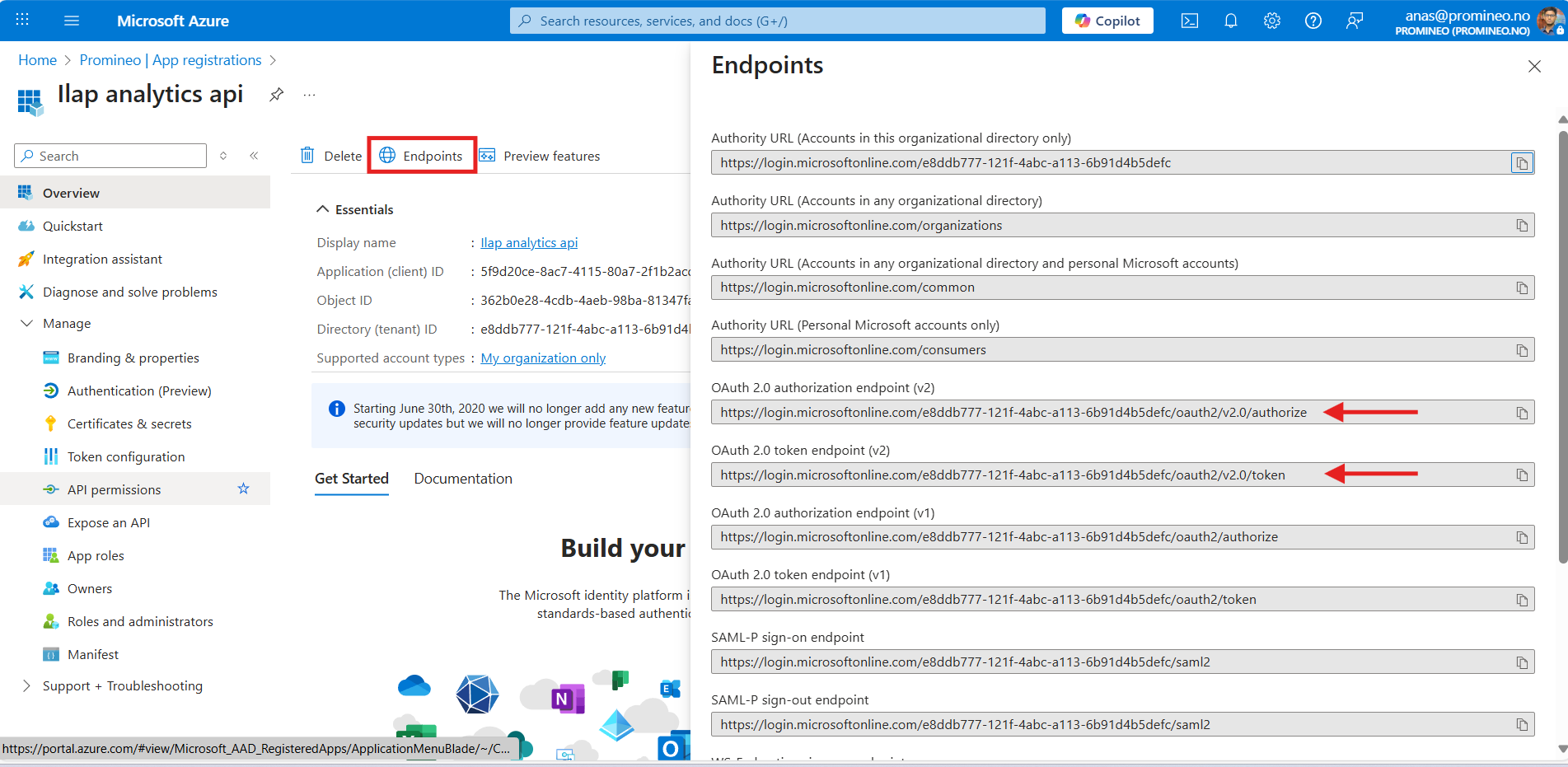
From left menu, go to
Expose an APItab. Note down name and description (display name) of the scopes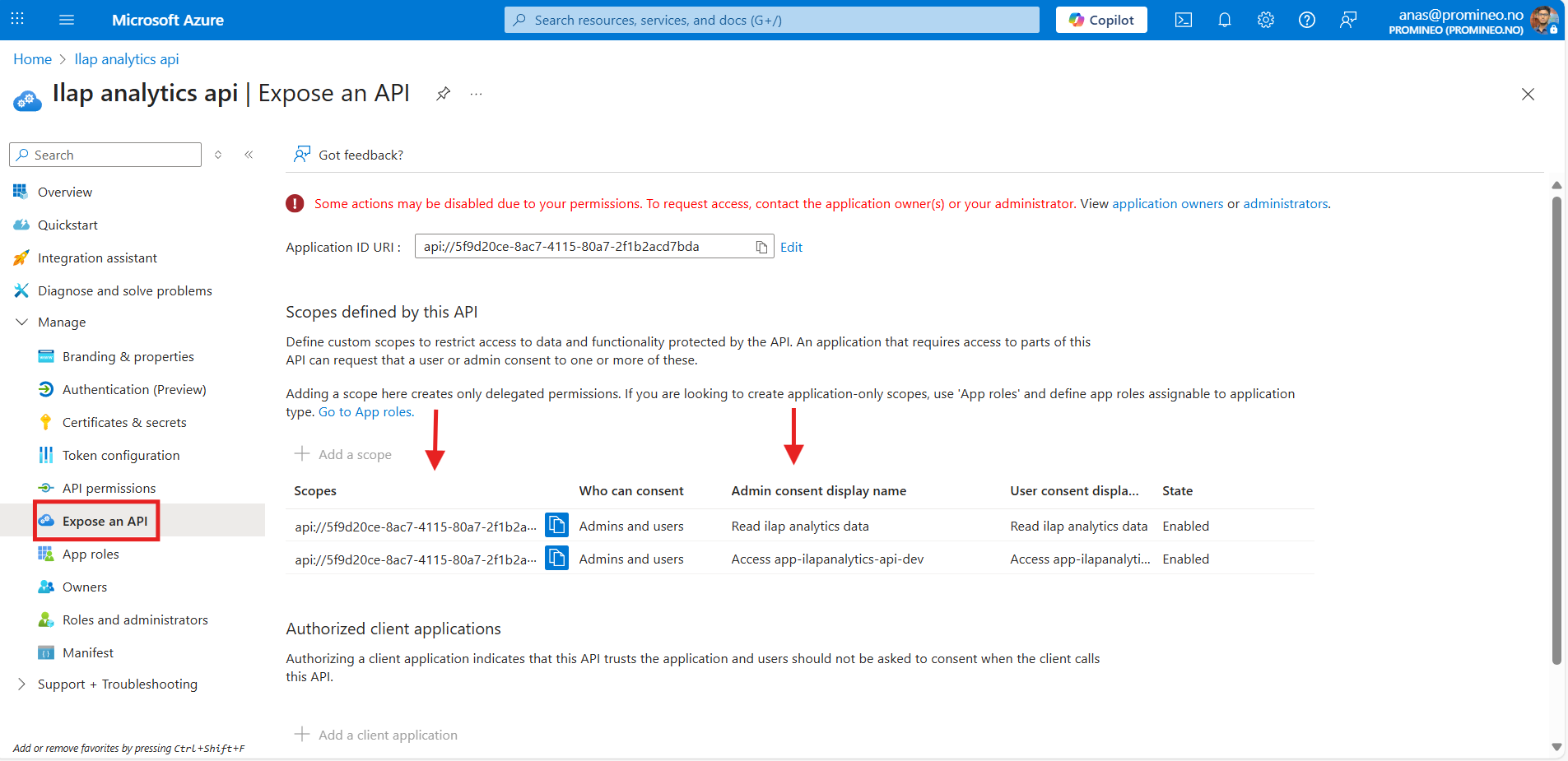
Now, go to web UI app registration. Copy the client ID. It will be used for
SwaggerClientIdparameter.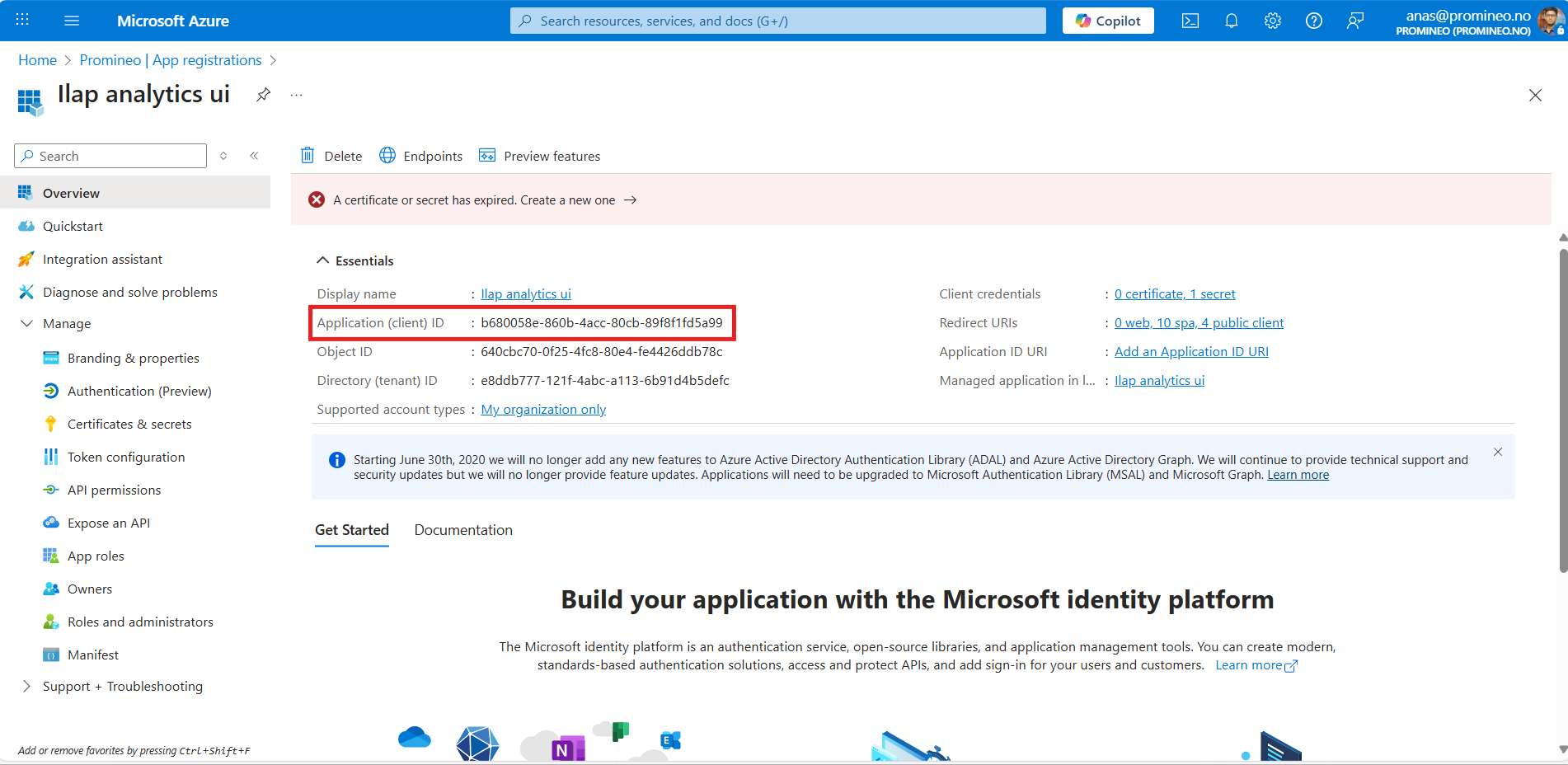
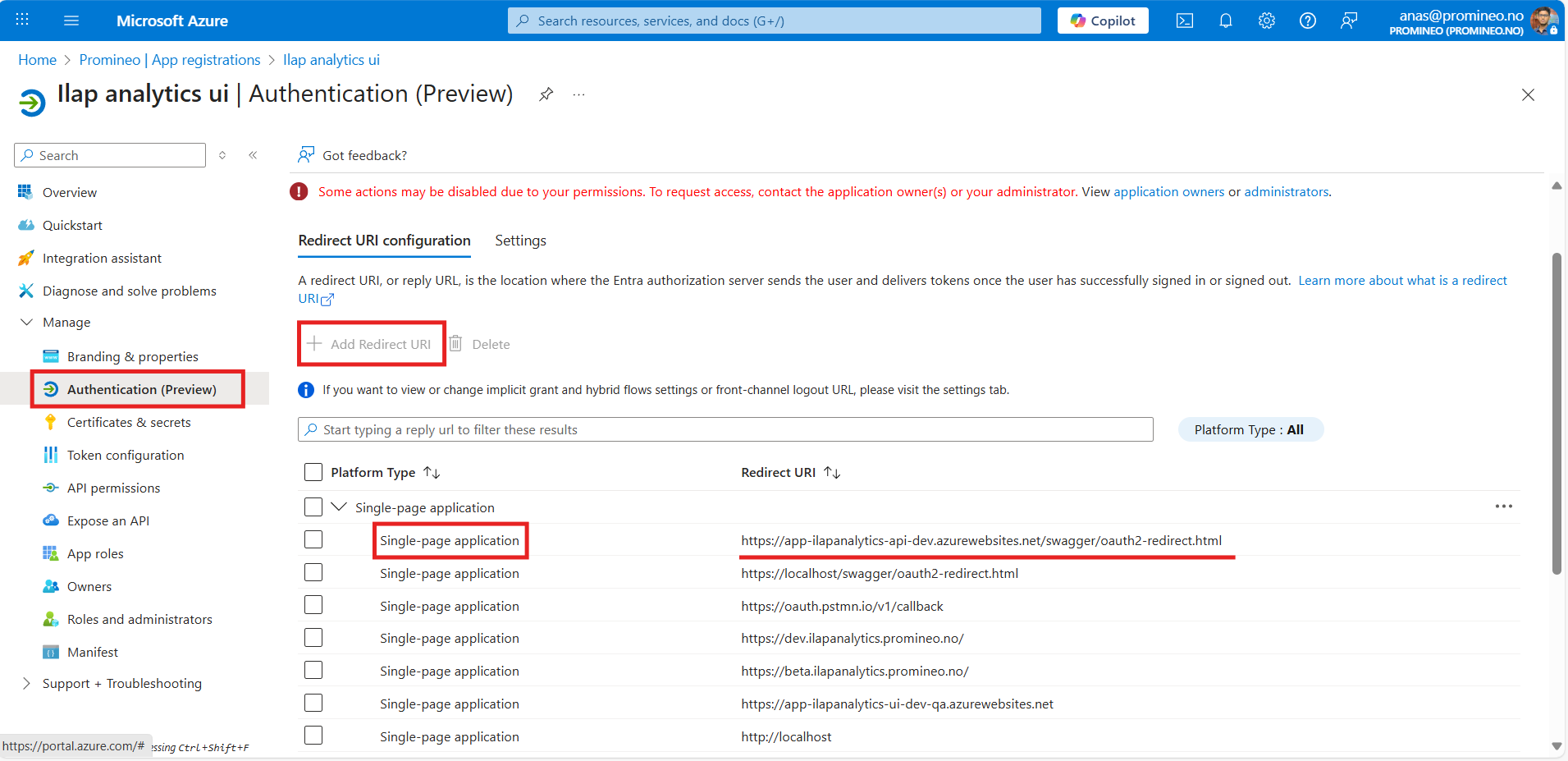
Construct swagger redirect URL. Go analytics API app service from Azure App Services. Click on
Browse. A new window will open. Copy the URL and use it here.https://<your_analytics_api_app_service_url>/swagger/oauth2-redirect.htmlAdd the redirect URL in the UI app registration. Save it.
Step-6 (optional): Use AAD authentication for Hangfire Dashboard
Go to Azure Entra ID. Find API app registration. Click on
Authenticationon the side menu.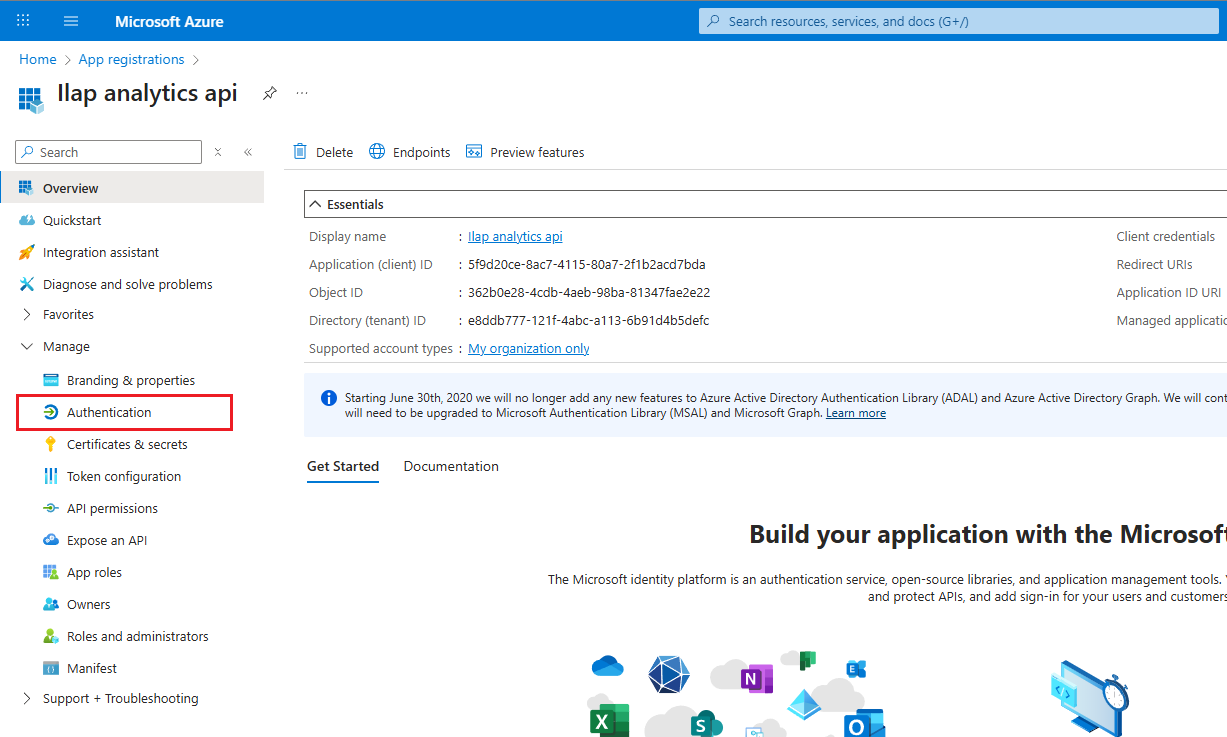
Click on
Add platformand selectWeb(if this platform is not already added).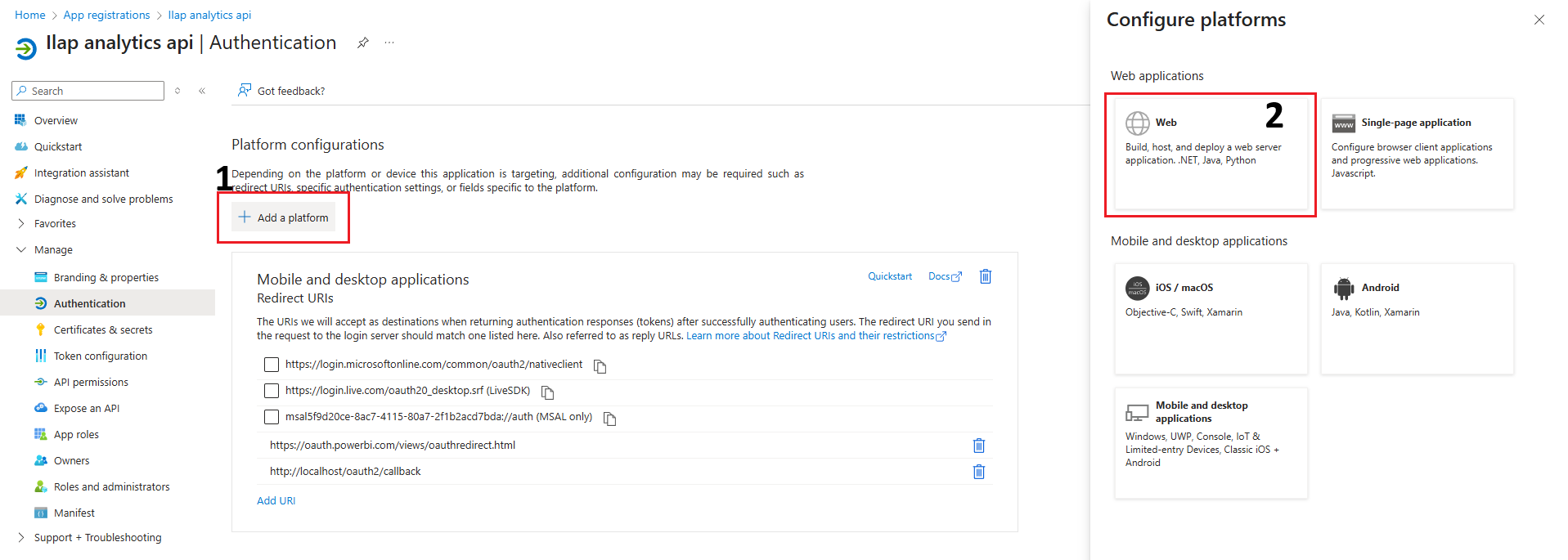
Provide a redirect uri. The uri should be
<your_hangfire_app_url>/<redirect_suffix_of_your_choice>. In the example screenshot, the suffix is/signin-oidc. It does not have to be strictly this. Note the suffix that you chose for this step. It will be required in the bicep.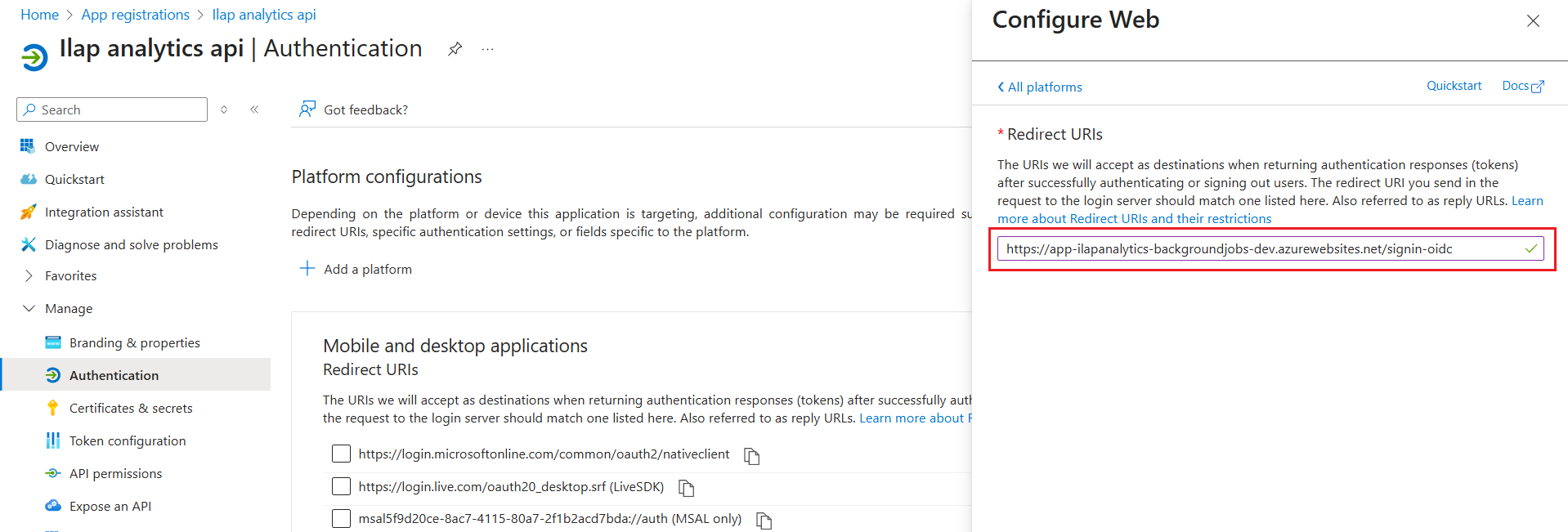
Feel free to add more redirect uri if you want to support multiple environments. But you must use the same suffix.
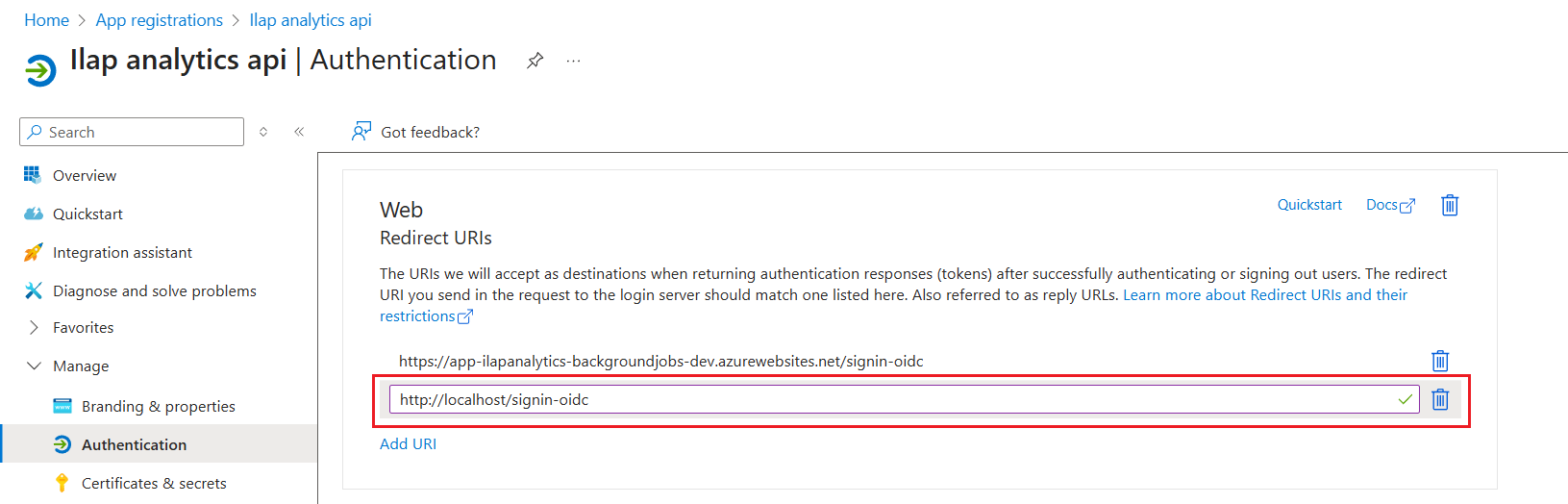
Enable
ID tokensto allow for implicit and hybrid flows.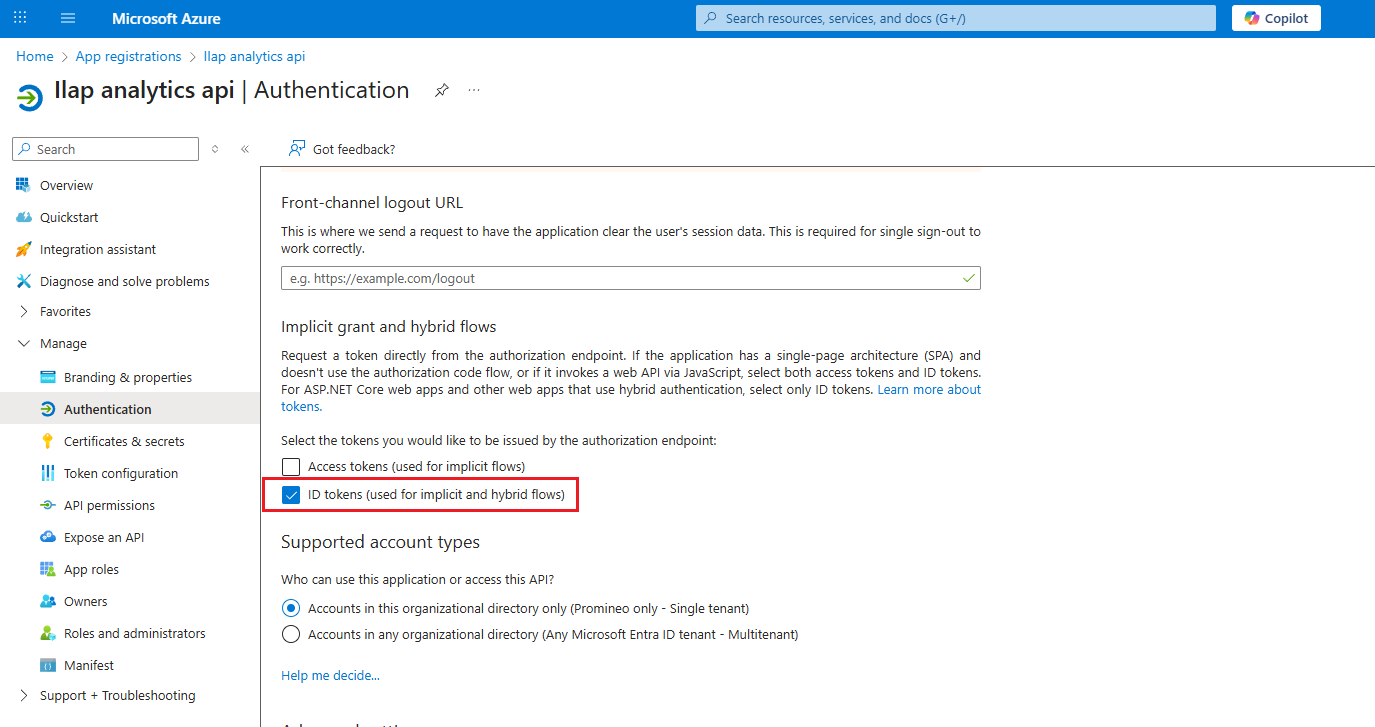
You can restrict the access to Hangfire dashboard to only selected roles. In that case, assign app roles and note down the
Value(s). In a later step, in the bicep parameter, you will put them in theAllowedRoleslist.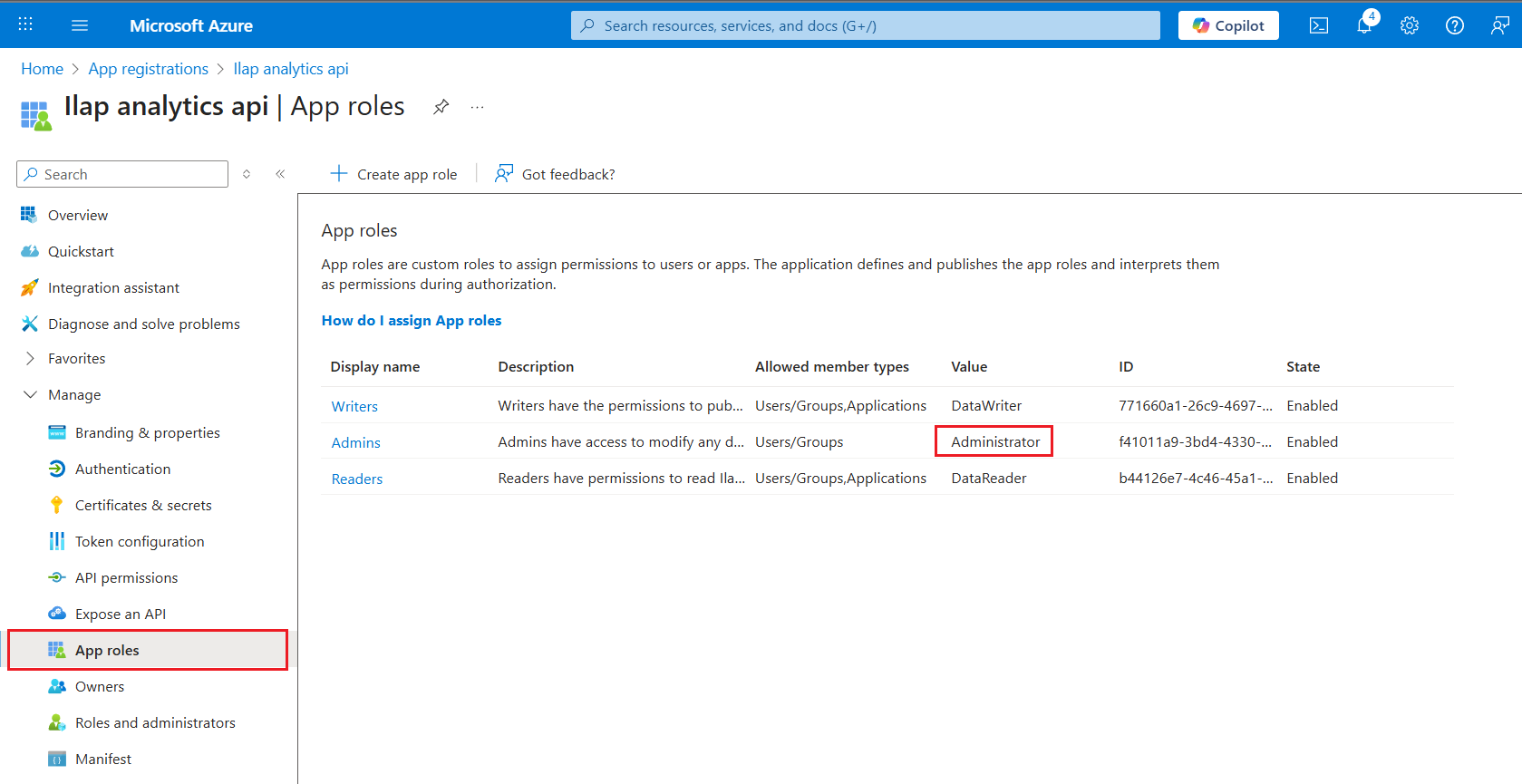
You are all set. Make sure to set
enableHangfireAzureAdAuthtotruein the bicep parameter. Now the hangfire dashboard access will require AAD authentication.
Set bicep parameter
At this point you have everything you need to create parameter file. Create a file with .bicepparam extension. Dump the following code into the file. Update parameters as mentioned in the comments.
Note: The following Bicep parameters can also be found in the main.sample.bicepparam file located in the Azure.IaC folder you downloaded from the installation center.
using 'main.bicep'

var env = 'dev'  // Your environment name. Example: test, beta, prod etc.

var company = 'promineo'  // Your company name

param azureAd = {

  clientId: 'application client id of UI app registration' // Client id from step-1

  instance:'https://login.microsoftonline.com/'

  tenantId:'your_tenant_id' // Use tenant id from step-1

  audience:'analytics_api_audience_id' // Use audience from step-1
}

// Note: these values configure the UI at deploy time via app-service environment variables. They
// replace the legacy PublicConfigurations.js file, which is obsolete.

param publicConfigurations = {

  analyticsApiUrl: // Base URL of your ILAP analytics API app,

  //If you are using custom domain for analytics API, then use custom domain URL(+ '/api) here, instead of the default URL (i.e. URL that contains "[app-name].azurewebsites.net")

  // for example: 'https://app-ilapanalytics-api-dev.azurewebsites.net/api' or 'https://analytics-api.promineo.com/api'

  backgroundJobAppUrl: Base URL of your ILAP analytics background job app

// Example: 'https://app-ilapanalytics-backgroundjobs-dev.azurewebsites.net'. You can find the URL by clicking browse from azure app service.

  authenticationAuthority: //'https://login.microsoftonline.com/[your tenant id]/' for example: 'https://login.microsoftonline.com/8719bf0f-72ad-48f5-ba9d-da3dbbcd7509/'

  authenticationClientId: //'application client id of UI app registration'

  authenticationScopes: //'comma separated scopes from your API app registration' for example: 'api://970d7cfa-159b-45cd-9f97-9781b00e6624/user_impersonation,api://970d7cfa-159b-45cd-9f97-9781b00e6624/read'

  authenticationRedirectUri: //'your-ilapanalytics-ui-base-url'. // Base URL of your ILAP analytics UI app,

  //If you are using custom domain for analytics UI, then use custom domain URL here, instead of the default URL (i.e. URL that contains "[app-name].azurewebsites.net")

  ideUiBaseUrl: // Base URL of the ILAP Data Exchange (IDE) web UI, used to build links to IEAs. Use IDE UI Url from step-4. For example: 'https://ilaptest.collabor8.no' for test, 'https://ilap.collabor8.no' for production

}

// Note: if useCustomDomain is false, then leave customDomain and certficateName parameters as is.

// Note: if you are using custom domain for analytics API, then you must use custom domain URL in IDE connector, instead of the default URL (i.e. URL that contains ".azurewebsites.net")

param webAppParams = {

  ilapAnalyticsUi: {

    name: //Enter any name for your ILAP analytics web UI app. For example: 'app-contoso-ia-ui-test-noe'

    customDomain: //Enter custom domain name for analytics web UI app. // For example: 'analytics-ui.promineo.com' if you're not using custom domain, put any random string here

    certificateName:   // Certificate name from Step-2. Applicable only if you are using custom domain

    useCustomDomain:  // If you do not want custom domain for Api then make it false

  }

  ilapAnalyticsApi: {

    name: //Enter any name for your ILAP analytics web API app. For example: 'app-contoso-ia-api-test-noe'

    customDomain: //Enter custom domain name for analytics web API app. // For example: 'analytics-api.promineo.com' if you're not using custom domain, put any random string here

    certificateName: //Certificate name for API  Applicable only if you are using custom domain

    useCustomDomain:   // If you do not want custom domain for Api then make it false

  }

  ilapAnalyticsBackgroundJob: {

    name: //Enter any name for your ILAP analytics background job app. For example: 'app-contoso-ia-bg-test-noe'

    customDomain: //Enter custom domain name for background job app. // For example: 'analytics-bg.promineo.com' if you're not using custom domain, put any random string here

    certificateName: //Enter certificate name for BackgroundJobs app  Applicable only if you are using custom domain

    useCustomDomain:  // If you do not want custom domain for BackgroundJobApp then make it false

  }
}

param timephasingServiceConfiguration = {

    BaseUrl: 'https://timephasing.promineo.com'

    AccessToken: 'Your_Access_Token' // Access token from time phasing service. Go to https://timephasing.promineo.com For more details.

    MaxNumberOfActivitiesPerRequest: 2000 // Maximum number of activities to send in a single request. Feel free to adjust based on your need.

    IncludePerCalendar: false // To fetch calendar hours from time phasing. You can make it true if calendar hours related changes in timePhasing dev merged into main

}

param dataValidationConfiguration = {

  MaxIncrementLimit: 10 // In percentage

}

param databaseParams = {

  name: //Enter any name for ilap analytics database. For example: 'sqldb-analytics'

  backupStorageRedundancy: 'Zone'// Use 'Zone' in prod. for dev environment you can use 'Local' to save cost.

  minCapacity: '2' // Use at least 2 in prod. For dev environment you can use '1' to save cost

  isZoneRedundant: true

  sku: {                 // Feel free to adjust based on your need.

    name: 'HS_S_Gen5' // Hyperscale Gen5 is recommended for production. For dev environment you can use S3

    tier: 'Hyperscale'

    family: 'Gen5'

    capacity: 8

  }

}

// Specifies the number of database entities to process per batch during read and write operations.

param dbOperationSettings = {
  ReadBatchSize: 15000
  WriteBatchSize: 10000
}

param archiveDatabaseParams = {

  name: //Enter any name for ilap analytics archive database. For example: 'sqldb-analytics-archive'

  backupStorageRedundancy: 'Zone' // Use 'Zone' in prod. for dev environment you can use 'Local' to save cost.

  minCapacity: '2'// Use at least 2 in prod. For dev environment you can use '1' to save cost

  isZoneRedundant: true

  sku: {                 // Feel free to adjust based on your need.

    name: 'HS_S_Gen5'    //Hyperscale Gen5 is recommended for production. For dev environment you can use S3

    tier: 'Hyperscale'

    family: 'Gen5'

    capacity: 8

  }

}

var defaultAppServicePlanSku = { // Service plan SKU for all app services. in this sample we're using the same SKU for all app services.

// In order to save cost, you can use different SKU for the web ui

  name: 'P3v2'

  tier: 'PremiumV2'

  size: 'P3v2'

  family: 'Pv2'

}

param apiAppServicePlanName = 'Enter any name for ilap analytics api app service plan'

param bgAppServicePlanName = 'Enter any name for ilap analytics background job app service plan'

param webAppServicePlanName = 'Enter any name for ilap analytics web UI app service plan'

param appServicePlanParams = [
  {
    name: apiAppServicePlanName
    sku: defaultAppServicePlanSku
  }
  {
    name: bgAppServicePlanName

    sku: defaultAppServicePlanSku
  }
  {
    name: webAppServicePlanName
    sku: defaultAppServicePlanSku
  }
]

// Note: ILAP Analytics uses Azure AD-only authentication (azureADOnlyAuthentication: true). The SQL
// username/password administrator fields (administratorLogin / administratorLoginPassword) are
// obsolete for new customers and are no longer used.
param sqlServerParams = {

  name: //Enter any name for sql server. For example: 'sql-contoso-ia-test-noe'

  administrators: {

    administratorType: 'ActiveDirectory'

    azureADOnlyAuthentication: true

    principalType: 'User'

    login: //Enter sql server admin email (user principal name from step-3)

    sid: //Enter user Id of sql server admin (object ID from step-3)'.

    tenantId: //Enter tenant ID (tenant Id from step-1)

  }

}

// If you are not using any custom domain, then ignore the following param

param keyVaultParams = {

  name: //Enter name of the keyvault which stores certificates for custom domain (Key Vault name from step-2). for example: 'kv-contoso-ia-test-noe'

  resourceGroupName: //Enter resource group name (resource group name from step-2). for example: 'rg-contoso-ia-test-noe'

}

param moveIlapFileToBlobStorage = 'false'  // Ilap files are deleted from Database after background jobs are completed. So, if you want to store Ilap files to above storage account then make it 'true'.

// If you do not want to move ILAP file to blob storage (in other words if moveIlapFileToBlobStorage param is false), then please ignore the following param

param storageAccountParams = {

  name: //Enter any storage name. For example: 'stcontosoiatestnoe'

  kind: 'StorageV2'

  sku: {               // Feel free to adjust based on your need.

    name: 'Standard_LRS'

    tier: 'Standard'
  }
}

// Set to true to provision a dedicated ADLS Gen2 (hierarchical namespace) storage account for Parquet data-lake export

// and turn the feature on. Off by default. If false, the parquet account is not created, parquetStorageAccountParams

// below is ignored, and report schedules cannot enable parquet export / planning data deletion.

param useParquetExport = false

// Only applicable when useParquetExport is true.

// Parquet is the sole copy of the data after SQL retention purge, so zone-redundant storage (Standard_ZRS) is the default.

param parquetStorageAccountParams = {

  name: //Enter any storage name for parquet export. For example: 'stcontosoiapqtestnoe'

  kind: 'StorageV2'

  sku: {               // Feel free to adjust based on your need.

    name: 'Standard_ZRS'

    tier: 'Standard'
  }
}

// Container (filesystem) name inside the parquet account. This is the name data-lake consumers (Fabric / Power BI)

// see when they shortcut into the storage. Default 'ia-export'; change only if you need a different name.

// Azure container naming rules (an invalid value fails deployment at container creation):

//   - 3 to 63 characters long

//   - lowercase letters, numbers and hyphens (-) only

//   - must start with a letter or number, and cannot end with a hyphen

//   - no consecutive hyphens

// Treat as set-once: renaming after snapshots exist leaves the old data stranded in the old container.

param parquetExportContainerName = 'ia-export'

param ideApiBaseUrl = 'https://dev.ilapdataexchange.promineo.no/api/api' // IDE API URL from step-4

param ideApiAccessToken = 'eyJhbGciOiJIUzI..........' // Access token from step-4

param synchronizeFieldsJobSchedule = '*/10 * * * *' // Means: Every 10 minutes. It specifies how often background job will fetch ILAP terms from IDE.

param graphQlExecutionTimeout = '15' // In munites

param enableFieldSyncronization = 'true' // To syncronize ilap terms (aka. metadataFields) with IDE

param enableFieldImport = 'true' // To import ilap terms (aka. metadataFields) from IDE

param SendJobStatusToIDE = 'false' // Send background job operation status to IDE

param instanceInformation = {

  Identifier: 'Identifier guid of your ILAP Analytics component in IDE' // Analytics client Identifier from IDE.
  // Go to IDE web page -> Tenant Admin -> Clients -> ILAP Analytics -> Copy Identifier column value

}

param planningScheduleDeleteConfiguration = {

  // Set to 'true' to automatically delete planning schedules that are no longer referenced by any report schedule.

  PlanningScheduleAutomaticDeletion: false

  // Specifies the retention period (in days) for unreferenced planning schedules

  // before they are deleted from the database.

  PlanningScheduleRetentionPeriodInDays: 30

}

param reportScheduleArchiveConfiguration = {

  // Set to 'true' to enable automatic archiving of closed report schedules.

  EnableReportScheduleAutomaticArchive: false

  // Defines how long (in days) closed report schedules should remain in the database

  // before being moved to the archive.

  ReportScheduleRetentionPeriodInDays: 7

  // Number of report schedule records to process in a single batch when archiving.

  // Reduce this value to decrease the load on the application and database,

  // but note that smaller batches may increase total archive time.

  QueryBatchSize: 3000

}

// Swagger Azure AD Authentication Options. If you don't want to use Azure AD authentication for Swagger UI, then leave the following parameters as is.
// Refer to Step 5 for instructions on how to obtain these values

param SwaggerAzureAdAuthOptions = {

  AuthorizationUrl: ''
  TokenUrl: ''
  SwaggerClientId: ''
  Scopes: [
    {
      Name: ''
      Description: ''
    }
    {
      Name: '' // Get from Azure Entra ID API app registration scopes from "Expose an API" tab
      Description: ''
    }
  ]
}

// Operation completion notifications
// Controls whether applications publish a notification to event hub when a report schedule import/revert is completed.
// Notes:
// - If you plan to enable this, configure the "eventhubConfig" block below.
// - If you plan to notify via HTTP callback, set "CallbackHostUrl" to your API host base URL.
param operationCompletionNotificationConfig = {
  // Enable or disable operation completion notifications (true|false)
  IsEnabled: false
  // Notification type:
  //      1 = Report Schedule Id Only,
  //      2 = Report Schedule Id With Activity Ids,
  //      3 = Report Schedule Ids With Activity Fqdns
  NotificationType: 2
  // Optional: Base URL for callback endpoints (used when notification type 3 is selected)
  CallbackHostUrl: publicConfigurations.analyticsApiUrl

  // Number of notifications to send in a single batch
  /*
    | Event hub pricing tier | Basic  | Standard | Premium | Dedicated |
    |------------------------|--------|----------|---------|-----------|
    | Batch size to use      | ~2000  | ~6000    | ~6000   | ~150000   |
  */
  BatchSize: 2000
}

// Event Hub configuration (optional, mandatory if operation completion notifications are enabled above)
// Provide only if you plan to publish operation completion notifications to an Azure Event Hub.
// - NamespaceUrl: The fully qualified namespace host (e.g., "your-namespace.servicebus.windows.net").
// - EventhubName: The Event Hub name to which events will be emitted.
// Note: Ensure that the application has the necessary permissions to send events to the specified Event Hub.
param eventhubConfig = {
  NamespaceUrl:// 'your-namespace.servicebus.windows.net'
  EventhubName: //'name-of-your-eventhub'
}

// Set to 'true' to enable Azure AD authentication for Hangfire dashboard.
// If set to 'false', then basic authentication will be used.
param enableHangfireAzureAdAuth = 'false'

param hangfireCredentials = {
  Username: 'admin' // provide your desired username
  Password: 'QwK?9MLzK+9UJjRT' // provide your desired strong password
}

// Only applicable if enableHangfireAzureAdAuth is set to 'true'.
param hangfireAzureAdAuthOptions = {
  Instance: 'https://login.microsoftonline.com/'
  TenantId: 'your_tenant_id'
  ClientId: 'analytics_api_client_id_from_step-1'
  CallbackPath: '/signin-oidc' // Your web platform redirect URI from Azure Entra app registration
  AllowedRoles: ['Administrator'] // List of roles allowed to access Hangfire dashboard. Leave empty if all authenticated users are allowed.
}
Bicep Parameter File Documentation (Tabular Format)
This table provides a detailed overview of the parameters and variables in the Bicep parameter file for configuring an ILAP analytics application deployment on Azure. It is designed to help new users understand each parameter's purpose, default values, significance, and examples.
| Name | Description | Default Value | Significance | Examples |
|---|---|---|---|---|
| env | Specifies the environment name for the deployment. | 'dev' |
Indicates the deployment environment (e.g., development, testing, production) for resource naming and configuration. | test, beta, prod |
| company | Defines the company name associated with the deployment. | 'promineo' |
Associates the deployment with a company for naming and organization. | None |
| azureAd.clientId | Client ID from the UI app registration in Azure AD. | None | Required for Azure AD authentication. | application client id of UI app registration |
| azureAd.instance | Azure AD instance URL. | 'https://login.microsoftonline.com/' |
Standard URL for Azure AD authentication. | None |
| azureAd.tenantId | Tenant ID from Azure AD. | None | Identifies the Azure AD tenant for authentication. | your_tenant_id |
| azureAd.audience | Audience ID for the analytics API. | None | Specifies the API audience for authentication. | analytics_api_audience_id |
| publicConfigurations.analyticsApiUrl | Base URL of the ILAP analytics API app. | None | Configures the API endpoint; use custom domain URL if applicable. | 'https://app-ilapanalytics-api-dev.azurewebsites.net/api', 'https://analytics-api.promineo.com/api' |
| publicConfigurations.authenticationAuthority | Azure AD authentication authority URL. | None | Defines the authentication endpoint for Azure AD. | 'https://login.microsoftonline.com/8719bf0f-72ad-48f5-ba9d-da3dbbcd7509/' |
| publicConfigurations.authenticationClientId | Client ID for the UI app registration. | None | Required for UI authentication. | application client id of UI app registration |
| publicConfigurations.authenticationScopes | Comma-separated scopes from API app registration. | None | Defines permissions for API access. | 'api://970d7cfa-159b-45cd-9f97-9781b00e6624/user_impersonation,api://970d7cfa-159b-45cd-9f97-9781b00e6624/read' |
| publicConfigurations.authenticationRedirectUri | Base URL of the ILAP analytics UI app. | None | Specifies the redirect URL for authentication; use custom domain if applicable. | None |
| publicConfigurations.ideUiBaseUrl | Base URL of the ILAP Data Exchange (IDE) web UI. | None | Used to build links to IEAs; use the IDE UI Url for your target environment. | 'https://ilaptest.collabor8.no', 'https://ilap.collabor8.no' |
| webAppParams.ilapAnalyticsUi.name | Name of the ILAP analytics web UI app. | None | Identifies the UI app in Azure. | 'app-contoso-ia-ui-test-noe' |
| webAppParams.ilapAnalyticsUi.customDomain | Custom domain name for the UI app. | None | Used for branding; use a random string if not using custom domain. | 'analytics-ui.promineo.com' |
| webAppParams.ilapAnalyticsUi.certificateName | Certificate name for the UI app. | None | Required for custom domain SSL; applicable only if using custom domain. | None |
| webAppParams.ilapAnalyticsUi.useCustomDomain | Boolean to enable/disable custom domain for UI. | None | Set to false to disable custom domain. |
None |
| webAppParams.ilapAnalyticsApi.name | Name of the ILAP analytics web API app. | None | Identifies the API app in Azure. | 'app-contoso-ia-api-test-noe' |
| webAppParams.ilapAnalyticsApi.customDomain | Custom domain name for the API app. | None | Used for branding; use a random string if not using custom domain. | 'analytics-api.promineo.com' |
| webAppParams.ilapAnalyticsApi.certificateName | Certificate name for the API app. | None | Required for custom domain SSL; applicable only if using custom domain. | None |
| webAppParams.ilapAnalyticsApi.useCustomDomain | Boolean to enable/disable custom domain for API. | None | Set to false to disable custom domain. |
None |
| webAppParams.ilapAnalyticsBackgroundJob.name | Name of the ILAP analytics background job app. | None | Identifies the background job app in Azure. | 'app-contoso-ia-bg-test-noe' |
| webAppParams.ilapAnalyticsBackgroundJob.customDomain | Custom domain name for the background job app. | None | Used for branding; use a random string if not using custom domain. | 'analytics-bg.promineo.com' |
| webAppParams.ilapAnalyticsBackgroundJob.certificateName | Certificate name for the background job app. | None | Required for custom domain SSL; applicable only if using custom domain. | None |
| webAppParams.ilapAnalyticsBackgroundJob.useCustomDomain | Boolean to enable/disable custom domain for background job app. | None | Set to false to disable custom domain. |
None |
| timephasingServiceConfiguration.BaseUrl | Base URL of the time phasing service. | 'https://timephasing.promineo.com' |
Specifies the endpoint for time phasing integration. | None |
| timephasingServiceConfiguration.AccessToken | Access token for the time phasing service. | None | Required for secure access to the time phasing service. | 'Your_Access_Token' |
| timephasingServiceConfiguration.MaxNumberOfActivitiesPerRequest | Maximum number of activities per request. | 2000 |
Controls batch size for performance optimization. | None |
| timephasingServiceConfiguration.IncludePerCalendar | Boolean to fetch calendar hours from time phasing. | false |
Enable only if calendar hours changes are merged into main branch. | None |
| dataValidationConfiguration.MaxIncrementLimit | Maximum allowed increment percentage. | 10 |
Limits data changes to ensure integrity. | None |
| databaseParams.name | Name of the ILAP analytics database. | None | Identifies the database in Azure. | 'sqldb-analytics' |
| databaseParams.backupStorageRedundancy | Backup storage redundancy type. | 'Zone' |
'Zone' for production high availability; 'Local' for dev cost savings. |
None |
| databaseParams.minCapacity | Minimum database capacity. | '2' |
At least 2 for production; 1 for dev cost savings. |
None |
| databaseParams.isZoneRedundant | Boolean for zone redundancy. | true |
Enables high availability across zones. | None |
| databaseParams.sku.name | SKU name for the database. | 'HS_S_Gen5' |
Hyperscale Gen5 for production; S3 for dev. |
None |
| databaseParams.sku.tier | SKU tier for the database. | 'Hyperscale' |
Defines performance tier. | None |
| databaseParams.sku.family | SKU family for the database. | 'Gen5' |
Specifies hardware generation. | None |
| databaseParams.sku.capacity | SKU capacity for the database. | 8 |
Defines compute capacity. | None |
| dbOperationSettings.ReadBatchSize | Number of database entities to read per batch. | 15000 |
Controls batch size for read operations to balance performance and load. | None |
| dbOperationSettings.WriteBatchSize | Number of database entities to write per batch. | 10000 |
Controls batch size for write operations to balance performance and load. | None |
| archiveDatabaseParams.name | Name of the ILAP analytics archive database. | None | Identifies the archive database in Azure. | 'sqldb-analytics-archive' |
| archiveDatabaseParams.backupStorageRedundancy | Backup storage redundancy type for archive database. | 'Zone' |
Same as databaseParams.backupStorageRedundancy. |
None |
| archiveDatabaseParams.minCapacity | Minimum archive database capacity. | '2' |
Same as databaseParams.minCapacity. |
None |
| archiveDatabaseParams.isZoneRedundant | Boolean for zone redundancy for archive database. | true |
Same as databaseParams.isZoneRedundant. |
None |
| archiveDatabaseParams.sku.name | SKU name for the archive database. | 'HS_S_Gen5' |
Same as databaseParams.sku.name. |
None |
| archiveDatabaseParams.sku.tier | SKU tier for the archive database. | 'Hyperscale' |
Same as databaseParams.sku.tier. |
None |
| archiveDatabaseParams.sku.family | SKU family for the archive database. | 'Gen5' |
Same as databaseParams.sku.family. |
None |
| archiveDatabaseParams.sku.capacity | SKU capacity for the archive database. | 8 |
Same as databaseParams.sku.capacity. |
None |
| defaultAppServicePlanSku.name | SKU name for app service plans. | 'P3v2' |
Defines performance for all app services. | None |
| defaultAppServicePlanSku.tier | SKU tier for app service plans. | 'PremiumV2' |
Specifies premium performance tier. | None |
| defaultAppServicePlanSku.size | SKU size for app service plans. | 'P3v2' |
Matches the SKU name for consistency. | None |
| defaultAppServicePlanSku.family | SKU family for app service plans. | 'Pv2' |
Specifies hardware family. | None |
| apiAppServicePlanName | Name of the API app service plan. | None | Identifies the API app service plan. | None |
| bgAppServicePlanName | Name of the background job app service plan. | None | Identifies the background job app service plan. | None |
| webAppServicePlanName | Name of the web UI app service plan. | None | Identifies the web UI app service plan. | None |
| appServicePlanParams | Array of app service plan configurations. | Uses defaultAppServicePlanSku |
Centralizes app service plan settings. | None |
| sqlServerParams.name | Name of the SQL server. | None | Identifies the SQL server in Azure. | 'sql-contoso-ia-test-noe' |
| sqlServerParams.administrators.administratorType | Type of SQL server administrator. | 'ActiveDirectory' |
Uses Azure AD for administration. | None |
| sqlServerParams.administrators.principalType | Principal type for SQL server admin. | 'User' |
Specifies user-based administration. | None |
| sqlServerParams.administrators.login | SQL server admin email. | None | User principal name from step-3. | None |
| sqlServerParams.administrators.sid | User ID of SQL server admin. | None | Object ID from step-3. | None |
| sqlServerParams.administrators.tenantId | Tenant ID for SQL server admin. | None | Tenant ID from step-1. | None |
| sqlServerParams.administrators.azureADOnlyAuthentication | Boolean for Azure AD-only authentication. | true |
Enforces Azure AD-only authentication. | None |
| keyVaultParams.name | Name of the Key Vault for certificates. | None | Stores certificates for custom domains. | 'kv-contoso-ia-test-noe' |
| keyVaultParams.resourceGroupName | Resource group name for Key Vault. | None | Organizes Key Vault resources. | 'rg-contoso-ia-test-noe' |
| moveIlapFileToBlobStorage | Determines if ILAP files are moved to blob storage. | 'false' |
When true, stores ILAP files instead of deleting them. |
None |
| storageAccountParams.name | Name of the storage account. | None | Identifies the storage account for ILAP files. | 'stcontosoiatestnoe' |
| storageAccountParams.kind | Storage account kind. | 'StorageV2' |
Specifies the storage account type. | None |
| storageAccountParams.sku.name | SKU name for the storage account. | 'Standard_LRS' |
Defines storage performance and redundancy. | None |
| storageAccountParams.sku.tier | SKU tier for the storage account. | 'Standard' |
Specifies standard storage tier. | None |
| useParquetExport | Provisions a dedicated ADLS Gen2 storage account for Parquet data-lake export and turns the feature on. | false |
When false, the parquet account is not created, parquetStorageAccountParams is ignored, and report schedules cannot enable parquet export / planning data deletion. |
true, false |
| parquetStorageAccountParams.name | Name of the storage account used for Parquet export. | None | Only applicable when useParquetExport is true. A separate account from storageAccountParams. |
'stcontosoiapqtestnoe' |
| parquetStorageAccountParams.kind | Storage account kind for Parquet export. | 'StorageV2' |
Hierarchical namespace (ADLS Gen2) is enabled on this account by the template. | None |
| parquetStorageAccountParams.sku.name | SKU name for the Parquet storage account. | 'Standard_ZRS' |
Parquet is the sole copy of the data after the SQL retention purge, so zone-redundant storage is the default. | 'Standard_ZRS', 'Standard_LRS' |
| parquetStorageAccountParams.sku.tier | SKU tier for the Parquet storage account. | 'Standard' |
Specifies standard storage tier. | None |
| parquetExportContainerName | Container (filesystem) name inside the Parquet account. | 'ia-export' |
This is the name data-lake consumers (Fabric / Power BI) see when they shortcut into the storage. Treat as set-once. | 'ia-export' |
| ideApiBaseUrl | Base URL for the IDE API. | 'https://dev.ilapdataexchange.promineo.no/api/api' |
Specifies the IDE API endpoint. | None |
| ideApiAccessToken | Access token for the IDE API. | None | Required for secure IDE API access. | 'eyJhbGciOiJIUzI..........' |
| synchronizeFieldsJobSchedule | Schedule for fetching ILAP terms from IDE. | '*/10 * * * *' |
Runs every 10 minutes for metadata synchronization. | None |
| graphQlExecutionTimeout | Timeout for GraphQL queries (in minutes). | '15' |
Prevents indefinite query execution. | None |
| enableFieldSyncronization | Enables synchronization of ILAP terms with IDE. | 'true' |
Keeps metadata fields in sync with IDE. | None |
| enableFieldImport | Enables importing ILAP terms from IDE. | 'true' |
Allows importing metadata fields from IDE. | None |
| SendJobStatusToIDE | Sends background job status to IDE. | 'false' |
When true, sends job statuses for monitoring. |
None |
| instanceInformation.Identifier | Analytics component Identifier from IDE. | None | Links deployment to an ILAP analytics component. | '8fa0e03b-e2bd-4052-b394-0aeaa2bf6c5f' |
| planningScheduleDeleteConfiguration.PlanningScheduleAutomaticDeletion | Enables automatic deletion of unreferenced planning schedules. | false |
Cleans up unused schedules when enabled. | None |
| planningScheduleDeleteConfiguration.PlanningScheduleRetentionPeriodInDays | Retention period for unreferenced schedules (in days). | 30 |
Specifies how long to keep unreferenced schedules. | None |
| reportScheduleArchiveConfiguration.EnableReportScheduleAutomaticArchive | Enables automatic archiving of closed report schedules. | false |
Archives closed schedules when enabled. | None |
| reportScheduleArchiveConfiguration.ReportScheduleRetentionPeriodInDays | Retention period for closed schedules (in days). | 7 |
Specifies how long to keep closed schedules before archiving. | None |
| reportScheduleArchiveConfiguration.QueryBatchSize | Number of records per archiving batch. | 3000 |
Balances performance and database load. | None |
| operationCompletionNotificationConfig.IsEnabled | Enables operation completion notifications. | false |
When true, publishes a notification when a report schedule import/revert completes. |
true, false |
| operationCompletionNotificationConfig.NotificationType | Type of notification payload. | 2 |
1 = Report Schedule Id only; 2 = Report Schedule Id with Activity Ids; 3 = Report Schedule Ids with Activity Fqdns. |
1, 2, 3 |
| operationCompletionNotificationConfig.CallbackHostUrl | Base URL for callback endpoints. | publicConfigurations.analyticsApiUrl |
Used when notification type 3 is selected. |
None |
| operationCompletionNotificationConfig.BatchSize | Number of notifications sent per batch. | 2000 |
Tune by Event Hub pricing tier (Basic ~2000, Standard/Premium ~6000, Dedicated ~150000). | None |
| eventhubConfig.NamespaceUrl | Fully qualified Event Hub namespace host. | None | Mandatory if operation completion notifications are enabled. | 'your-namespace.servicebus.windows.net' |
| eventhubConfig.EventhubName | Event Hub name to which events are emitted. | None | Mandatory if operation completion notifications are enabled. | 'name-of-your-eventhub' |
| enableHangfireAzureAdAuth | Enable Azure AD authentication for Hangfire dashboard | false |
If set to false, basic authentication will be used |
true, false |
| hangfireCredentials.Username | Hangfire dashboard basic authentication username | N/A | Mandatory, if Azure AD auth is not enabled | None |
| hangfireCredentials.Password | Hangfire dashboard basic authentication password | N/A | Mandatory, if Azure AD auth is not enabled | None |
| hangfireAzureAdAuthOptions | Azure AD configuration to secure Hangfire dashboard | N/A | Mandatory, if Azure AD auth is enabled | None |
Notes
- Custom Domains: If
useCustomDomainisfalse, leavecustomDomainandcertificateNameas is (e.g., random string forcustomDomain). Use custom domain URLs in the IDE connector for APIs if enabled. - Blob Storage:
storageAccountParamsis relevant only ifmoveIlapFileToBlobStorageis'true'. - Parquet Export:
parquetStorageAccountParamsandparquetExportContainerNameare relevant only ifuseParquetExportistrue. This is a separate storage account fromstorageAccountParams— the two are not interchangeable, because the Parquet account needs a hierarchical namespace (ADLS Gen2). When enabled, the template also grants the background job app Storage Blob Data Contributor and the API app Storage Blob Data Reader on that account, and enables 14 day blob and container soft delete. Do not renameparquetExportContainerNameonce snapshots exist — the old data is left stranded in the old container and any Fabric / Power BI shortcut pointing at the old name breaks. - Cost Optimization: Use
'Local'forbackupStorageRedundancy,'1'forminCapacity, orS3SKU in development to save costs.
Was this article helpful?
That’s Great!
Thank you for your feedback
Sorry! We couldn't be helpful
Thank you for your feedback
Feedback sent
We appreciate your effort and will try to fix the article