A connector links the IDE desktop client to your Analytics installation so users can test the connection and exchange data. This page covers the two authentication types you can use — Azure AD sign-in and service account token — and how to create, test, and troubleshoot each. It is written for the IT administrator or power user setting up access to Analytics from IDE.
Azure AD Authentication Connector
- Go to IDE web
- Make sure the user has tenant setup role assigned
- Go to connector → new connector select Analytics from dropdown. Select AzureAd Signin as authentication type
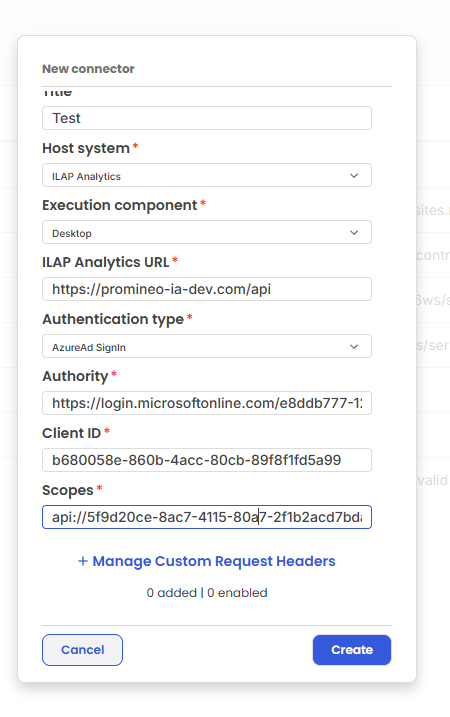
The values to be put here are
- Authority: ‘https://login.microsoftonline.com/[YourTenantId]/v2.0’
- ClientId: Client Id of the analytics ui app registration
- Scopes: [Application Id URI of the analytics API app registration]/user_impersonation User.Read offline_access
A sample configuration could look like below Note that copying the example without changing it won't work
- Authority: "https://login.microsoftonline.com/e8ddb777-121f-4abc-a113-6b91d4b5dafc/v2.0",
- Scopes: "api://5f9d20ce-8ac7-4115-80a7-2f1baacd7bda/user_impersonation User.Read offline_access",
- ClientId: "b680058e-860b-4acc-80cb-89f8a1fd5a99"
If you don’t have access to your organization’s IT infrastructure, ask your it team(preferrably the person who setup Analytics in your organization) the following questions
- What is your organization tenant ID
- What is the Client id of the analytics ui app registration
- What is the application ID URI for the analytics api app registration
Service token authentication Connector
Generating the service account token
- Log in to Analytics web ui.
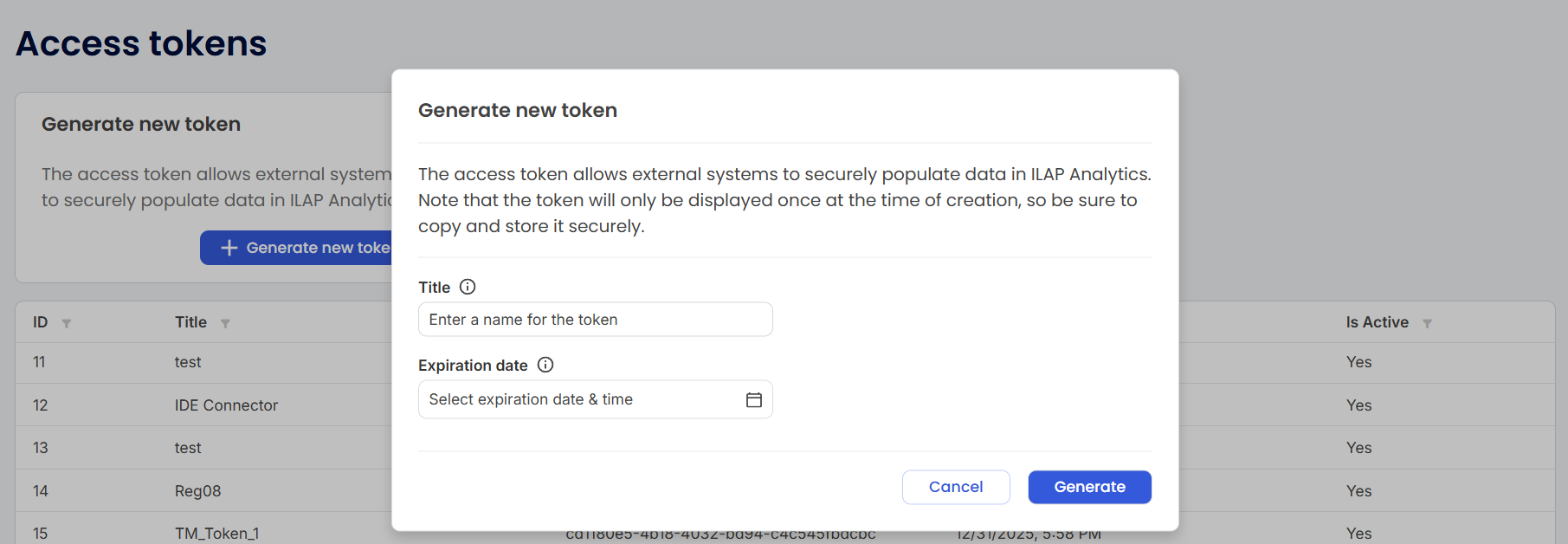
- Go to Admin → Generate new token → put the token name and set the expiry date
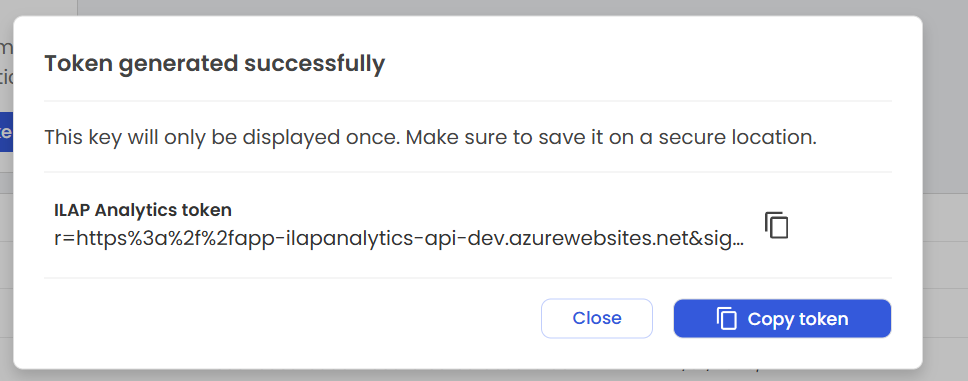
- Copy the generated token
Creating the connector
- Go to IDE web
- Make sure the user has tenant setup role assigned
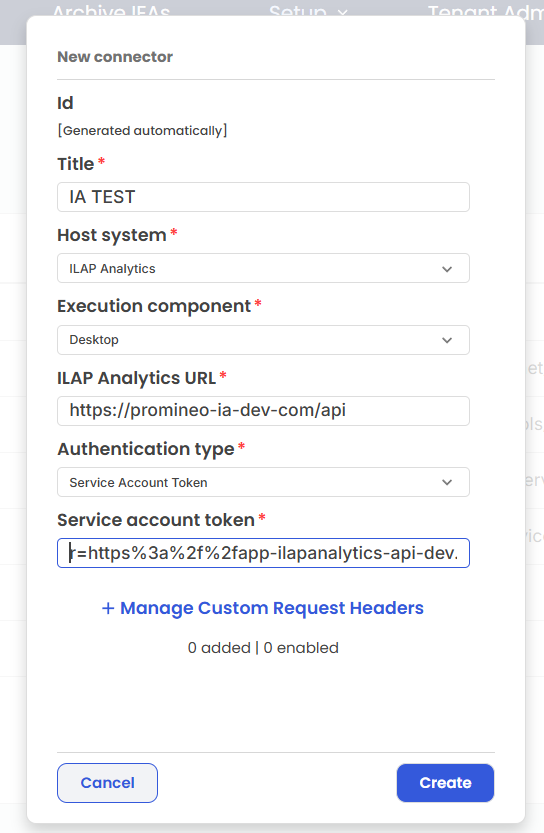
- Go to connector → new connector select Analytics from dropdown. Select “Service Account Token” as authentication type. and put the service token generated previous section as service account token.
Testing connector
- log in to IDE desktop client.
- Navigate to the connector page.
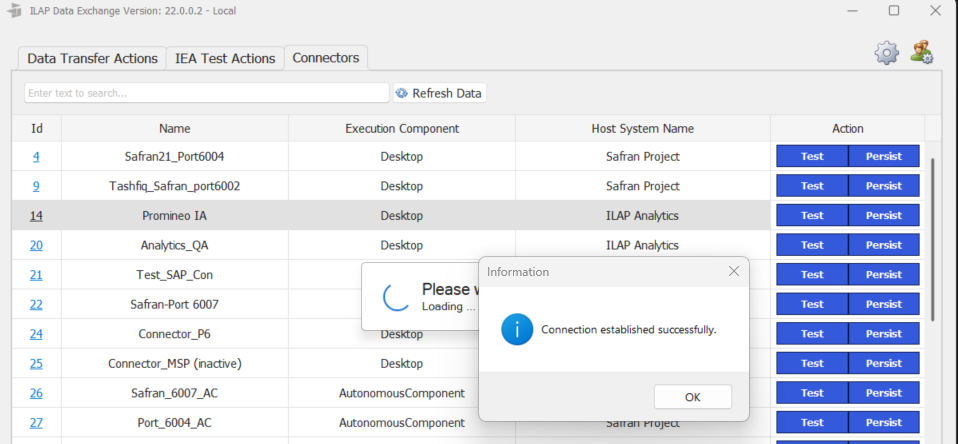
- Click Test on the connector that you just created. In case of Azure AD authentication, a desktop browser might open wher you have to put your Azure AD credentials.
- In case of successful setup, the test will be successful and a success message will be shown like the picture below.
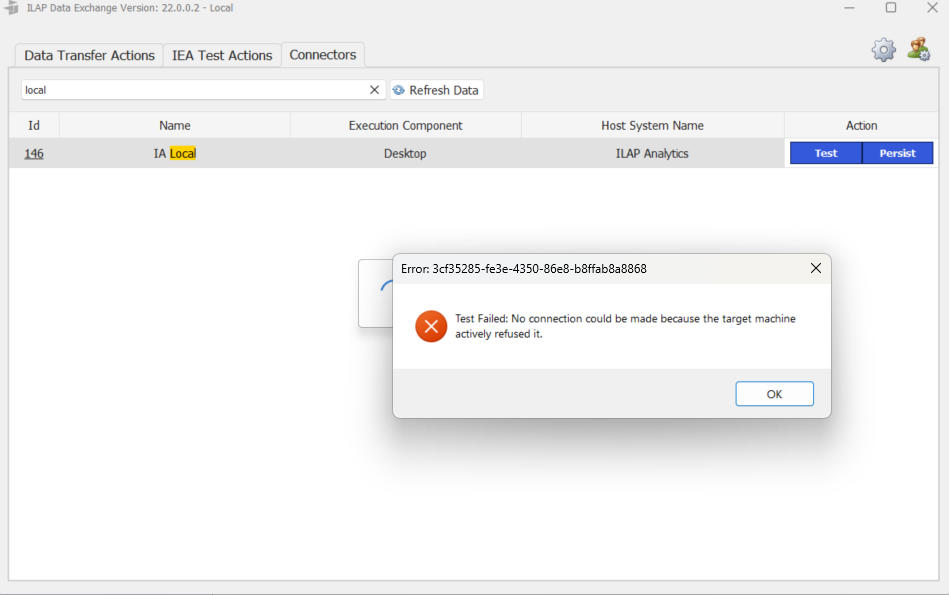
Probable reasons for failed test
- The desktop application user might not have network access to the Analytics API.
- The analaytics api might not be up and running
- The connector was not properly configured with proper Azure ad configs.
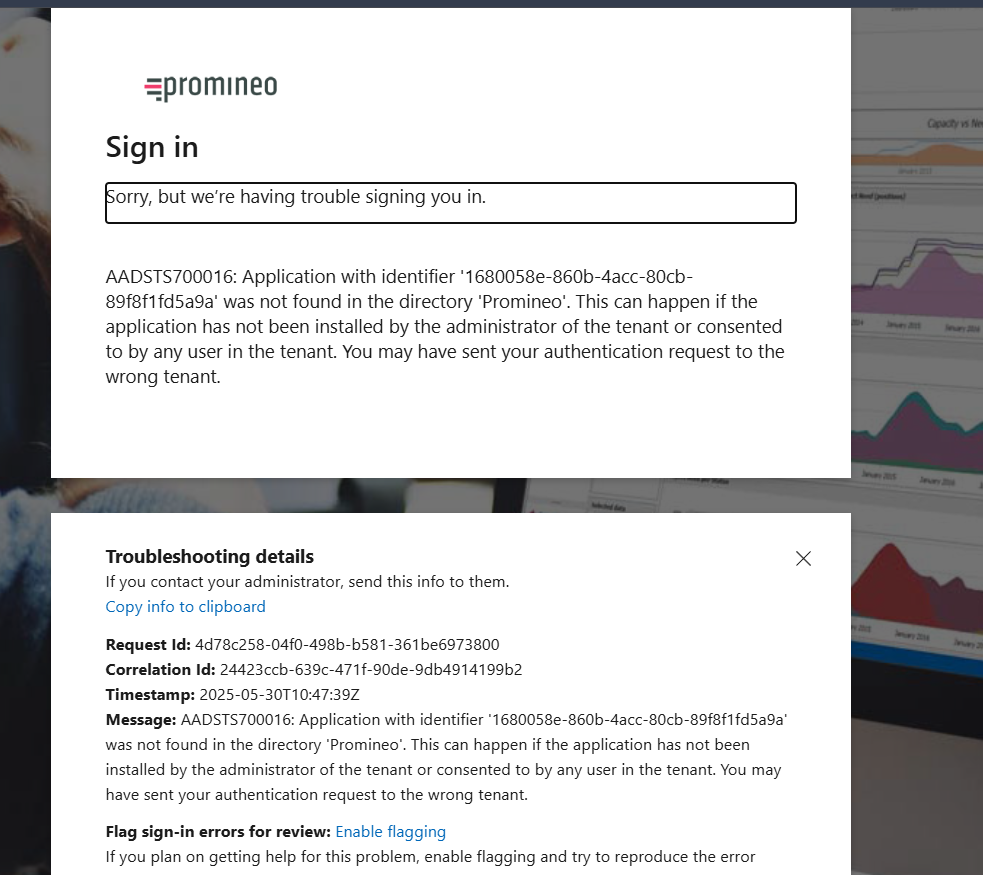
- The user might not have sufficient permission to access this app.
Was this article helpful?
That’s Great!
Thank you for your feedback
Sorry! We couldn't be helpful
Thank you for your feedback
Feedback sent
We appreciate your effort and will try to fix the article