Fields are the data points in the schedules that you can track over time. To use them in schedule types, and therefore in your report schedules, they need to be created. In this article, administrators can read how to do this. For more information about fields, read this article.
You can create a new field by either importing from ILAP Data Exchange or creating from scratch.
Importing fields from ILAP Data Exchange lets you quickly add predefined fields to your system without manually creating them. When no pre-existing fields meet your needs, you can create custom fields from scratch to capture specific data.
How to Import Fields from ILAP Data Exchange
Click "Import Fields"
On the Fields page, click Import Fields.

Select Desired Fields
In the modal that appears, select the fields you wish to import from ILAP Data Exchange. Only fields without an existing field code or ILAP ID are selectable. Use the Filter icon to filter columns as needed.

Import and Confirm
Click Import in the bottom right and confirm the action.
How to Create Fields from Scratch
Click "New"
On the Fields page, click New.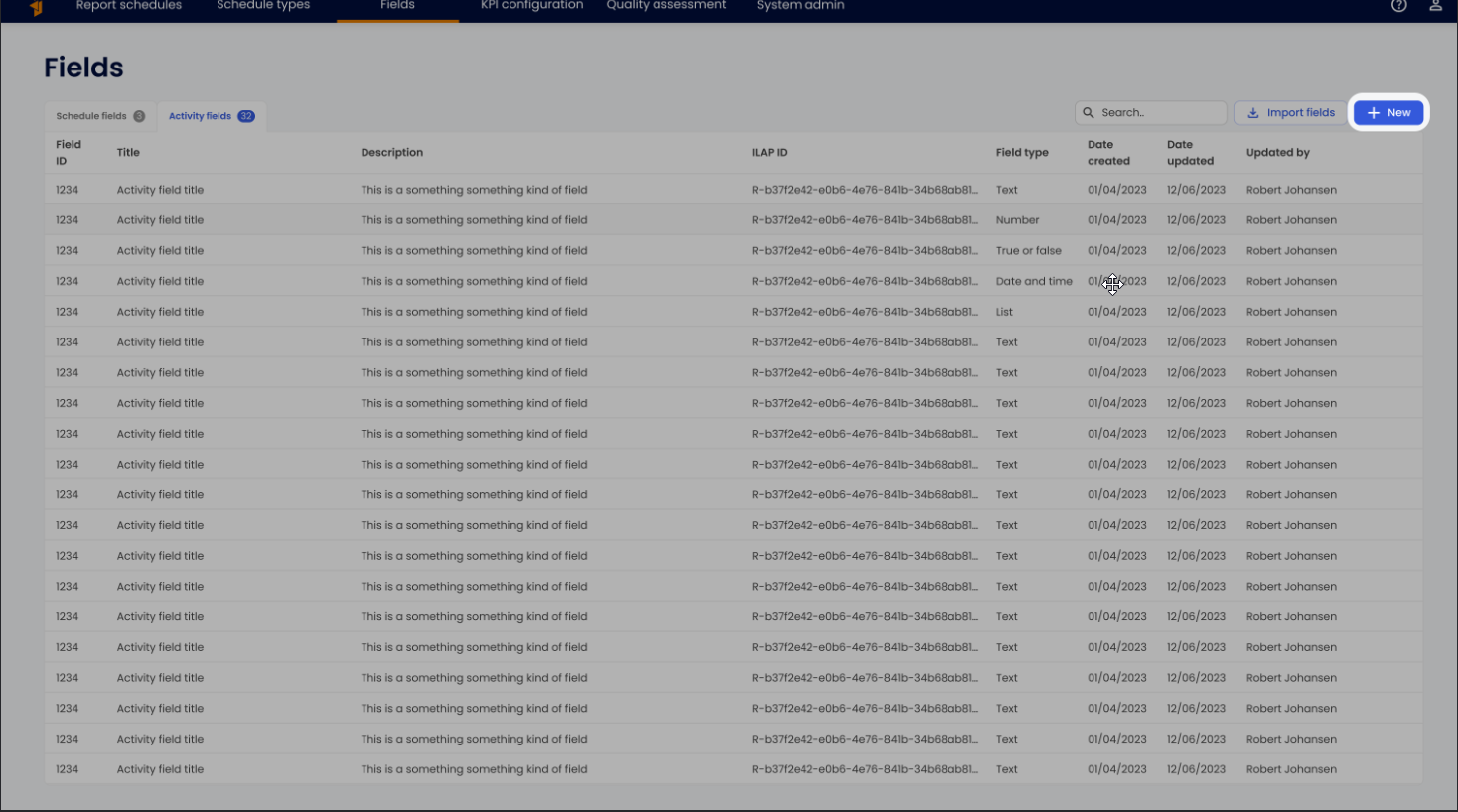
\
Enter Field Information
Provide a title, specify whether it is used by a schedule or an activity, define an ILAP ID, select a field type, and optionally add a description. The latter will help guide users when creating a report schedule or schedule type.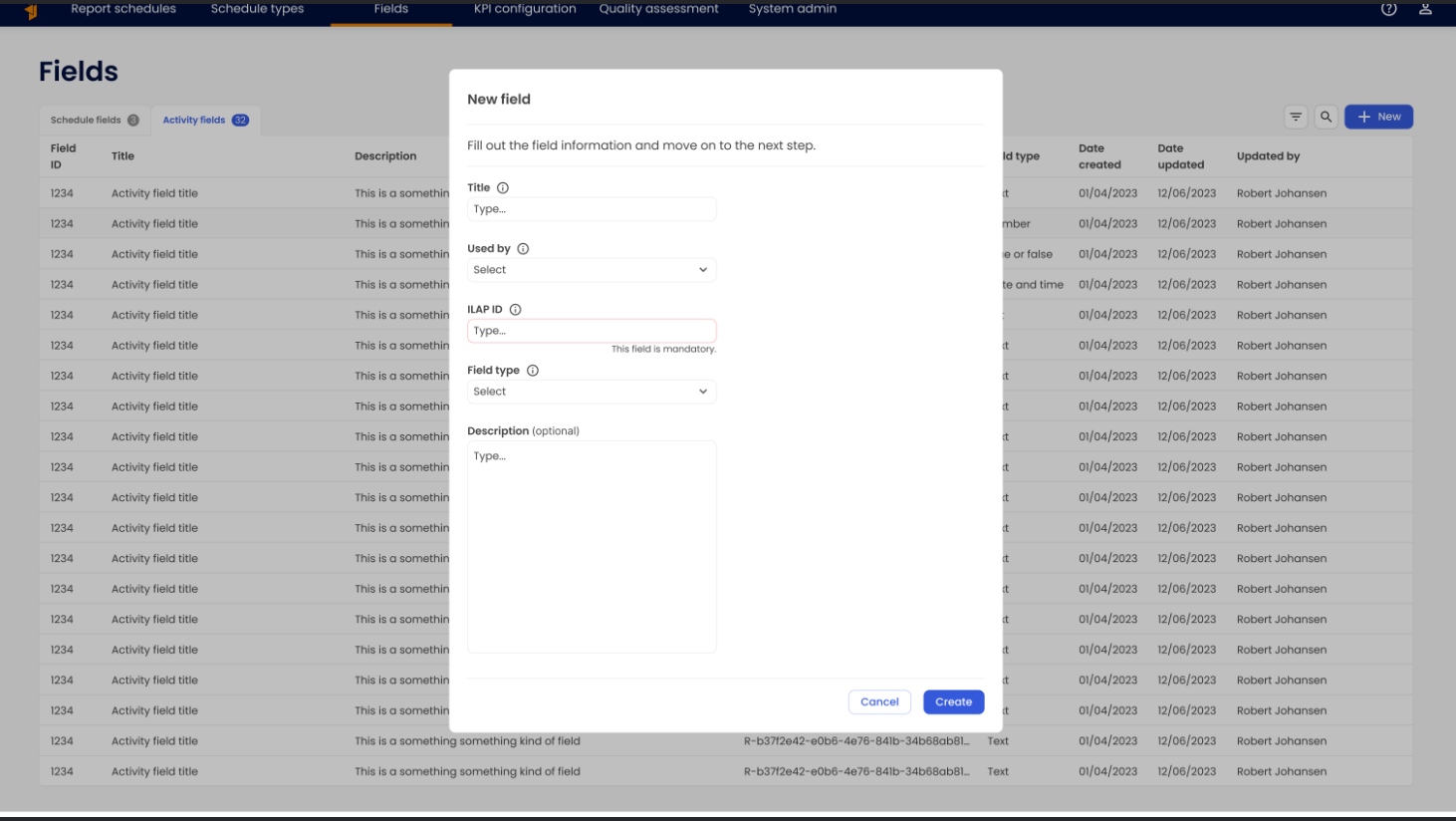
\
Create
Click Create in the bottom right to finalize. The new field will now be available for use in creating report schedules.
If the field type is List, click Next Step in the bottom right to proceed with adding values.
\
Add values (NB! only for “list” type fields)
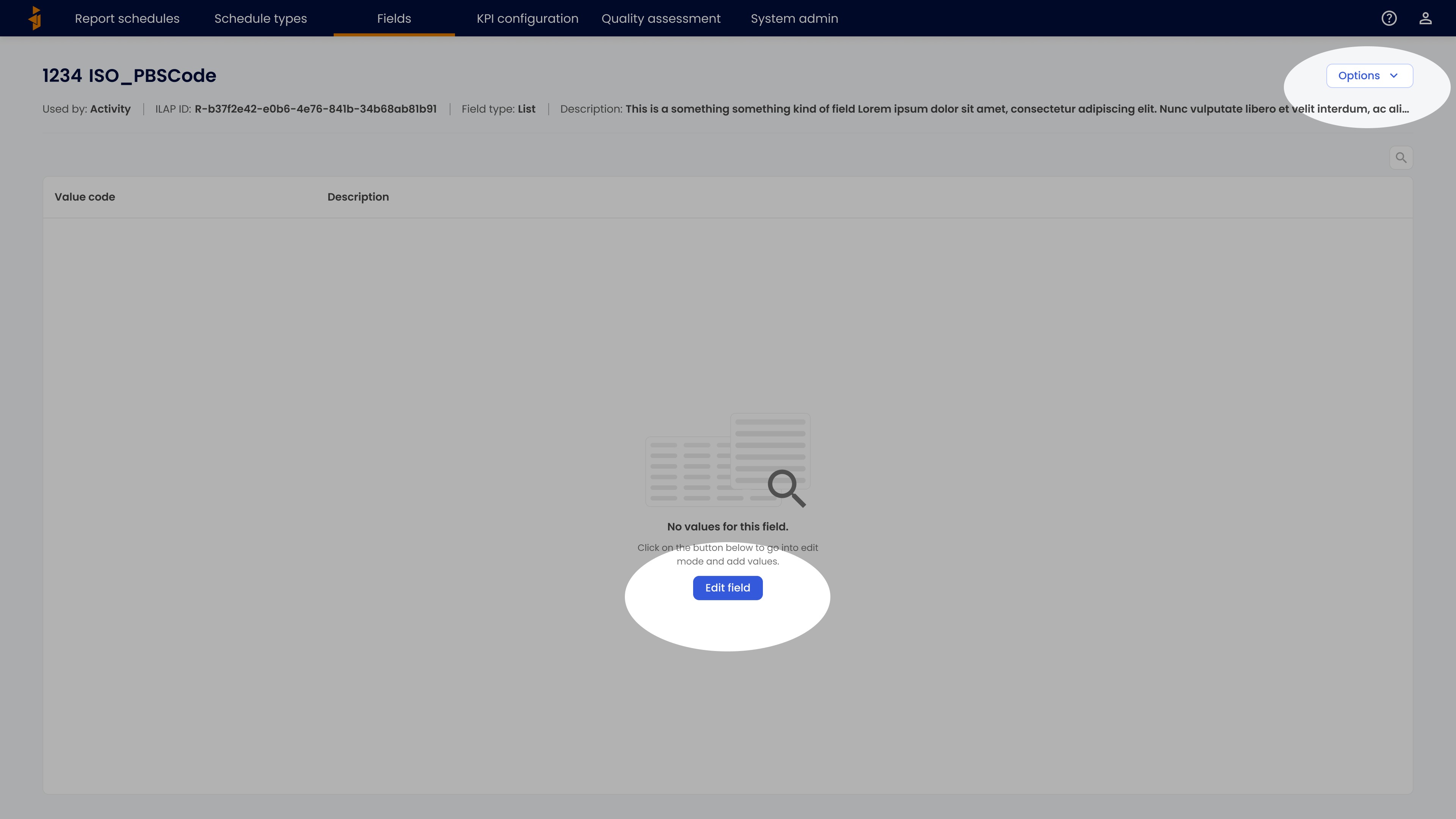
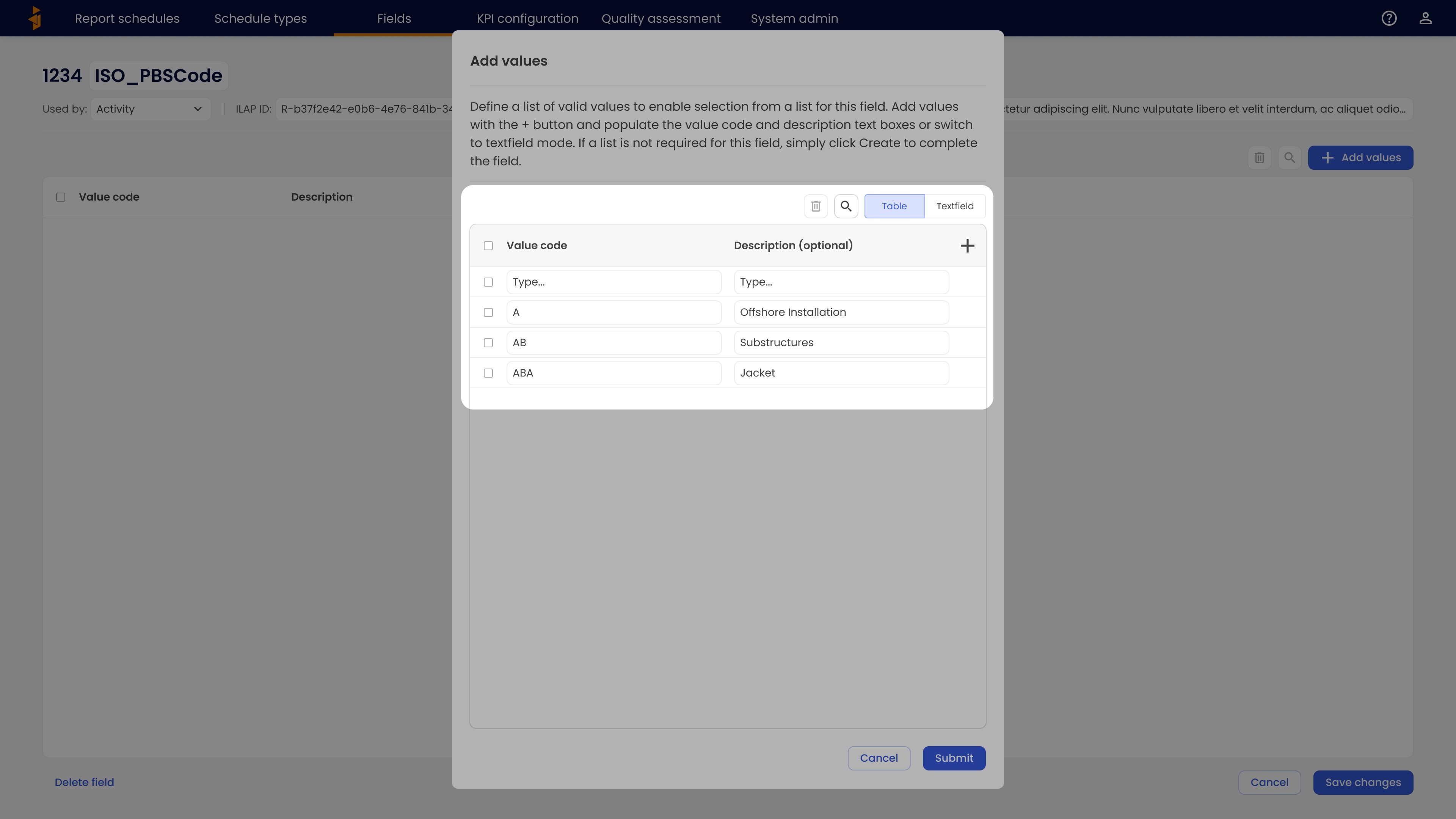
If the field that you have created is of Field type “List”, you need to define a list of valid values.
\- From the field that you want to add values to, go into edit mode by Clicking “Edit field” in the middle of the (empty) table or find the “Edit mode” option in the options dropdown in the top right.
\
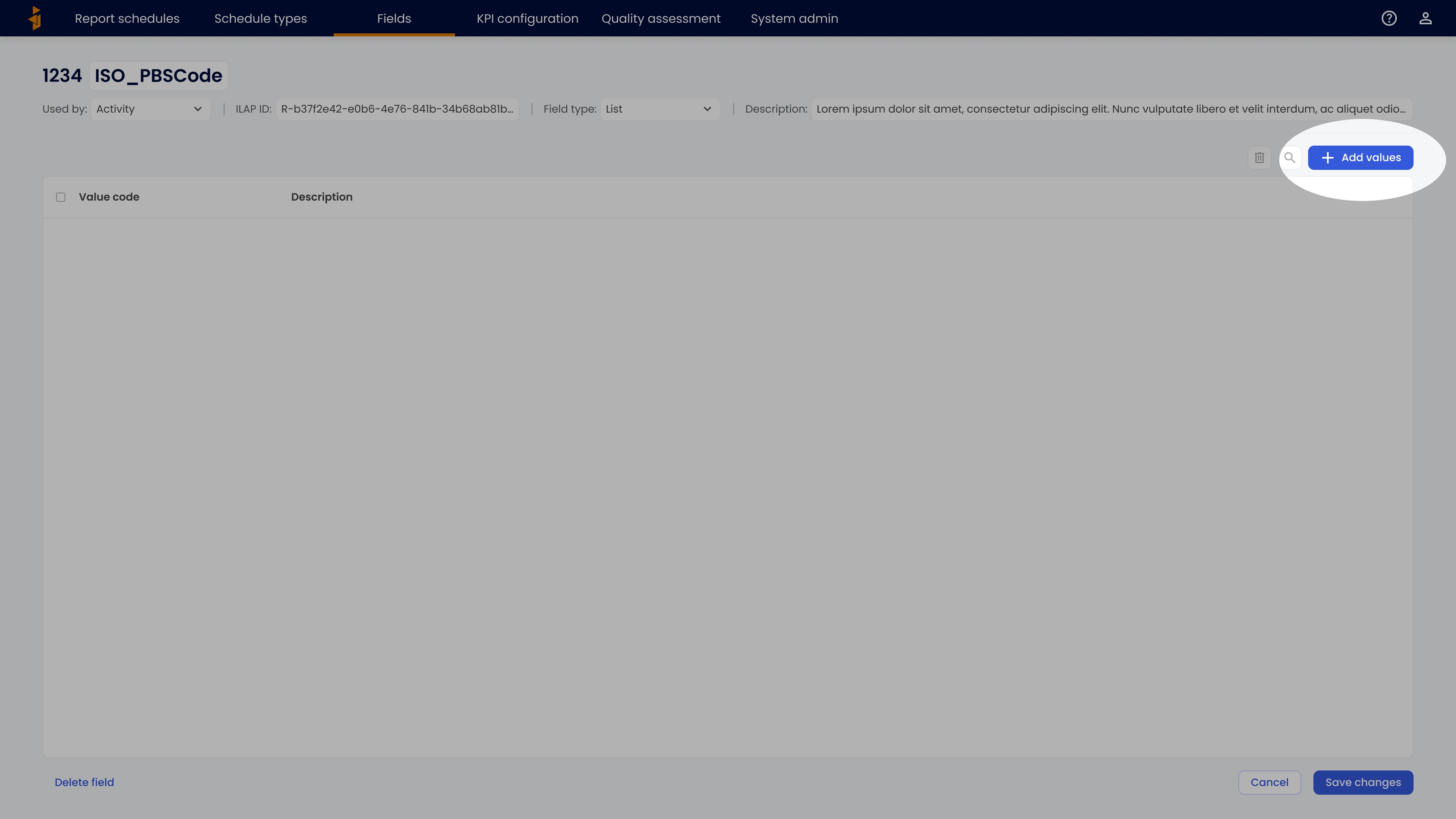
- In edit mode, click “Add values”.
\
- In the modal, add values by pressing the Add icon (+) in the top right corner of the table header. For each new value, define the Value Code and, optionally, a description. To remove any values, select them using the checkbox and press the Delete icon in the top right corner of the table. You can also add and remove values in through free text by toggling to “Textfield”.
\
- Once all desired values are added, click Create in the bottom right of the modal. The new field will now be available for use in creating report schedules.
Was this article helpful?
That’s Great!
Thank you for your feedback
Sorry! We couldn't be helpful
Thank you for your feedback
Feedback sent
We appreciate your effort and will try to fix the article