Schedule types may need adjustments over time as, for example, new data fields become relevant or old ones become obsolete. This article shows administrators how to enter edit mode to update general information, add or remove schedule and activity fields, and manage any associated data.
The editable general information include:
*Title*
*Schedule level*
Timephasing Scope(s)
Description
Adding or removing schedule fields
Adding or removing activity fields
Do you want to read more about what schedule types are? Read this article: Schedule Types
How to Edit a Schedule Type
Click "Options"
On the schedule type page, click Options in the top right corner to open the dropdown menu.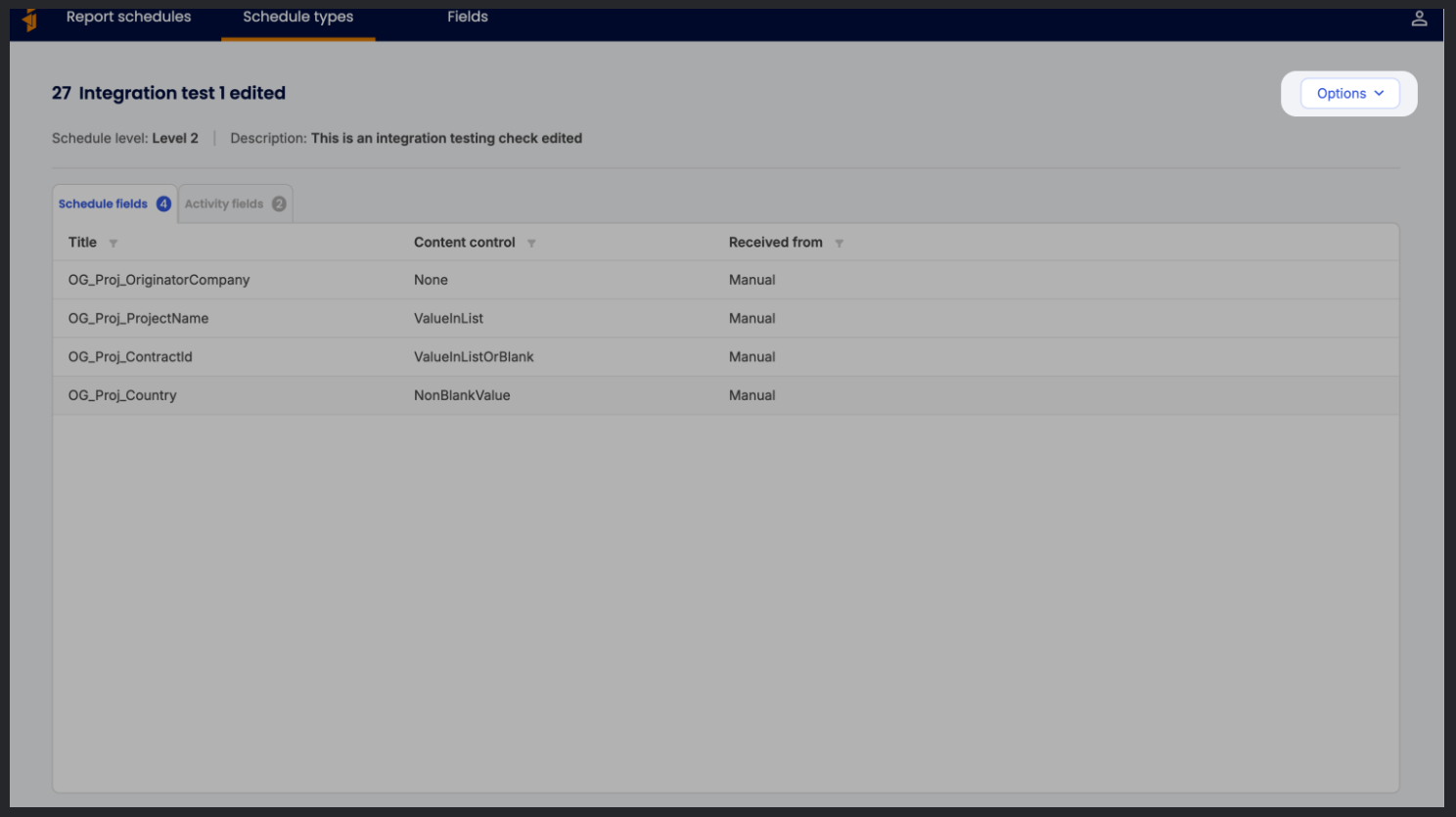
\Select "Edit"
In the dropdown menu, select Edit to enter edit mode.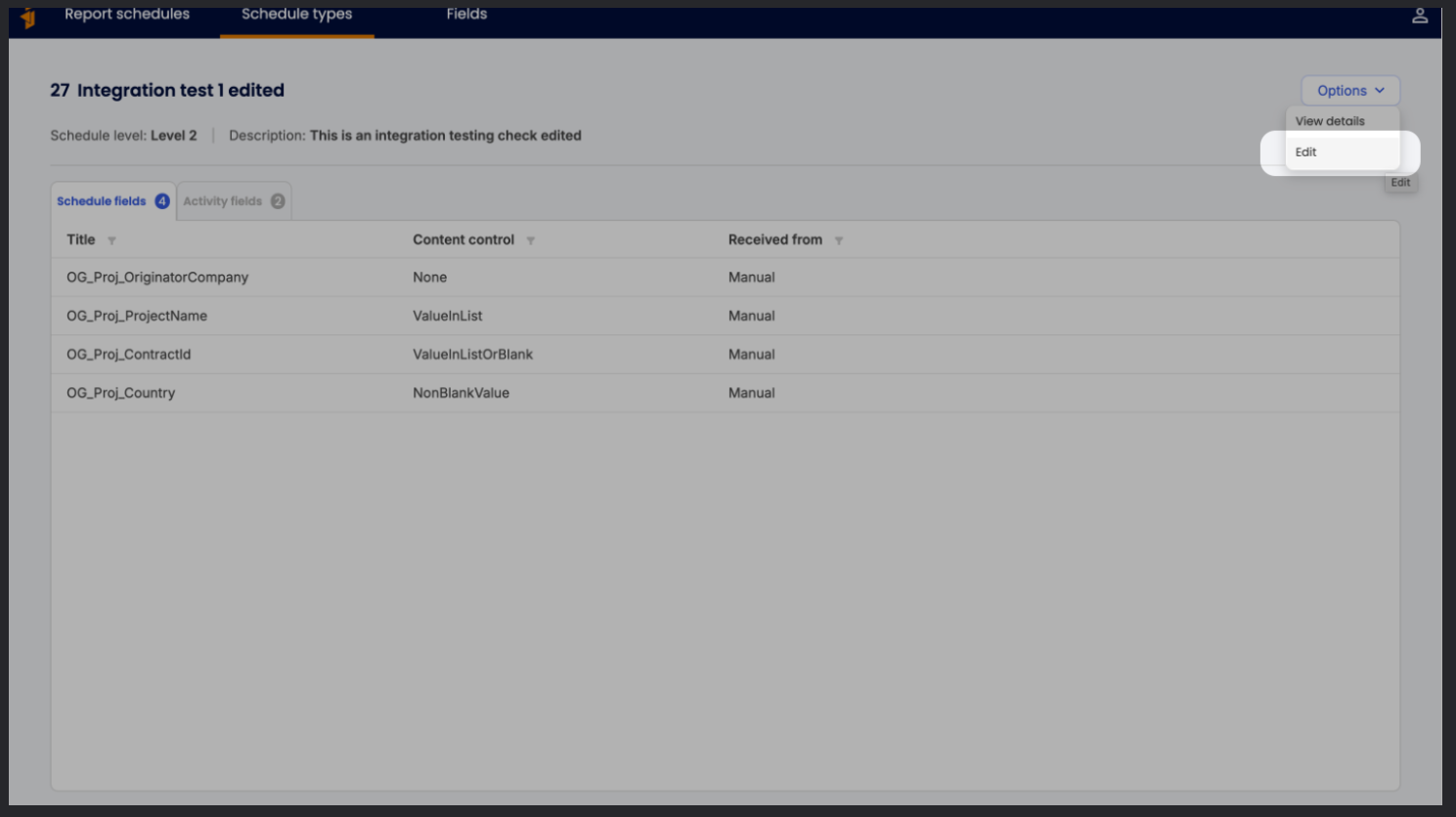
\Edit Fields as Needed
Update any fields with the desired information:Schedule Fields: You can edit each Content control and its Received from source. To delete fields, select the checkbox next to each field and click the Delete icon in the top right. To add new fields, click Add schedule ILAP terms at the top right of the table. More about this in the section “Adding or Removing Fields” below.
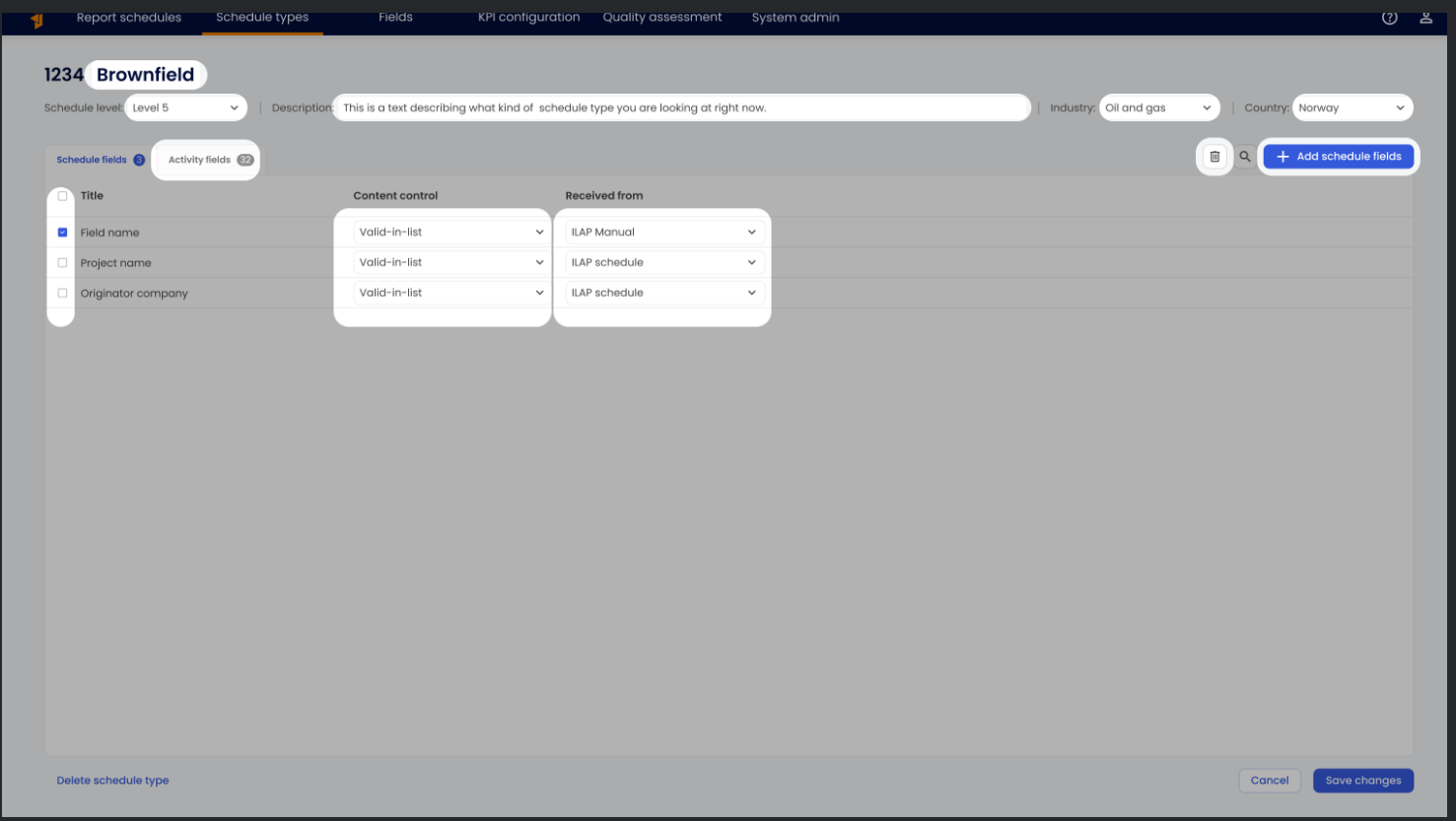
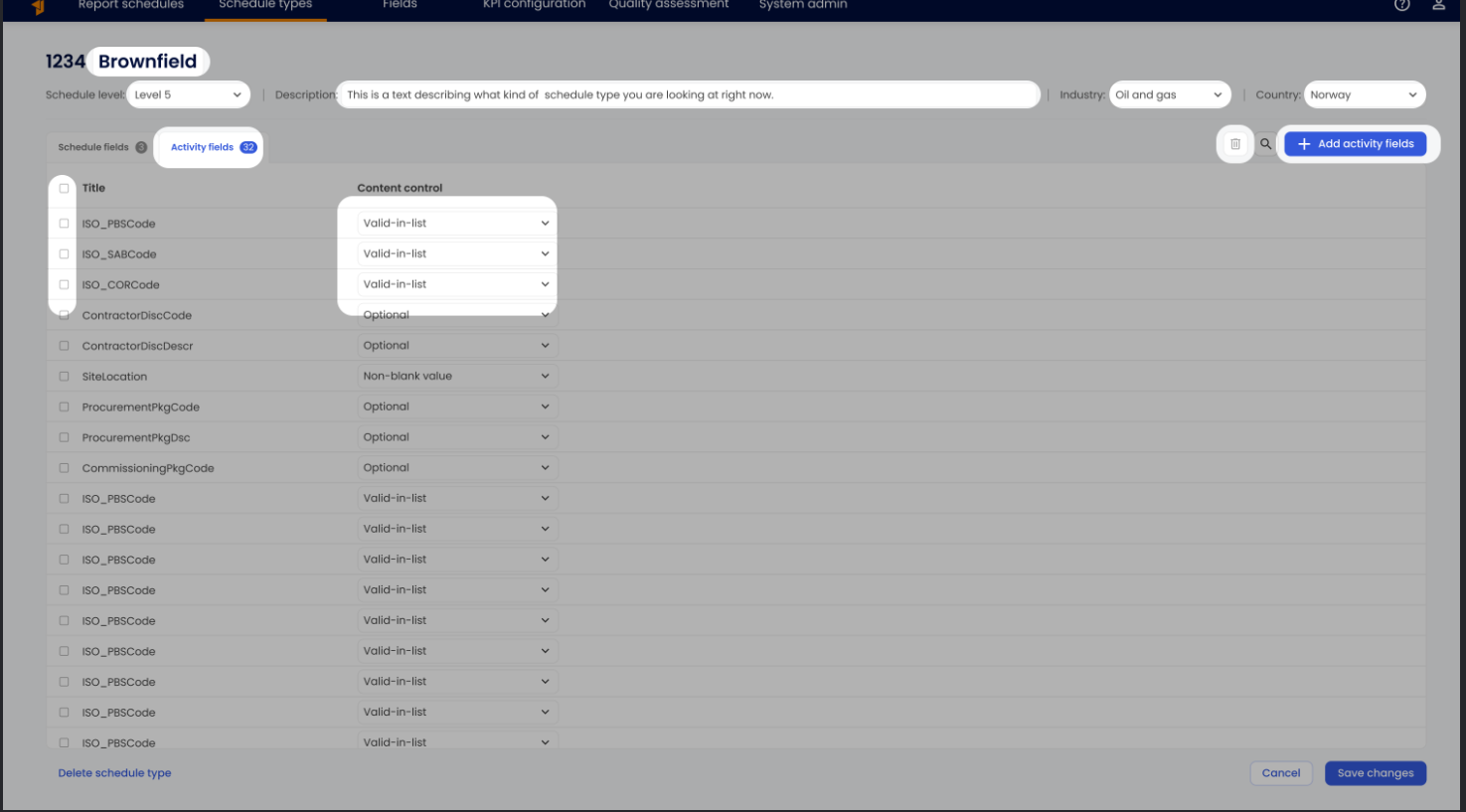
\Activity Fields: Go to the Activity ILAP terms tab to edit content controls, delete fields, or add new ones. To remove activity fields, select the checkbox next to each field and click the Delete icon. To add new fields, click Add activity ILAP terms at the top right (same placement as Add schedule ILAP terms). More about this in the section “Adding or Removing Fields” below.
\
Save Changes and Confirm
After editing, click Save Changes to apply your updates. Note that you cannot save if any required fields are empty.
Adding or Removing Fields
For both schedule fields and activity fields:
Remove: Select the fields you want to remove by checking the boxes next to each, then click the Delete icon.
Add: Click Add schedule ILAP terms or Add activity ILAP terms to open a selection modal. In this modal:
Add fields by selecting them in the left table and clicking Add.
Remove fields by selecting them in the right table and clicking Remove.
Set the desired content control for each added field, then click Submit to return to edit mode with your changes.
Note: If you exit edit mode without clicking Save Changes, any changes made in the modal will also be canceled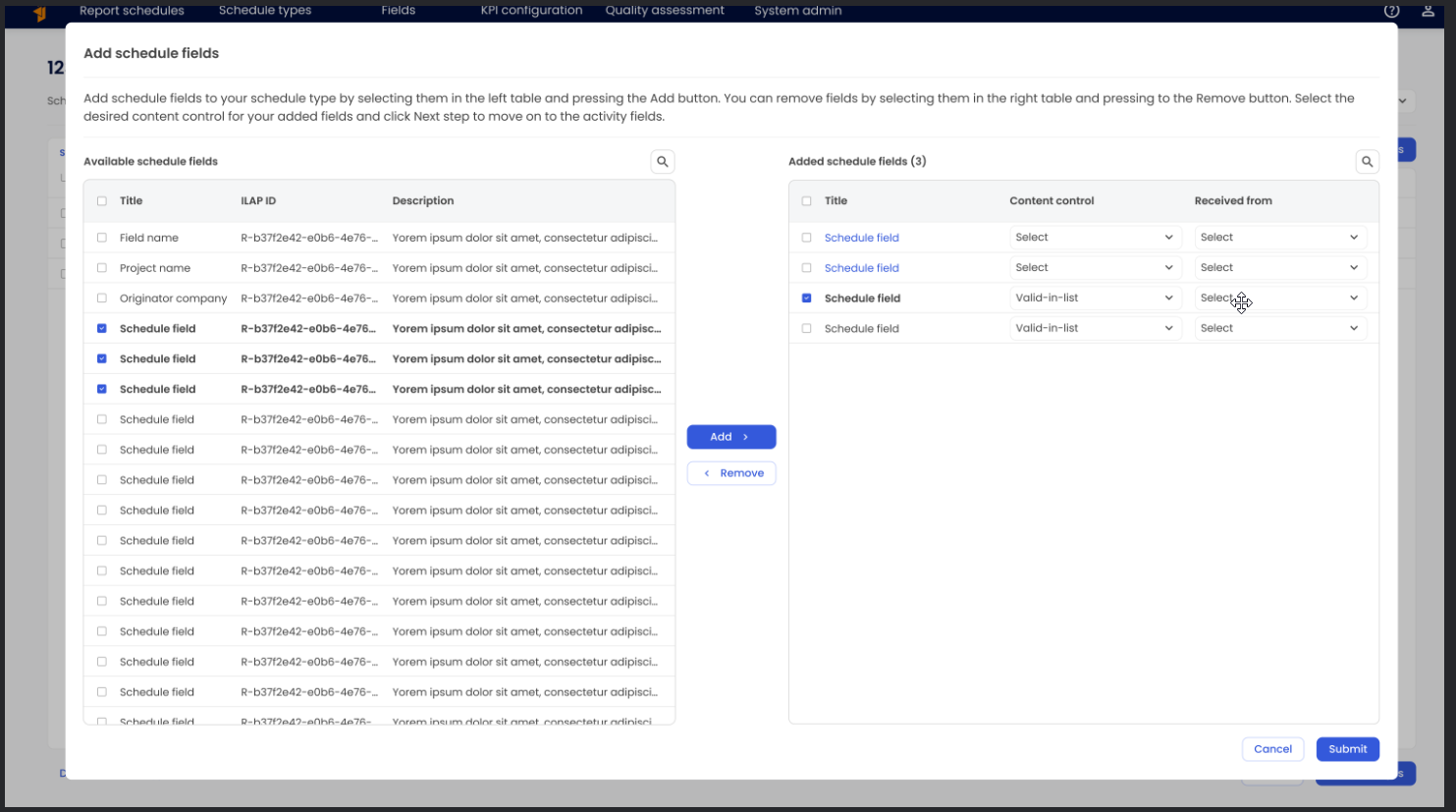
Was this article helpful?
That’s Great!
Thank you for your feedback
Sorry! We couldn't be helpful
Thank you for your feedback
Feedback sent
We appreciate your effort and will try to fix the article