Table of contents
Introduction
This article will detail how you can connect Power BI to your ILAP Analytics Solution. Power BI is a
business intelligence tool that allows you to visualize data to find data driven insight into your business.
Connecting Power BI to ILAP Analytics Solution
As ILAP Analytics does not come with setup integrations to your companies data lake (or other similar solutions), there are two ways of connecting Power BI to the ILAP Analytics Solution such that it has live data:
Direct connection to your database
Through the GraphQL Endpoints
Connecting using your database
Using Power BI connected to your analytics database can be done. To set this up you will need your database server URL (and port) and database name (optional).
To add the database to your Power BI report, do the following:
Open the SQL Server Data source
Filling out your database information when asked
This is all you need to setup Power BI to use your analytics database.
Connecting through GraphQL Endpoints
Using Power BI with GraphQL as your main data source takes a little setting up to be able to work. There are three main steps: 1) Setting up your query functions and parameters, 2) setting up your queries, and 3) running the queries.
Step 1: Setting up query function and parameters
you need to setup your API URL, a token for the request to use (the token can be obtained through different means, but this example uses a static token), and the query function that will be used later.
Open a Power BI report and open the Power Query Editor
Create a new group called API
Create a query called
apiTokencontaining a token to the API or a method to get the token, and a query calledapiUrlcontaining the URL to the API (the URL should be without the GraphQL path)Create a new empty query called
queryGraphQLthat contains this code
= (query) => (
        let
            /* Provide URL, route and headers service */
            url = apiUrl & "graphql",
            headers = [
                #"Content-Type" = "application/json",
                #"Authorization" = "bearer " & apiToken
            ],

            /* Format graph QL query to proper format before caling service */
            graphQL = "{""query"": """ & Text.Replace(Text.Replace(Text.Replace(query,"#(lf)","\n "),"#(cr)",""),"""","\""") & """}",

            /* Call web-service and capture JSON document */
            result = Json.Document(Web.Contents(url, [Headers=headers,Content = Text.ToBinary(graphQL)])),
            data = result[data]
        in
            data
    )
Step 2: Setting up queries
After setting up your query function, you can start setting up your queries.
Create a new group called Queries
Create a new empty query
Get your GraphQL query and change all new line characters (
\n) with#(lf), carriage return characters (\r) with#(cr).Paste the modified query in the empty query
Here is an example of what the modified query should look like in your Power Query Editor:
="query{#(lf) reportSchedules{#(lf) ReportScheduleId : id#(lf) ReportScheduleTypeId : reportScheduleTypeId#(lf) ReportScheduleDescr : description#(lf) PointsInTimeType : pointsInTimeType#(lf) ActivitiesCount : activitiesCount#(lf) CutoffDate : cutoffDate#(lf) start#(lf) startBaseline#(lf) finish#(lf) finishBaseline#(lf) totalWorkHours#(lf) totalWorkHoursBaseline#(lf) ScheduleTypeId: reportScheduleTypeId#(lf) ScheduleTypeDescr: reportScheduleTypeId#(lf) ScheduleId : id#(lf) }#(lf)}"Step 3: Running the queries
The last part left is to run the queries and this will be done by using the queryGraphQL function we created with the GraphQL queries defined. The example under is using the query defined in step 2 for the whole process. To use it with other queries, follow the same process.
Create a new group called Views
Create a new empty query
Call your GraphQL query using the GraphQL function like this
= queryGraphQL(query)Either click on the resulting List object and Navigate, or insert a step after containing this code
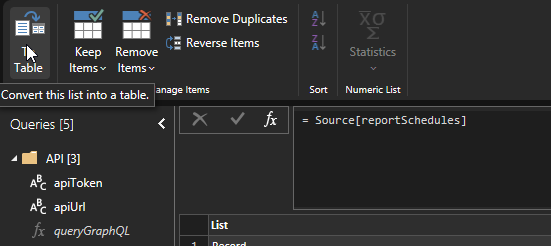
= Source[reportSchedules]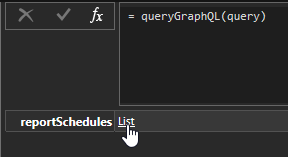
Transform this list into a table with None as the delimiter and handling extra columns as Errors
Expand the columns
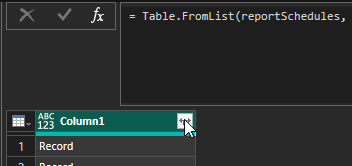
You now have all the columns you got in the query expanded into your table
Was this article helpful?
That’s Great!
Thank you for your feedback
Sorry! We couldn't be helpful
Thank you for your feedback
Feedback sent
We appreciate your effort and will try to fix the article