After you create report schedules, it is important to monitor the imports into them — to see what is processing, spot failures, and retry any background job that failed. This page explains the import-status indicators and how to view, retry, and terminate imports. It is written for planners and schedulers who keep report schedules up to date. Find a specific schedule from the Report Schedules tab using the Search bar. For what report schedules are, see Report Schedules.
Import status
Each report schedule shows its import status as a coloured dot in the left-most column, based on the latest import(s) for the live or baseline revision. Hovering the dot shows the last import result for each revision type.
| Status indicator | Meaning |
|---|---|
| – (grey / none) | No imports yet |
| ⬤ Red | Import failed |
| ⬤ Orange | Import was terminated by a user |
| ⬤ Green | Imports successful |
A Processing tag appears next to the title while an import is running.
Viewing imports in progress
While a schedule is importing, click the Processing tag next to its title to open the operations dialog. It lists the current import (with its upload timestamp) and the state of each background job — completed, running, or queued — plus any imports waiting in the queue.
Unsuccessful imports and retrying failed jobs
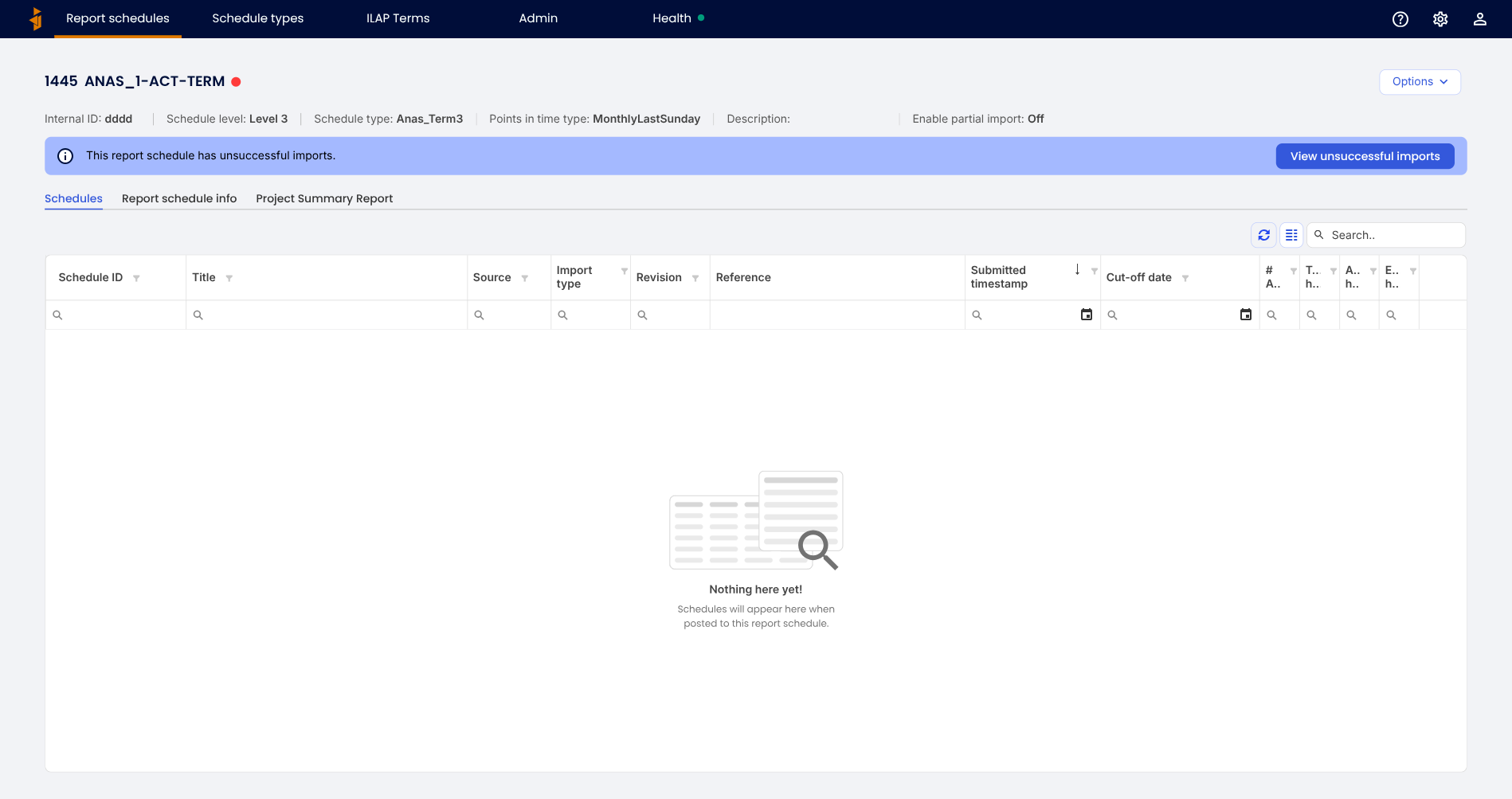
An import runs as a batch of background jobs (create activities, update data, generate report activities and metadata, periodize, and so on). If any job fails, the schedule shows a "This report schedule has unsuccessful imports" banner with a View unsuccessful imports button.
Clicking it opens the Unsuccessful imports dialog, which lists the failed jobs — each with the time it failed and a Retry button.
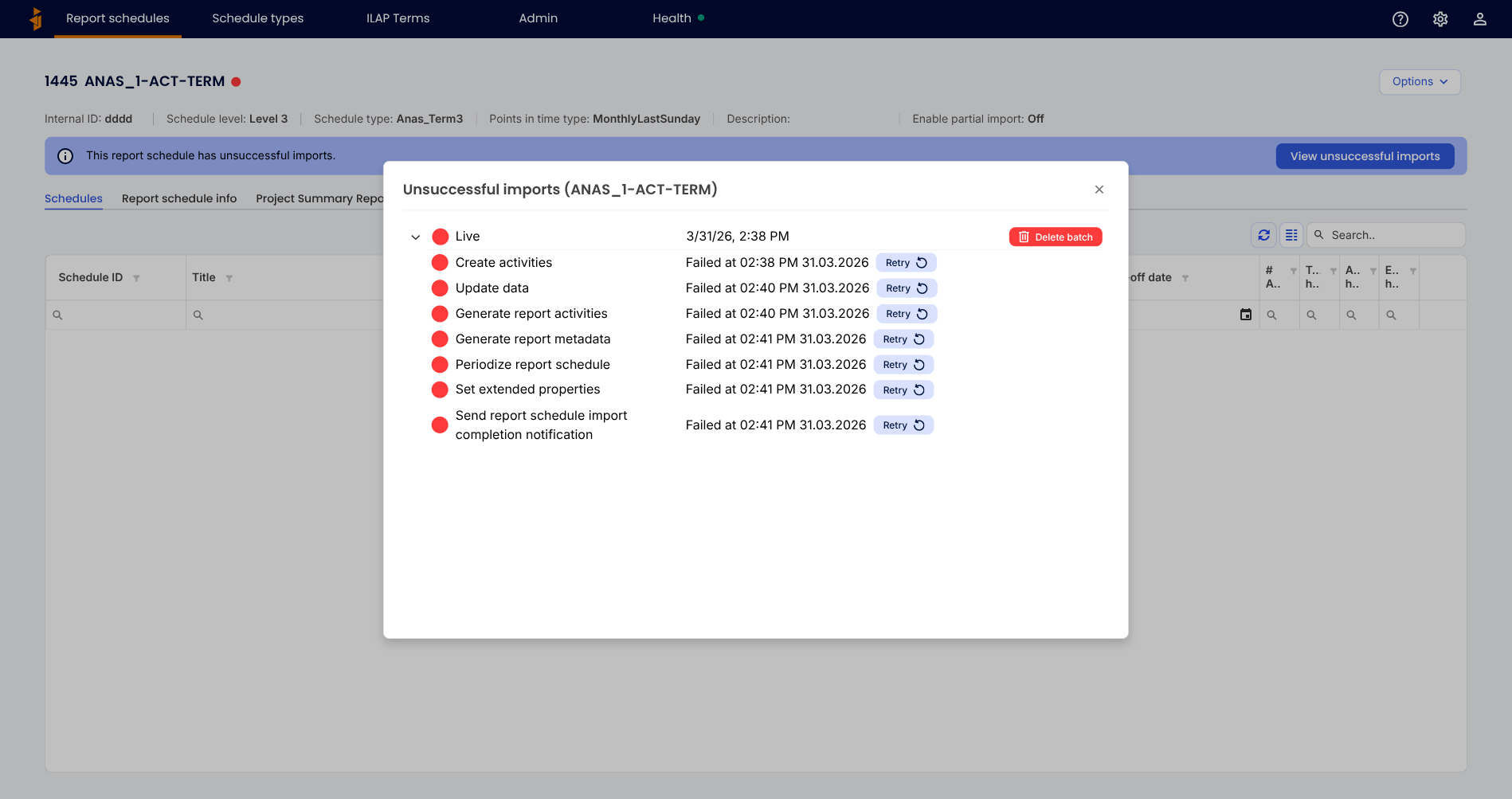
- Retry re-runs that single job, so processing continues from where it stopped — you don't have to resubmit the whole schedule. Jobs run in order, so retry the earliest failed job first. Retry is available to users with the Writer or Administrator role.
- Delete batch discards the failed batch of operations if you would rather start over.
If a job keeps failing, check the Health dashboard for an underlying service problem and contact support if it persists.
Terminating an import in progress
To stop the import that is currently processing, open the operations dialog (via the Processing tag), click the blue button in the bottom right, and confirm in the pop-up. If another import is queued, it starts automatically once you confirm.
Was this article helpful?
That’s Great!
Thank you for your feedback
Sorry! We couldn't be helpful
Thank you for your feedback
Feedback sent
We appreciate your effort and will try to fix the article