Deleting Report Schedules is irreversible and not recommended. All data will be lost. If you want to make a Report Schedule inactive, you can also Close a report schedule. In some rare cases, you do want to delete a report schedule. In this article, administrators can read how to do this.
Do you want to read more about what a Report Schedule is? Read this article: Report Schedules
Deleting vs. Closing a Report Schedule
Understanding the difference between deleting and closing a report schedule is crucial for managing your data. Closed schedules retain their data but stop receiving new inputs, while deleted schedules remove all associated data permanently. This section guides you through choosing the right action based on your needs.
Closed: Closing a Report schedule prevents new schedules from being added. The schedule is tagged as Closed but retains all data and can be reopened if necessary.
\Deleted: Deleting a Report schedule permanently removes all associated data, which cannot be recovered. Deletion is often used for test report schedules; for active report schedules, consider closing instead.
How to Delete a Report Schedule
- Click "Options":
On the Report Schedule page, click **Options **in the top right to open the dropdown menu.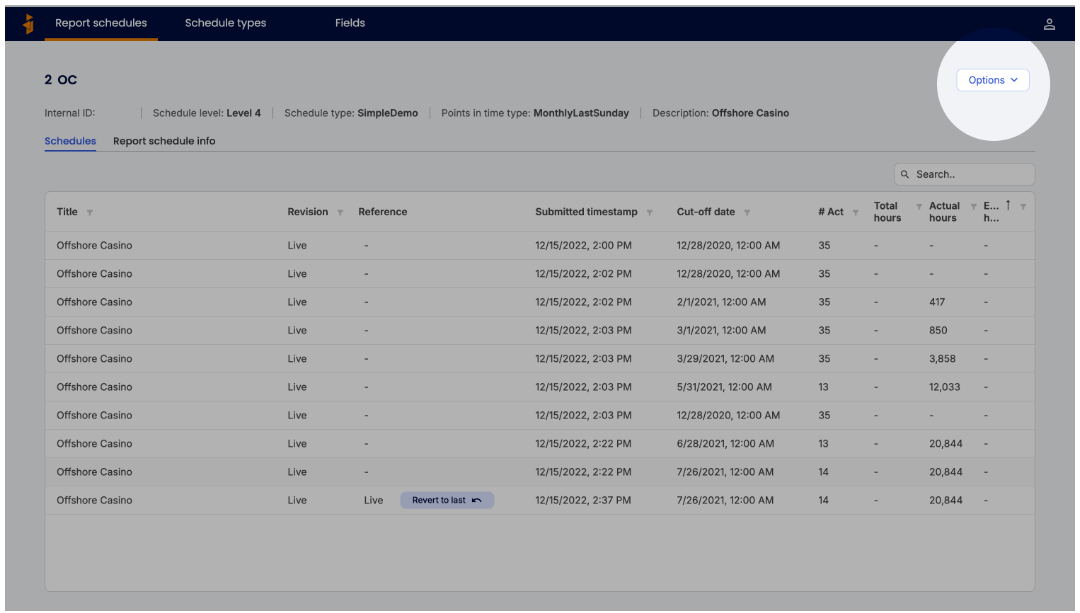
\ - Select "Edit"
In the dropdown menu, select Edit. The report schedule fields will enter edit mode.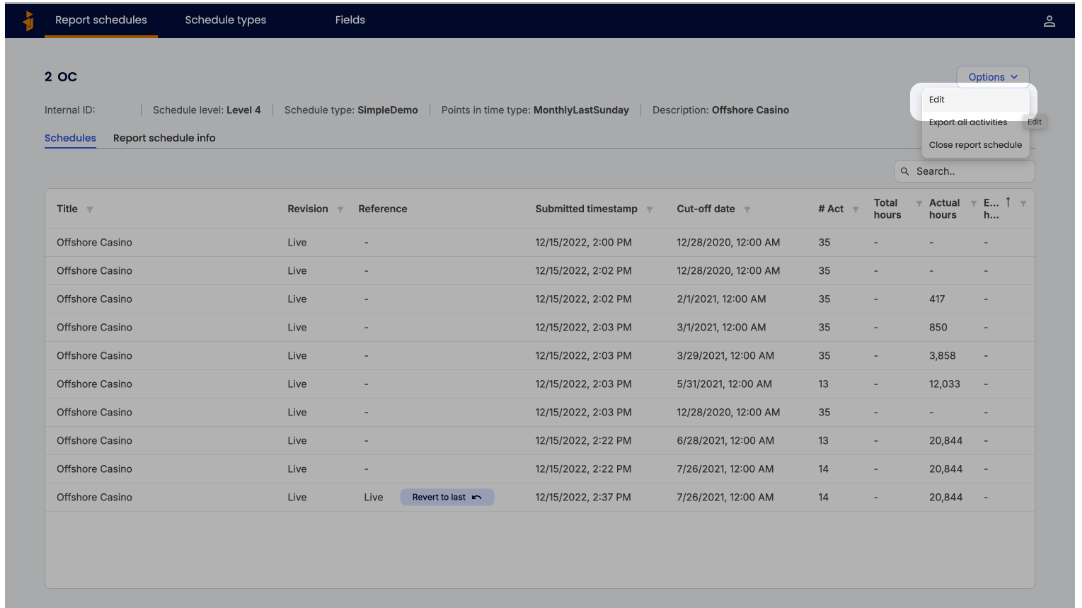
\ - Delete the Schedule
In the edit view, click Delete report schedule at the bottom left. Confirm the action in the pop-up that appears. Be aware that deleting is permanent, and all data associated with the report schedule will be removed.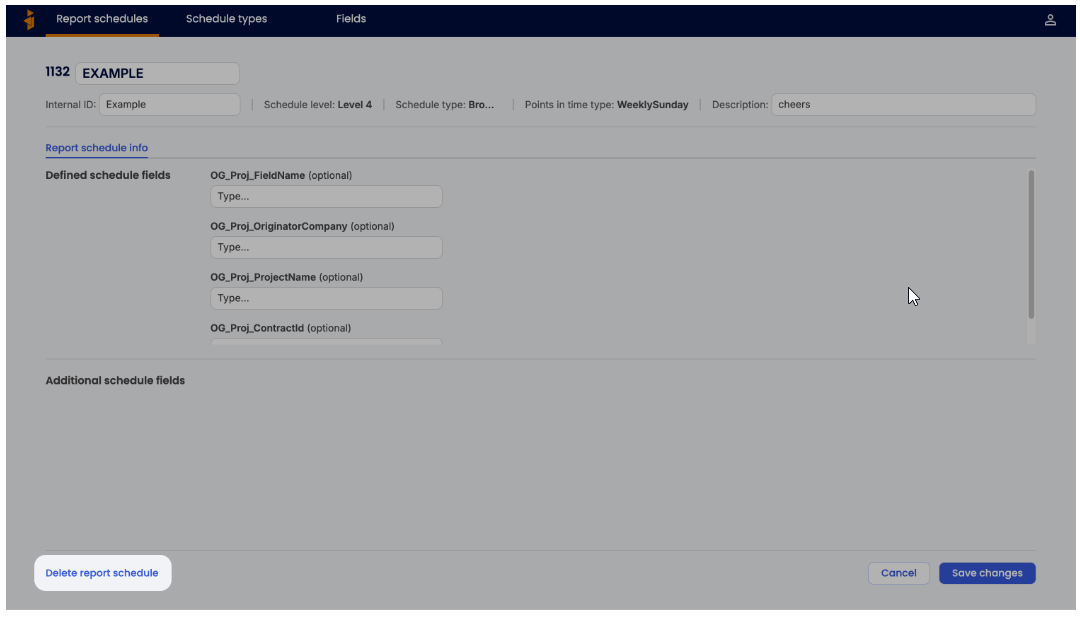
Was this article helpful?
That’s Great!
Thank you for your feedback
Sorry! We couldn't be helpful
Thank you for your feedback
Feedback sent
We appreciate your effort and will try to fix the article